
Affiliate disclosure: this post contains affiliate links (CJ) to Contabo. If you order through them, SiftGuide may earn a commission at no extra cost to you; it does not change your price or terms. Plans, prices and requirements come from Contabo’s official pages, price data and help center, and the install and security steps come from Coolify’s official documentation, all checked on October 26, 2026 (Europe/Bucharest). We have not benchmarked these servers or tested Coolify ourselves. Figures marked “our arithmetic” are our own calculations from those prices.
Coolify is a free, open-source platform for deploying your own apps, databases and services on your own server, an alternative to Heroku, Netlify and Vercel. Contabo now sells “Coolify VPS Hosting”, but its own help center is clear that Coolify is not a 1-click app: you install it yourself with Coolify’s official script. That takes one command. This guide covers which Contabo plan to pick, what it costs in euros, the install, and the step most quick guides rush past: the Coolify sign-up page is open to anyone until you create the admin account.

What Coolify is, and what Contabo gives you
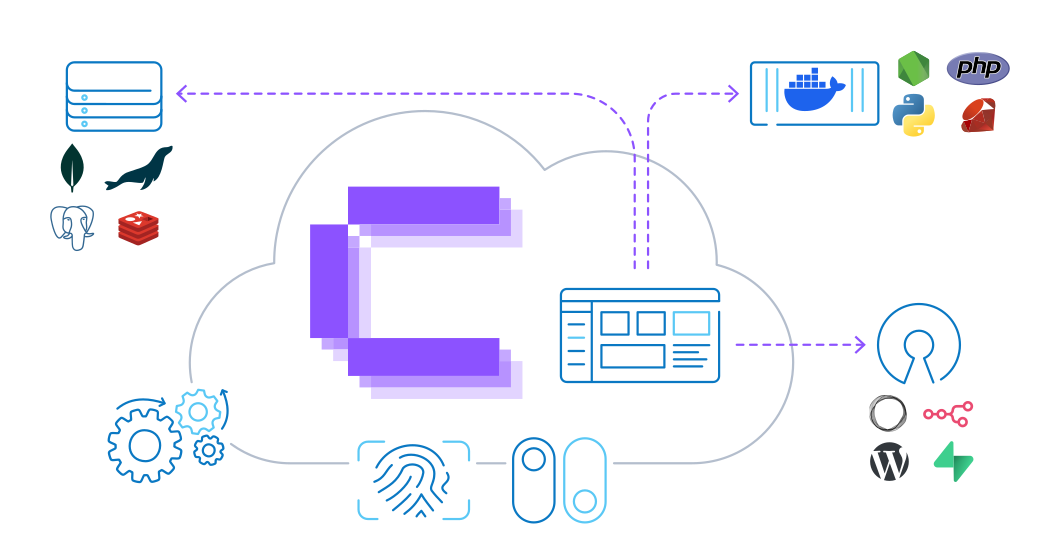
- A self-hosted deploy platform. You connect a Git repository (GitHub, GitLab, Bitbucket or Gitea). Coolify builds the app with Nixpacks (auto-detect) or your Dockerfile or Docker Compose file, runs it in Docker containers and sets up HTTPS for your domain. It also starts databases such as PostgreSQL, MySQL, MariaDB, MongoDB and Redis, and offers one-click service templates (Contabo lists n8n, Supabase, Ghost, WordPress, Uptime Kuma, MinIO, Grafana and Plausible Analytics as examples).
- Free software. Coolify is released under the Apache 2.0 licence. Its pricing page lists self-hosting as “Free forever”. You pay only for the server.
- Contabo sells the server, not Coolify. Contabo supports the VPS itself (hardware, network). Its Coolify page says: “Once you have Coolify up and running, configuring, maintaining, and troubleshooting the application itself is your responsibility.”
Which Contabo plan for Coolify?
Contabo’s Coolify page shows four Cloud VPS plans. Prices are in euros, as Contabo’s price data lists them before VAT. The monthly-term price is what you pay on a 1-month contract. The 24-month rate is the effective monthly price Contabo shows “for the first 24 months” of a 24-month subscription.
Plan: Cloud VPS 4
- Resources: 4 vCPU, 8 GB RAM, 100 GB SSD
- Port speed: 200 Mbit/s
- Monthly term: €5.50/mo
- 24-month rate: €4.40/mo
- Contabo’s label: First App
- Contabo suggests it for: personal projects and hobby sites
Plan: Cloud VPS 6
- Resources: 6 vCPU, 12 GB RAM, 200 GB SSD or 100 GB NVMe
- Port speed: 300 Mbit/s
- Monthly term: €7.50/mo
- 24-month rate: €6.00/mo
- Contabo’s label: Production Stack
- Contabo suggests it for: a handful of live apps, databases and services
Plan: Cloud VPS 12
- Resources: 12 vCPU, 48 GB RAM, 400 GB SSD or 200 GB NVMe
- Port speed: 800 Mbit/s
- Monthly term: €25.00/mo
- 24-month rate: €20.00/mo
- Contabo’s label: Growing Platform
- Contabo suggests it for: multiple services, background workers and staging
Plan: Cloud VPS 18
- Resources: 18 vCPU, 96 GB RAM, 600 GB SSD or 300 GB NVMe
- Port speed: 1 Gbit/s
- Monthly term: €49.00/mo
- 24-month rate: €39.20/mo
- Contabo’s label: Multi-App Host
- Contabo suggests it for: multiple client projects and heavy Docker workloads
How much server Coolify needs:
- Coolify’s own minimum is 2 CPU cores, 2 GB RAM and 10 GB of free disk, on amd64 or arm64.
- Contabo’s help center asks for at least 4 GB RAM for small projects, and 8 GB RAM or more plus 4 vCPU for production workloads with several apps and databases.
- Our reading: the cheapest plan on the page, Cloud VPS 4 (4 vCPU, 8 GB RAM), already meets Contabo’s production guideline on paper. Coolify itself is light; the apps, databases and builds you add are what use the memory. Move up to Cloud VPS 6 or 12 when you run many apps, or build large projects on the same server. Contabo’s blog suggests Cloud VPS 6 for a personal project, which leaves more headroom.
What you actually pay for the server
- Term: the minimum contract is 1 month. On Cloud VPS 4 a 24-month term brings €5.50 down to €4.40 a month, that is €105.60 over two years against €132.00 on monthly terms (our arithmetic).
- VAT: Contabo adds VAT by country. Its country list shows, for example, 19% for Germany, 20% for the UK and 21% for Romania. The page has an “Including VAT / Excluding VAT” switch, so check which one is on when you compare.
- Auto Backup (optional): €1.65/mo on Cloud VPS 4, €3.35 on 6, €6.70 on 12 and €10.00 on 18. Coolify can back up its databases on a schedule, but a server-level backup also covers Coolify itself.
- Location: the prices above are for the EU location. Other regions add a surcharge: on Cloud VPS 4, from €1.05 (UK) to €2.55 (Japan) a month; on Cloud VPS 6, €1.60 to €4.00. Our Contabo price guide has more on regions.
- Traffic: incoming is unlimited; outgoing is unlimited under a fair-use policy, and Contabo reserves the right to throttle servers with exceptionally high or disruptive usage.
- Coolify: €0.00. Self-hosted Coolify has no per-app or per-server fee.
See Contabo Cloud VPS plans for Coolify
Install Coolify on a Contabo VPS, step by step
Contabo’s help article says Coolify “cannot be selected during server setup or reinstallation” and that you install it “manually on their own VPS or VDS with the official install script”. That works the same on a new server or on one you already have, and needs no reinstall.
- Order the server with a supported Linux. Pick a plan from the Cloud VPS range. Coolify’s docs list Debian and Ubuntu among the supported systems; on Ubuntu, use an LTS release (20.04, 22.04 or 24.04). Coolify recommends a fresh server to avoid conflicts with apps already on it.
- Connect as root over SSH. The installer expects the root user. If Docker was installed through snap, remove it first: Contabo and Coolify both say snap Docker is not supported, and the script installs Docker itself.
- Review, then run the official script. Contabo’s security tip: the script runs as root, so you can download it, read it and then run it. The one-line version from Contabo’s help article is:
curl -fsSL https://cdn.coollabs.io/coolify/install.sh | sudo bashTo review first:
curl -fsSL https://cdn.coollabs.io/coolify/install.sh -o coolify-install.sh less coolify-install.sh sudo bash coolify-install.sh - Create the admin account right away. When the script finishes it prints the dashboard link. Open
http://your-server-ip:8000and register. Do not leave this for later (next section). - Back up the secrets file. Copy
/data/coolify/source/.envsomewhere safe. Coolify’s docs say it holds installation secrets such asAPP_KEY, which encrypts values in Coolify’s database, and you need it to restore Coolify from a backup.
The open sign-up page, and the other security steps
Contabo’s help article: “Until an account exists, the registration page is open to anyone, and whoever registers first gets full control.” Coolify’s docs add that whoever gets there first “can become the instance admin and gain root access to your server”.
- Skip the open page entirely. Coolify’s docs let you pre-create the root account during installation, “so the registration page is never exposed”. Set three variables when you run the script (the password needs at least 8 characters with upper- and lowercase letters, a number and a symbol):
sudo -E env ROOT_USERNAME=YourName \
  ROOT_USER_EMAIL=you@example.com \
  ROOT_USER_PASSWORD='Use-A-Strong-Passw0rd!' \
  bash -c 'curl -fsSL https://cdn.coollabs.io/coolify/install.sh | bash'
Coolify’s docs say the email must be in a valid format with a valid DNS record.
- Open only the ports you use. Coolify’s firewall page lists, for the server that runs Coolify:
Port: 22/tcp
- Used for (per Coolify’s docs): SSH (or your custom SSH port)
Port: 80/tcp
- Used for (per Coolify’s docs): HTTP traffic and certificate generation through the Coolify proxy
Port: 443/tcp
- Used for (per Coolify’s docs): HTTPS traffic through the Coolify proxy
Port: 8000/tcp
- Used for (per Coolify’s docs): The Coolify dashboard at http://<server-ip>:8000
Port: 6001/tcp
- Used for (per Coolify’s docs): Real-time dashboard updates when you use direct IP access
Port: 6002/tcp
- Used for (per Coolify’s docs): The Coolify web terminal when you use direct IP access
- Close the dashboard ports once you have a domain. After the dashboard works through a domain on the Coolify proxy, the docs say you can close public access to 8000, 6001 and 6002; everything then runs over 80 and 443.
- Don’t lock yourself out. The docs warn: “Do not remove the SSH rule while configuring the firewall.” Without a provider firewall, they point to
ufw-docker. Coolify’s docs recommend a provider firewall first, where your host offers one. - SSH hygiene (our suggestion): log in with an SSH key, turn off password logins once the key works, and limit SSH to your own address or a VPN where you can.
Deploy your first app
- Connect a Git provider. Contabo’s blog says GitHub has the most complete integration; GitLab, Bitbucket and Gitea also work.
- Create a new resource and select your repository.
- Let Nixpacks auto-detect the stack, or choose your Dockerfile or Compose file.
- Set the domain (point its DNS to the server first).
- Deploy. Coolify builds the container and sets up HTTPS.
Coolify’s README notes that the recommended self-hosted setup uses one server for Coolify and one or more servers for the apps. On a single small VPS, everything runs side by side, so keep an eye on memory during builds.
Self-hosted Coolify vs Coolify Cloud: what it costs
- Self-hosted on Contabo: the server only. Cloud VPS 4 is €5.50 a month on a monthly term, or €4.40 a month on a 24-month term, before VAT.
- Coolify Cloud: the Coolify team runs the Coolify dashboard for you, and you still bring your own servers. Coolify’s pricing page lists US$5 a month base price (connect 2 servers) plus US$3 a month per additional server, with 20% off on annual billing. That is billed by Coolify, not Contabo.
- Our arithmetic: with Coolify Cloud on top of one Cloud VPS 4, you pay the server price plus US$5 a month; self-hosting the dashboard on the same server saves that fee, in exchange for doing Coolify’s updates and backups yourself.
Order a Contabo Cloud VPS for Coolify
Where Contabo’s sources disagree
- 1-click or not? The help center says Coolify is “not available as a 1-Click image or 1-Click App”. Contabo’s blog FAQ (last updated October 15, 2026) still says you can “reinstall the server with Coolify selected as the 1-Click App”, and the plan configurators list a “Coolify Server” item at €0. Because they don’t agree, we follow the script install, which the help center, the blog and Coolify’s docs all describe.
- “One-click Docker apps & services”: on the Coolify page this refers to Coolify’s own service templates once it is installed, not to a one-click Contabo install.
- Different plans in the blog: the blog’s sizing table uses other plan names and older prices. We list the plans and prices on the current Coolify hosting page and in Contabo’s price data.
- Price footnote: the footnote calls the displayed price “the effective monthly rate for a 24-month subscription including applicable taxes”, while Contabo’s price data lists the same figures before VAT. Check the VAT switch and the checkout total.
Other self-hosting guides on Contabo: the other open-source deploy platform, Dokploy on Contabo (a free 1-click app); your own Git server for Coolify to deploy from, GitLab CE on Contabo; workflow automation, n8n on a Contabo VPS. Or start from Contabo’s homepage.
FAQ
Is Coolify on Contabo a 1-click app?
Not according to Contabo’s help center: Coolify is not offered as a 1-click image or app and cannot be selected when you order or reinstall. You install it with Coolify’s official script, which takes one command.
Is Coolify free?
Yes. Coolify is open source (Apache 2.0) and self-hosting is free. You pay for the Contabo server. Coolify Cloud, a separate paid option from Coolify, starts at US$5 a month and still needs your own servers.
What is the cheapest Contabo plan for Coolify?
On Contabo’s Coolify page, Cloud VPS 4 (4 vCPU, 8 GB RAM, 100 GB SSD, 200 Mbit/s port): €5.50 per month on a monthly term or €4.40 per month on a 24-month term, before VAT. Contabo labels it “First App”.
How much RAM does Coolify need?
Coolify’s docs give a minimum of 2 GB. Contabo’s help center says at least 4 GB for small projects and 8 GB or more plus 4 vCPU for production with several apps and databases.
Can I install Coolify on a Contabo VPS I already have?
Yes. Contabo says to run the install script on the existing server; no reinstall is needed, as long as the requirements are met. Coolify recommends a fresh server to avoid conflicts with existing apps.
Which ports does Coolify need?
22 (SSH), 80 and 443 for your apps, and 8000, 6001 and 6002 for the dashboard on direct IP access. Once the dashboard runs on a domain, you can close 8000, 6001 and 6002.
How do I stop someone else from taking over a new Coolify install?
Create your admin account immediately after the script finishes, or pre-create it during installation with the ROOT_USERNAME, ROOT_USER_EMAIL and ROOT_USER_PASSWORD variables so the registration page is never exposed.
Does Contabo support Coolify?
Contabo supports the VPS (hardware and network). Configuring, maintaining and troubleshooting Coolify is up to you, with the Coolify documentation and its community.
Sources
All checked on October 26, 2026 (Europe/Bucharest).
- Contabo – Coolify VPS Hosting: https://contabo.com/en/coolify-vps/
- Contabo – Cloud VPS: https://contabo.com/en/vps/
- Contabo Help Center – Coolify: What is it and how can I use it on Contabo?: https://help.contabo.com/en/support/solutions/articles/103000420652
- Contabo Blog – How to Self-Host Coolify: Complete Setup Guide: https://contabo.com/blog/how-to-self-host-coolify/
- Coolify on GitHub (README, Apache 2.0 licence): https://github.com/coollabsio/coolify
- Coolify docs – Start with Self-hosted: https://coolify.io/docs/start-with-self-hosted
- Coolify docs – Firewall: https://coolify.io/docs/core/infrastructure/servers/firewall
- Coolify – Pricing: https://coolify.io/pricing
