
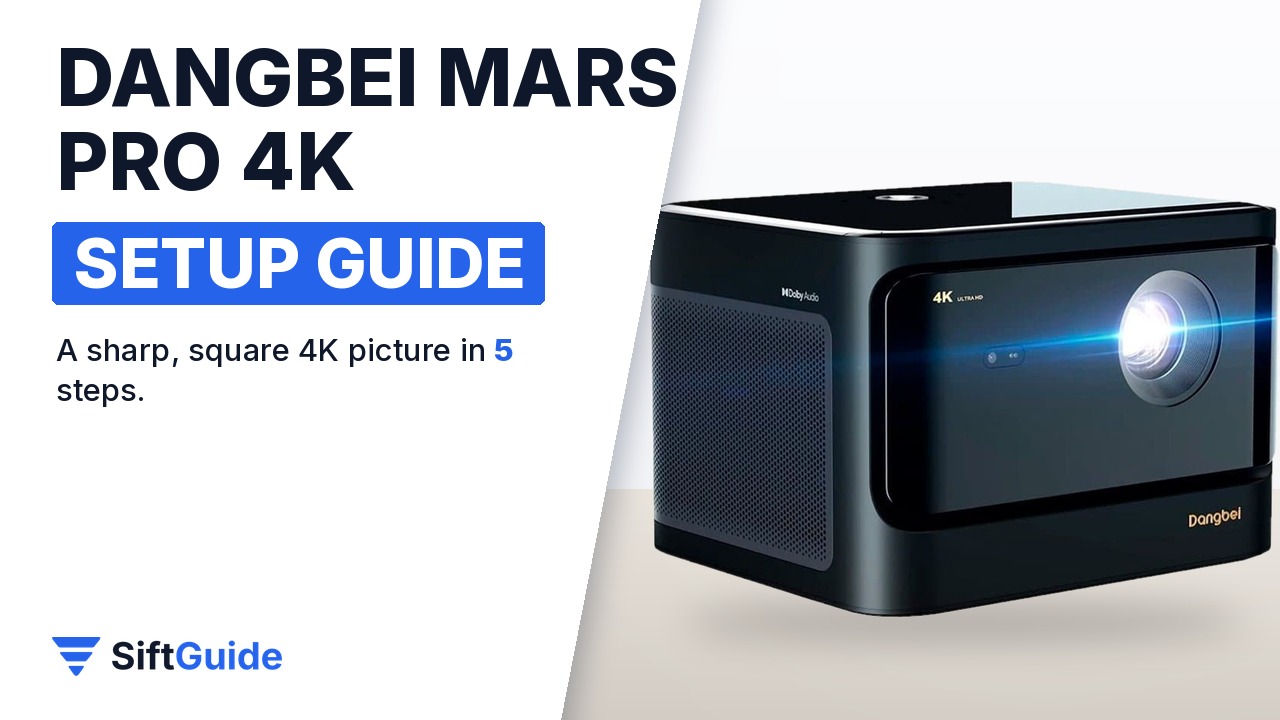
The Dangbei Mars Pro is a long-throw 4K laser projector: it sits on a table or shelf across the room rather than right under the screen, and it does most of the fiddly calibration on its own. That is great when it works, and confusing when the picture comes out tilted or soft and you do not know which setting to touch. This guide walks through the setup in the order that actually matters, starting with the one decision you cannot fix in software, which is how far the projector sits from the wall.
Disclosure: this guide contains affiliate links (Awin). If you buy through them we may earn a commission at no extra cost to you. Specs come from the official product page.
What you need
- The Dangbei Mars Pro, its power cable and the Bluetooth remote (with batteries)
- A screen or a smooth, light wall, ideally 80–150 inches wide (the projector covers 40–200 inches)
- A table, shelf or ceiling mount roughly 7–14 feet from the screen, depending on the size you want
- Your Wi-Fi password, plus any HDMI source you want to use (game console, streaming stick, PC)
- A dry microfibre cloth for the lens
Step 1: Pick the spot and the distance
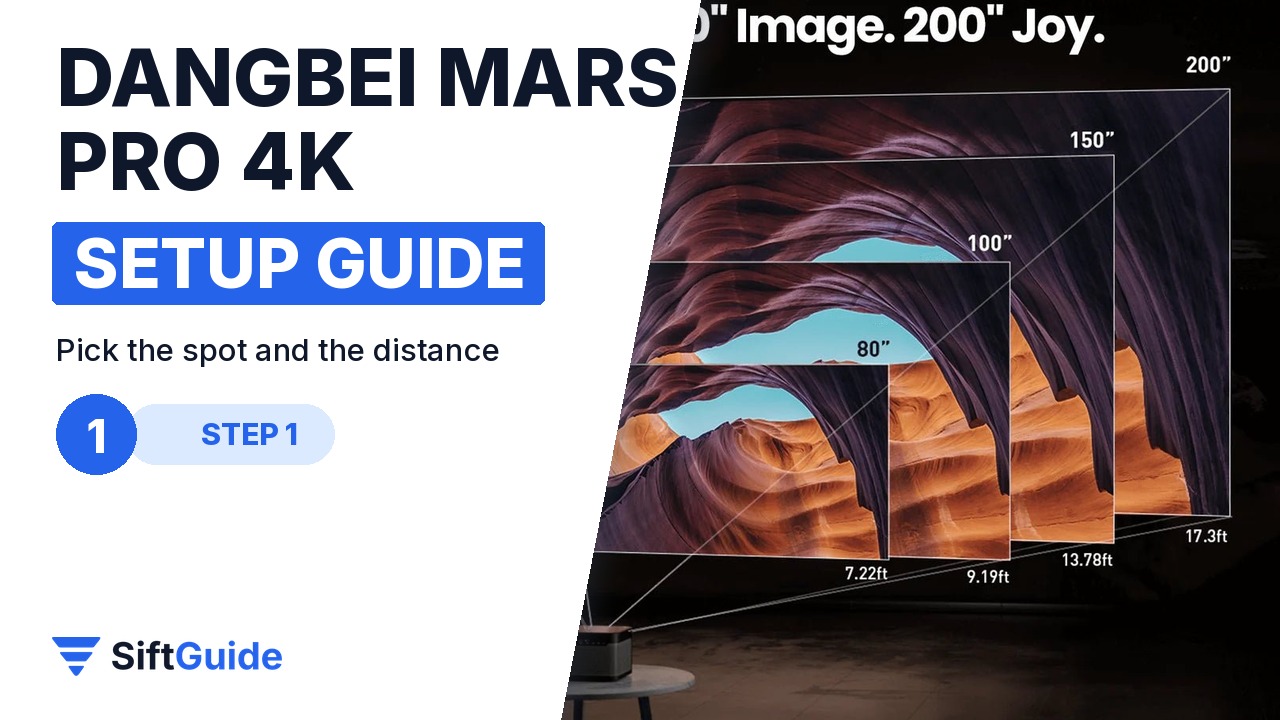
The Mars Pro has a 1.27:1 throw ratio, so the picture size is set by the distance between the lens and the screen. Dangbei’s chart gives an 80-inch picture at about 7.2 feet, 100 inches at about 9.2 feet, 150 inches at about 13.8 feet and the 200-inch maximum at about 17.3 feet. The recommended range is 80–150 inches, and around 100 inches is the sweet spot for a living room. Place the projector on a stable surface, roughly centred on the screen and with the vents unobstructed.
Step 2: Power on and pair the remote
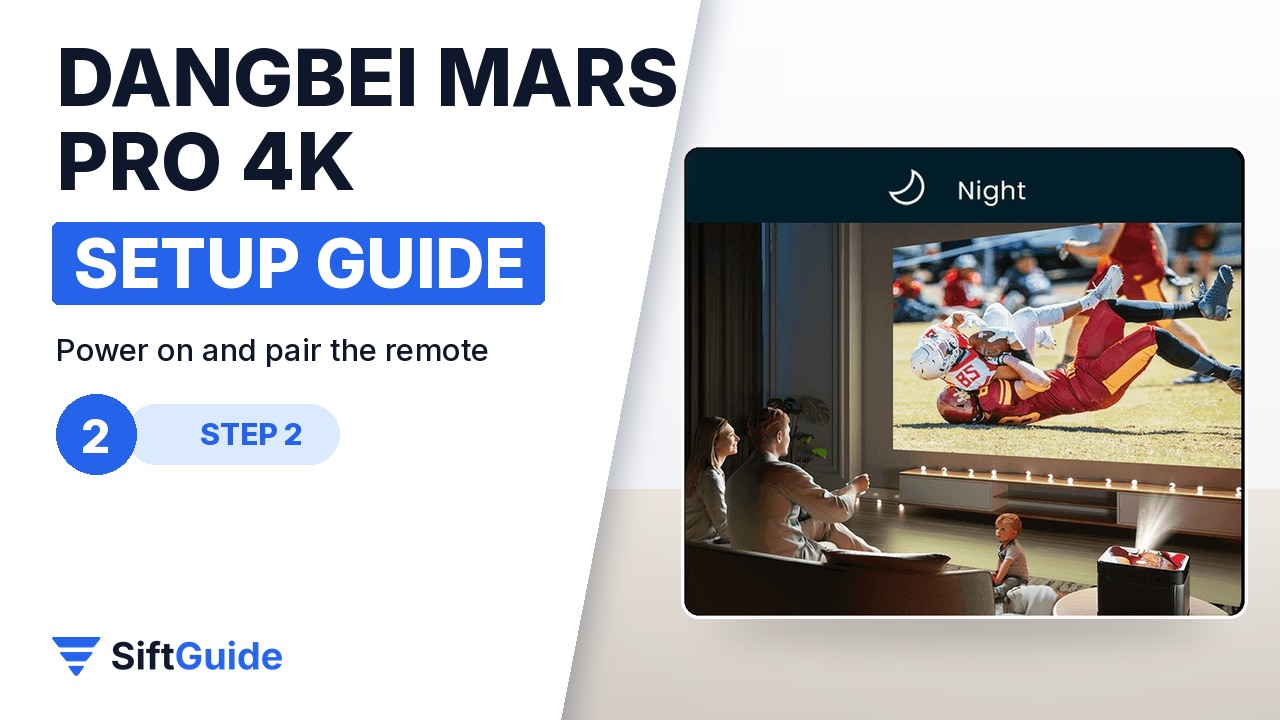
Plug in the power cable and press the power button on the top of the projector. When the home screen appears, pair the Bluetooth remote: hold it within about 10 cm of the projector and press Home and Menu together until the remote light flashes and the projector beeps. Two beeps mean it is paired. Then follow the on-screen setup to choose a language and join your Wi-Fi network.
Step 3: Let auto focus and keystone square the picture
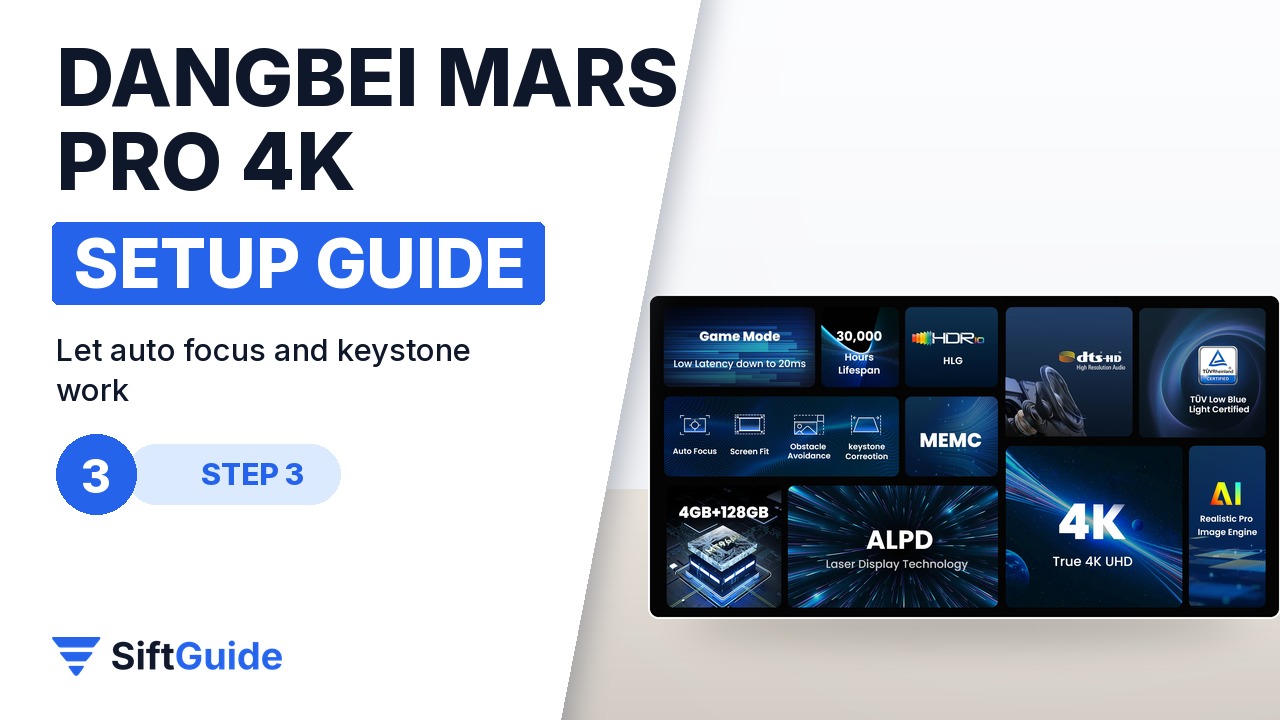
The Mars Pro uses its camera and sensors for auto focus, auto keystone correction, screen fit (it shrinks the image to the black border of a screen) and obstacle avoidance (it moves the picture away from a shelf or a plant in the way). These run when the projector starts and after you move it. If the image is still soft, wipe the lens with a dry cloth and check nothing is covering the camera or sensor next to it, then run auto focus again from the settings.
Step 4: Add your sources: HDMI or casting
For streaming apps, Dangbei recommends its 4K streaming dongle with Google Play, plugged into an HDMI port; a game console, PC or other streaming stick goes into HDMI the same way. To show your phone on the wall, install Emotn Cast from the Emotn Store on the projector, then use Screen Mirroring on an iPhone or Miracast/screen casting on Android and Windows, with both devices on the same Wi-Fi.
Step 5: Fine-tune: Game Mode, HDR and firmware
For gaming, switch on Game Mode: Dangbei quotes about 20 ms of input lag at 60 Hz. HDR10 and HLG content is detected automatically, and the two 10 W speakers support Dolby Audio and DTS-HD, though an external sound system will always be bigger. Finally, open Settings › System › Software Update and install the latest firmware; if something misbehaves later, Settings › System › Reset brings it back to factory state.
Set the distance before the software
Keystone correction can square a picture, but it does so by using fewer pixels. Place the projector straight on and at the right distance first, and let the automatic features handle only small corrections, so you keep the full 4K detail.
Done: the right distance for your screen, the remote paired, the picture focused and squared automatically, your sources connected and the firmware up to date. Note that this is the original Mars Pro (sold as 1800 ISO lumens), not the newer Mars Pro 2, so check the model name when you compare offers.
Dangbei Mars Pro 4K Laser Home Theater Projector (1800 ISO)
Long-throw 4K (3840 × 2160) ALPD laser projector with a 0.47″ DMD and a 1.27:1 throw ratio, 40–200″ picture size (80–150″ recommended), rated 1800 ISO lumens and up to 30,000 hours of laser life. HDR10 and HLG, MEMC and 3D support, Game Mode at 60 Hz with about 20 ms latency, auto focus, auto keystone, screen fit and obstacle avoidance. Two 10 W speakers with Dolby Audio and DTS-HD, 4 GB RAM and 128 GB storage. Listed at $1,175 in the NothingProjector affiliate catalog (October 2026); check the store for the current price.
FAQ
How far should the Dangbei Mars Pro be from the screen?
With a 1.27:1 throw ratio: about 7.2 ft for 80 inches, 9.2 ft for 100 inches, 13.8 ft for 150 inches and 17.3 ft for 200 inches.
How do I pair the Mars Pro remote?
Hold the remote within about 10 cm of the projector and press Home and Menu together until the light flashes and you hear a beep; two beeps confirm pairing.
Can I watch Netflix on it?
Dangbei recommends its 4K streaming dongle with Google Play plugged into HDMI for streaming apps. Any other HDMI streaming stick works the same way.
Is it good for gaming?
Game Mode brings input lag to about 20 ms at 60 Hz, which is responsive enough for most console games.
Is this the Mars Pro 2?
No. This is the original Mars Pro, rated 1800 ISO lumens. The Mars Pro 2 is a newer model with different specs.
