
A failed update, a phone frozen on the Samsung logo, a boot loop or a black screen are usually software problems, not broken hardware. Dr.Fone – System Repair (Android) is Wondershare’s Windows tool for that situation: it identifies the phone, downloads matching official firmware and walks you through installing it, without manual flashing tools. It currently supports Samsung phones and tablets plus Xiaomi, Redmi and POCO devices. This guide follows Wondershare’s official workflow, including the part most people skip: the backup.
What you need
- A Windows PC (Windows 11, 10, 8.1, 8 or 7); the Android repair feature is not available on Mac
- The phone and its original or a good-quality USB cable
- A backup of your photos, contacts and chats, if the phone can still be reached
- Dr.Fone installed from the official Wondershare site, with a System Repair (Android) licence to run the repair
Step 1: Back up first and check that your phone is supported
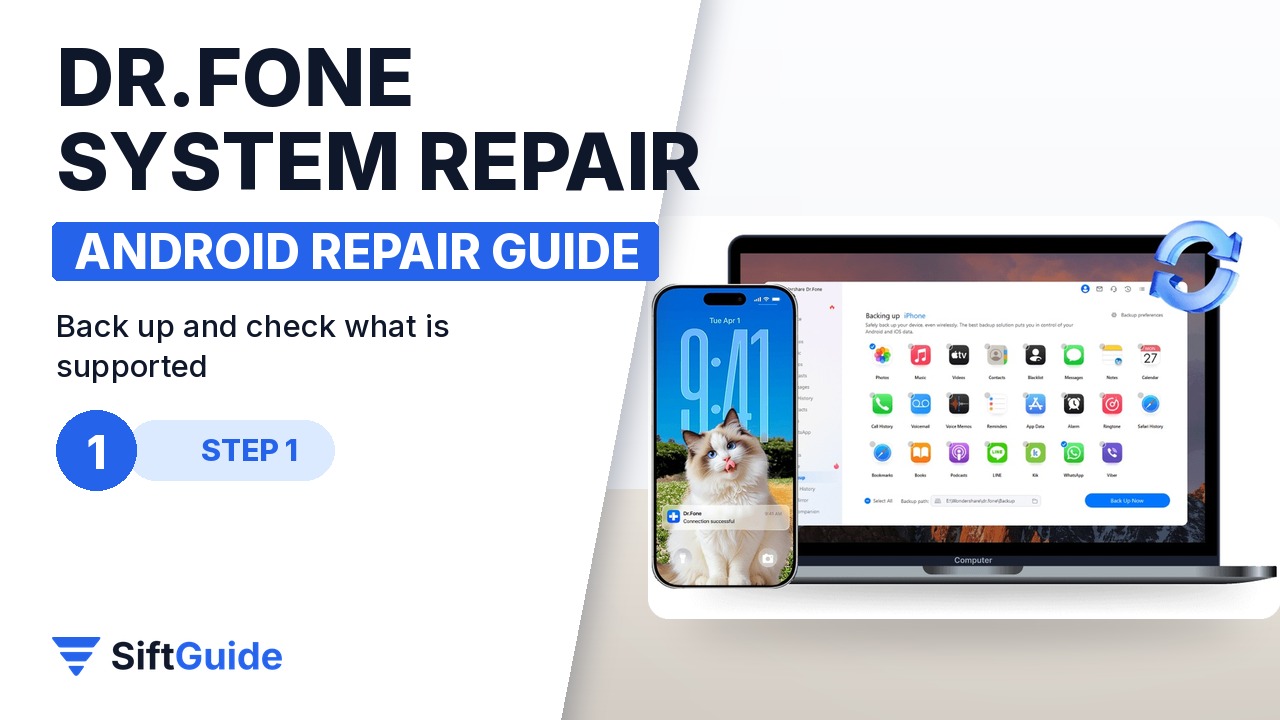
Wondershare is explicit about this: the Samsung repair workflow erases all data on the device, so back up whatever you can before you start (Google backup, Samsung Cloud, or copying photos to the PC). The Xiaomi, Redmi and POCO workflow is designed to work without root and without data loss, but a backup is still the safe move. Also check the basics: the tool fixes software and firmware problems such as boot loops, stuck logos, failed updates and black screens; a cracked screen or water damage is a job for a repair shop.
Step 2: Open Toolbox > System Repair and choose Android
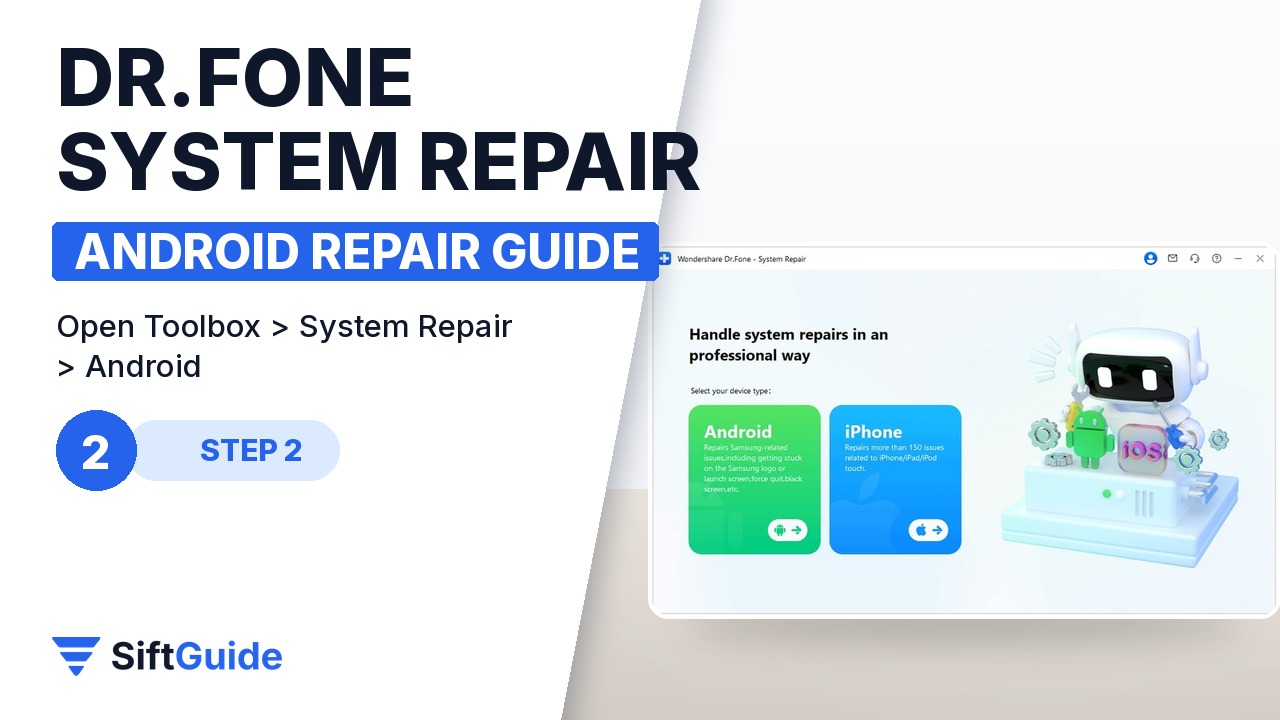
Open Dr.Fone on the PC, go to Toolbox in the left panel and click System Repair. Connect the phone with the USB cable. On the next screen, Dr.Fone asks for the device type: choose Android. Keep the cable connected for the whole process; a loose cable in the middle of a firmware install is the most common way to make things worse.
Step 3: Choose Android Repair and confirm the exact model
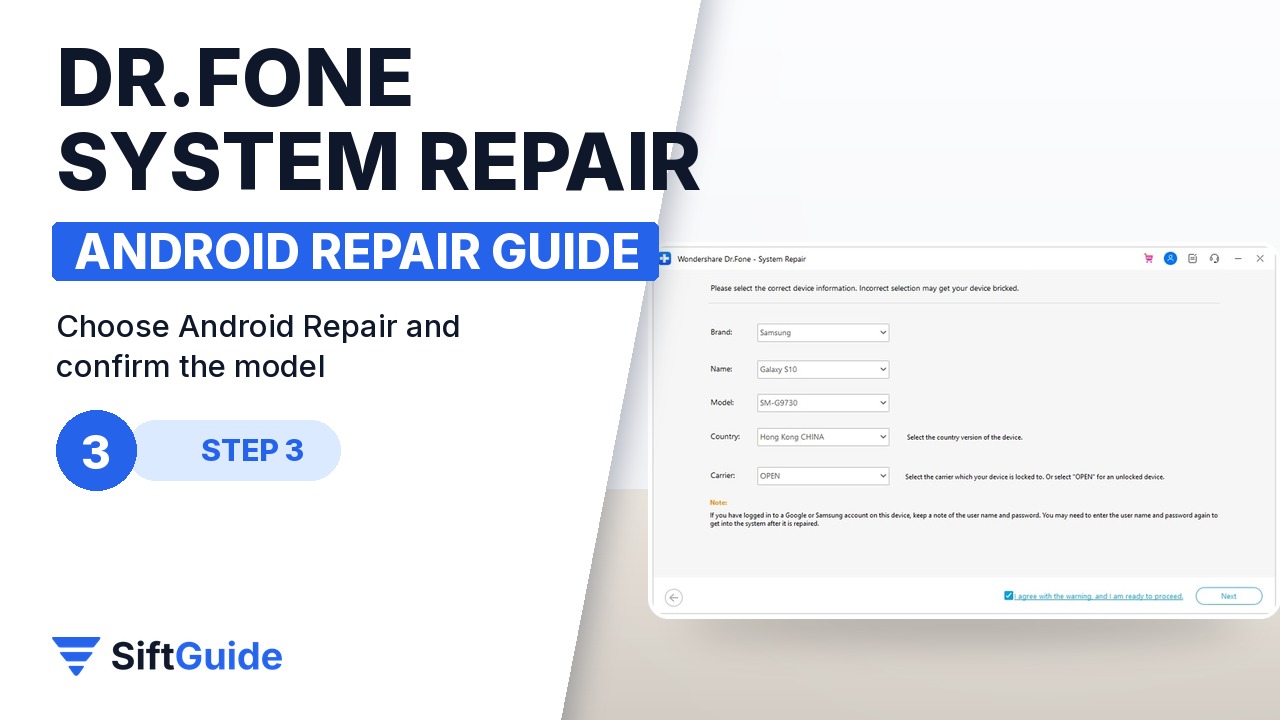
Select Android Repair and click Repair Now, then pick the brand (Samsung, or Xiaomi/Redmi/POCO) and click Start. Dr.Fone shows the list of problems it can fix; click Start again. Now fill in the Name, Model, Country and Carrier from the lists. These decide which firmware gets downloaded, so copy them from the phone’s label, box or Settings > About phone. If the phone is not tied to a carrier, choose OPEN. Tick “I agree with the warning and I am ready to proceed” and click Next.
Step 4: Put the phone in Download Mode
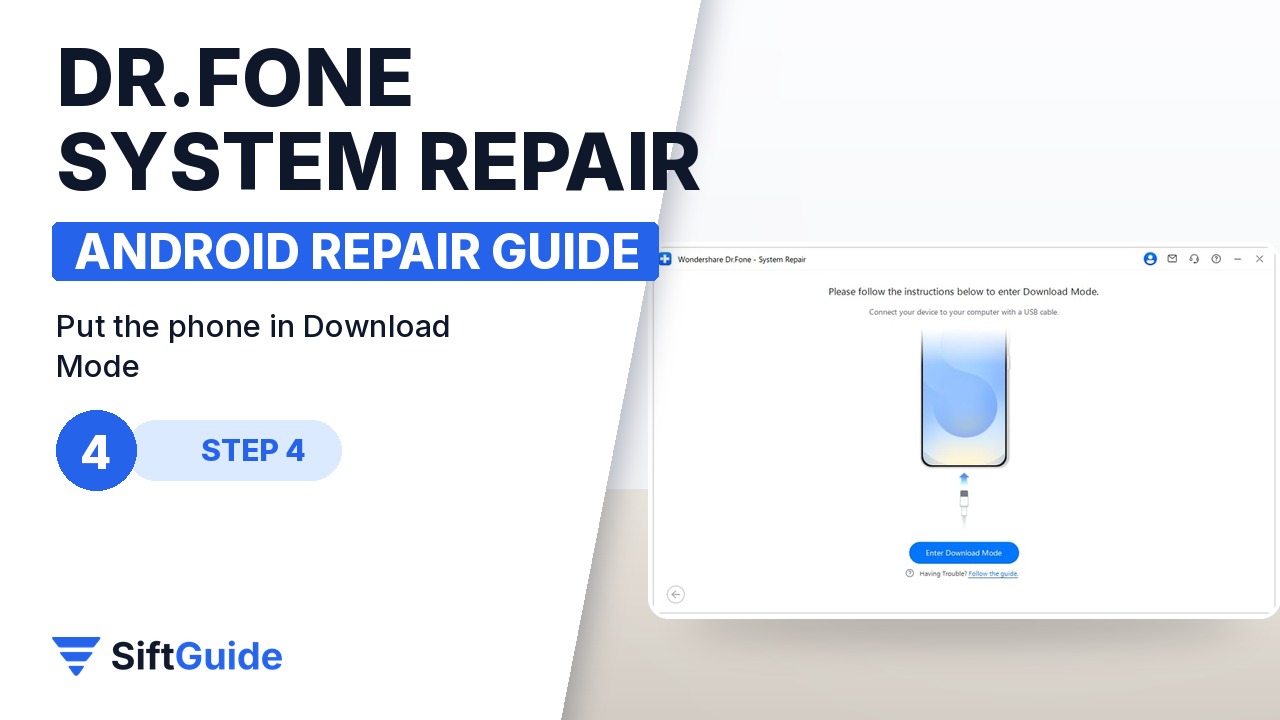
On Samsung, the easiest option is the one-click button: with the phone connected and unlocked, click Enter Download Mode. If the phone is unresponsive, Dr.Fone shows the button combination for your model instead. With a Home button: power off, hold Volume Down + Home + Power, then press Volume Up. With a Bixby button: hold Volume Up + Bixby + Power. Without a Bixby button: power off, hold Volume Up and Volume Down, connect the USB cable, then press Volume Up on the blue warning screen.
Step 5: Download the firmware, confirm with 000000 and wait
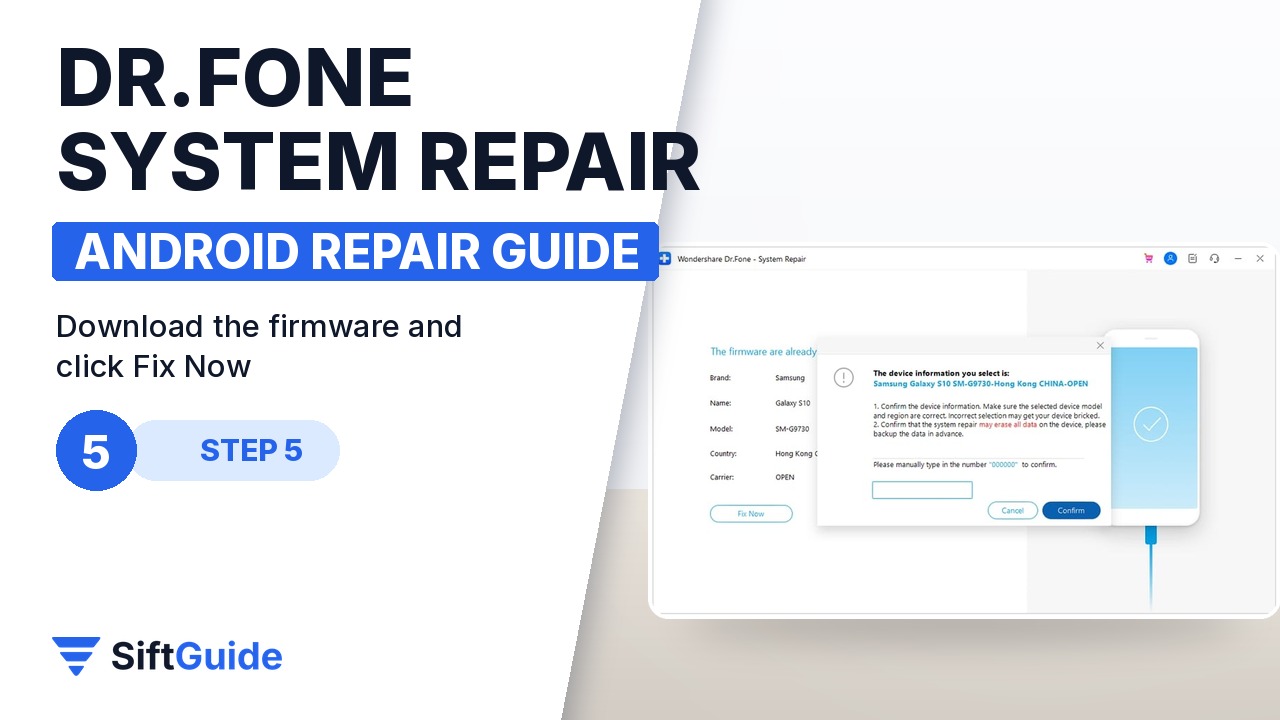
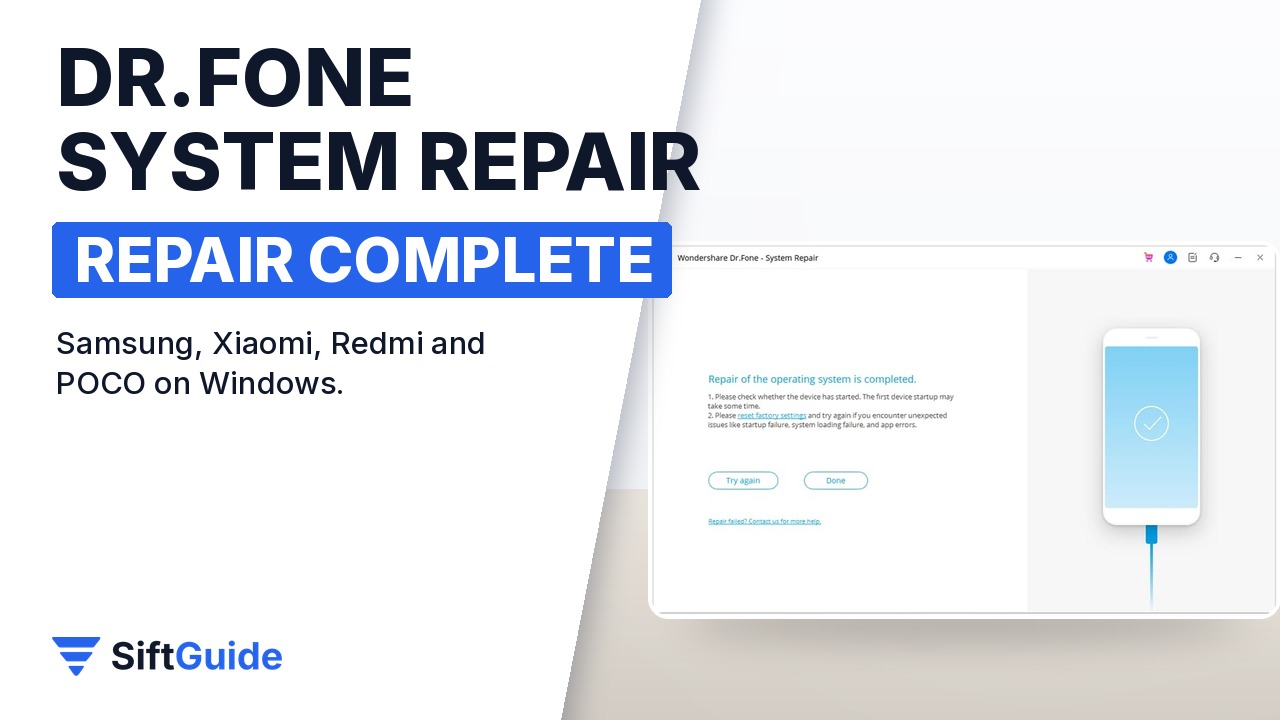
Once the phone is in Download Mode, Dr.Fone downloads the firmware automatically and then verifies it (you can click Stop at any point before the install). Click Fix Now. Because the repair can erase the device, Dr.Fone asks you to type 000000 to confirm. A progress bar follows; do not unplug the phone or let the PC sleep. When the completion message appears, click Done. If the phone still does not start, click Try Again to repeat the process.
Tip: write down the model details before you start
The Name, Model, Country and Carrier fields decide which firmware Dr.Fone downloads. Take a photo of the model number on the box or in Settings > About phone while the phone still works, or check the label under the battery cover on older models. It saves guessing later, when the phone is stuck on a logo.
Used this way, Dr.Fone – System Repair (Android) replaces the manual route of hunting for firmware files and flashing them with tools like Odin. It is a Windows-only tool, it covers Samsung and Xiaomi/Redmi/POCO devices, and it cannot fix hardware damage. On Samsung it reinstalls the system and wipes the phone, so treat the backup in step one as part of the repair, not an optional extra.
Dr.Fone – System Repair (Android)
Windows tool for Android software problems: boot loops, phones stuck on the logo, failed updates, black screens and frozen devices. Guided firmware download and install for Samsung phones and tablets and Xiaomi, Redmi and POCO devices, one-click Download Mode for Samsung, no root needed. Prices on the official Dr.Fone store on 13 November 2026: $19.95 per month, $39.95 per year or $49.95 perpetual (5 devices, 2 PCs).
FAQ
Will Dr.Fone System Repair (Android) delete my data?
On Samsung devices, yes: Wondershare’s guide says the repair erases all data, so back up first. The Xiaomi, Redmi and POCO workflow is designed to repair without data loss.
Which phones does it support?
Samsung phones and tablets, including recent Galaxy S series models, plus Xiaomi, Redmi and POCO devices.
Does it work on a Mac?
No. Android System Repair is available on Windows only (Windows 11, 10, 8.1, 8 and 7).
Do I need to root the phone?
No. Root access is not required, and Wondershare advises against rooting just to run the repair.
Can it fix a broken screen?
No. It is for software and firmware problems. Physical damage needs a repair service.