
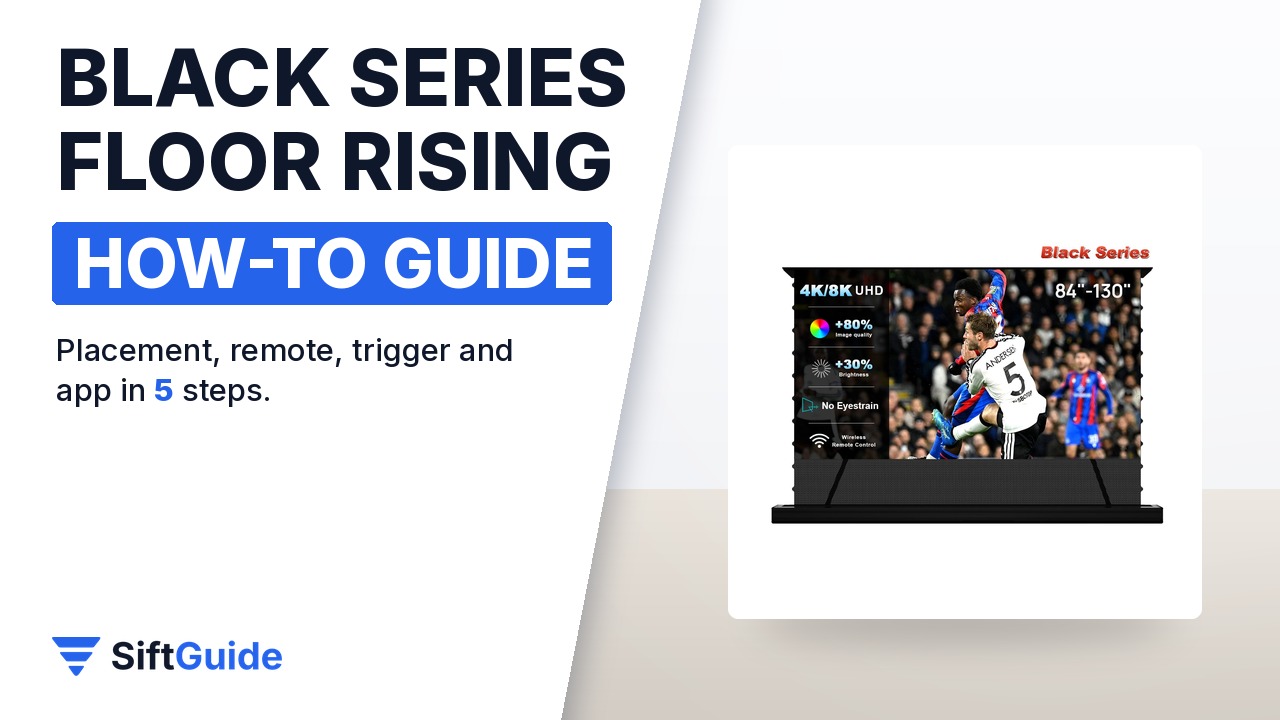
A floor rising screen solves the biggest problem of an ultra short throw projector setup: where the screen goes when you are not watching. The NothingProjector Black Series version lives in a slim case on the floor, in front of the projector, and rises out of it at the press of a button, with the same 95% ambient light rejecting Black Series surface used on the brand’s fixed-frame screens. It needs no drilling and no wall mounting, comes in 84 to 130 inches and in a black or white case. The steps below follow the official user manual, in the order you will actually need them on installation day.
What you need
- The screen in the size that matches your projector’s image (84, 92, 100, 110, 120 or 130 inches)
- An ultra short throw (UST) projector: the screen is designed for UST projectors only
- A flat, level floor area in front of the projector and a nearby power socket
- A free USB port on the projector, for the included USB trigger
- Optional: a phone with the Tuya Smart app and 2.4 GHz Wi-Fi, for app and voice control
Step 1: Unpack the case and choose its spot
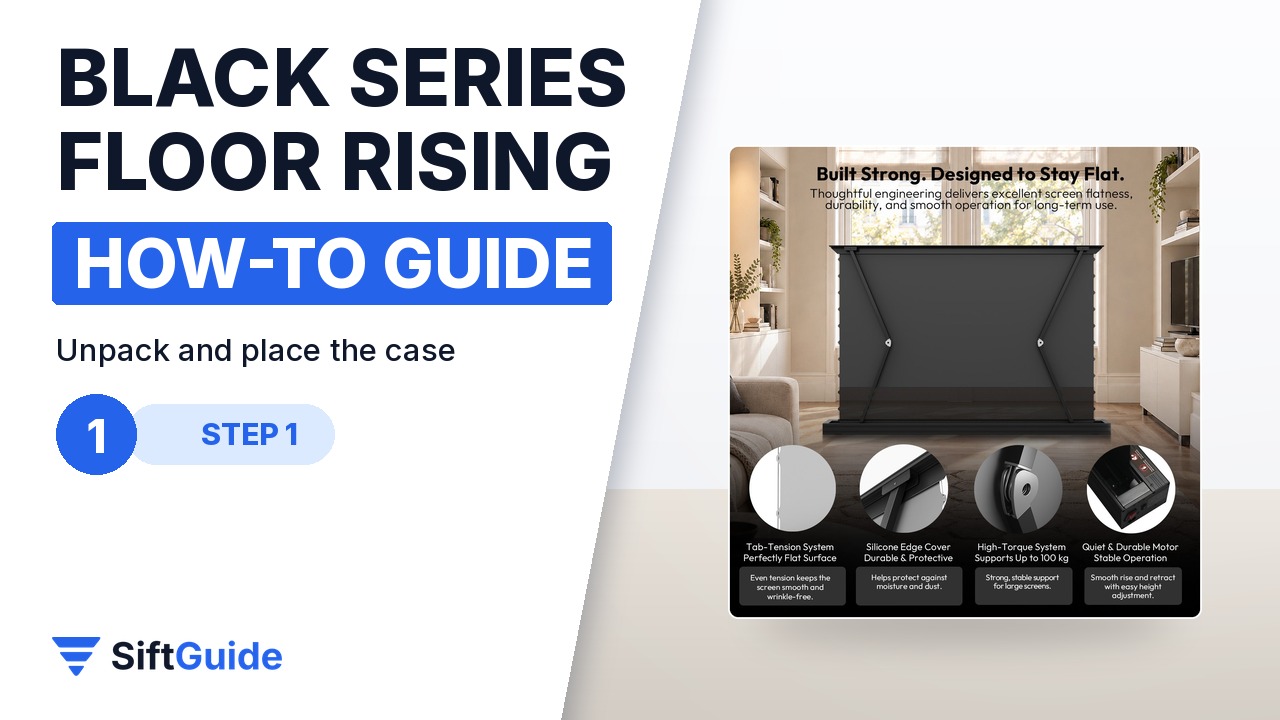
Lift the case out of the box and keep it horizontal at all times, then check the accessories against the list in the manual: wireless remote, power cord, USB trigger, soft-bristle brush, lint brush, white gloves, carbon fiber strips, support brackets, screws and expansion plugs. Place the case on a flat, level floor; the manual warns against uneven or inclined surfaces. The base comes set to installation method one; switch to method two only if your floor or furniture requires it. The power plug sits on the left side when you face the screen, so plan the socket accordingly.
Step 2: Plug it in and pair the remote
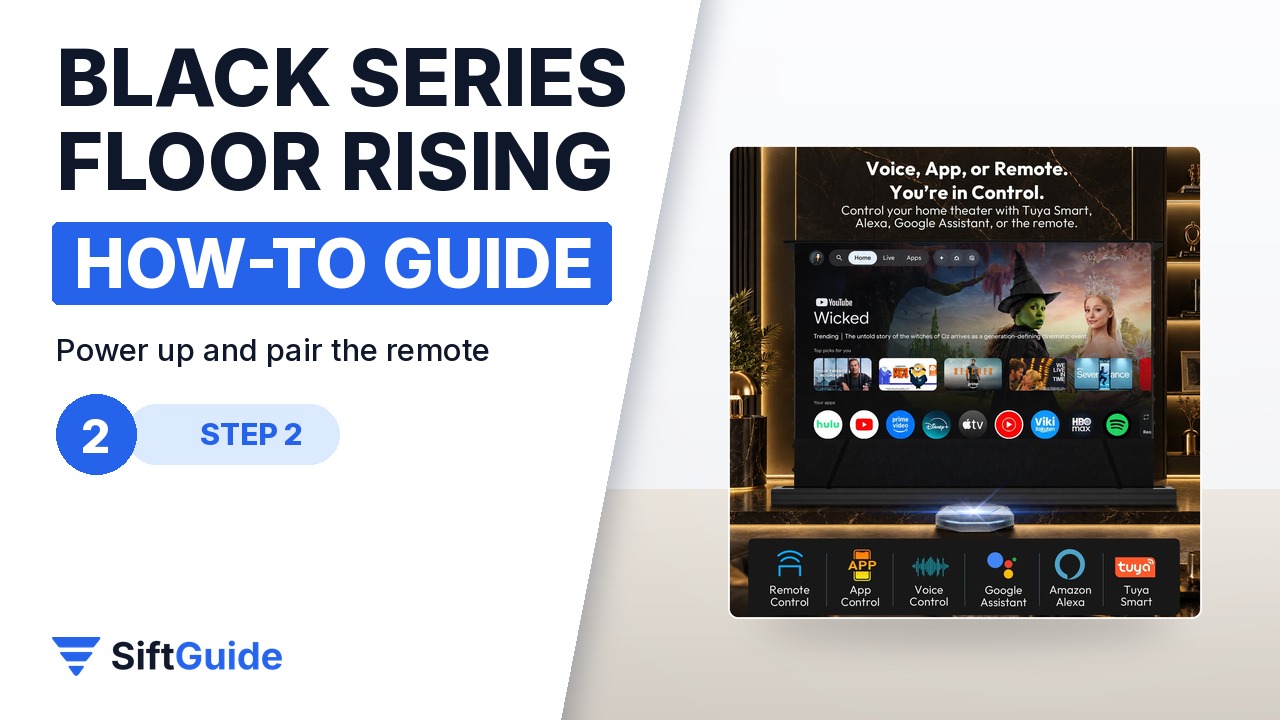
Connect the power cord and test the remote: the top key raises the screen, the middle key stops it and the bottom key lowers it. The remote normally works out of the box. If it does not, re-pair it the way the manual describes: cut the power to the screen for more than five seconds, press and hold the Up key for three seconds while you restore power, then press Up again. The motor confirms when the code is accepted. Use a pointed object such as a pen tip for the small SET and LEARN keys on the back of the remote.
Step 3: Raise, stop and let it auto-level
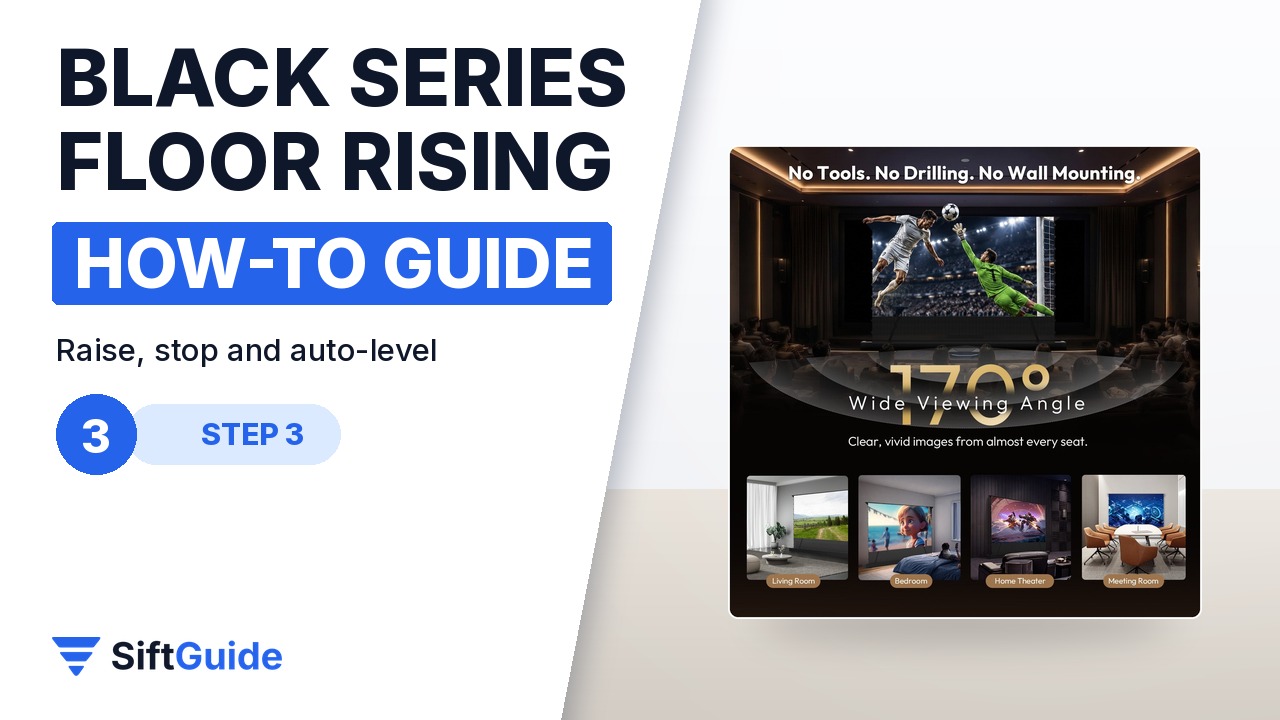
Press Up once and the screen rises on its own; press Up again if you want to stop it earlier, and press Down to lower it. When it reaches the top, the screen drops by about 5 cm automatically: that is the auto-leveling system keeping the surface flat, not a fault. The maximum height is preset at the factory and the manual asks you not to change it; if you ever need a different black-border height, follow the upper-limit procedure in the manual or ask support for a guide video first. Avoid raising and lowering it repeatedly in a short time: after more than four minutes of continuous running the motor’s overheat protection cuts in for about 30 minutes.
Step 4: Sync it with the projector through the USB trigger
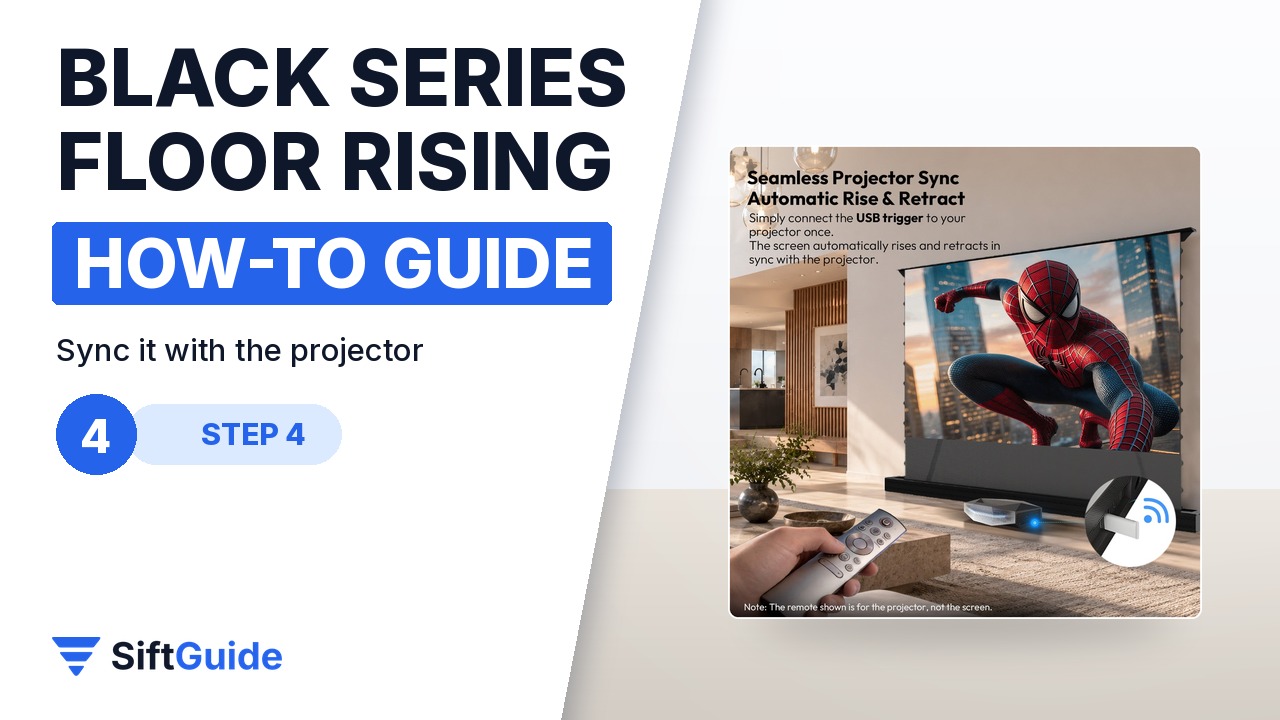
Plug the included USB trigger into a USB port on the projector. With the projector and the screen both powered on, press and hold the Stop key on the remote for five seconds to enter pairing mode, then press the SET button on the trigger. Unplug the trigger and plug it back into the projector. From now on, turning the projector on raises the screen and turning it off lowers it. If it works the wrong way round, the manual explains how to switch the direction by holding SET on the trigger for five to seven seconds.
Step 5: Add app and voice control, then keep it clean
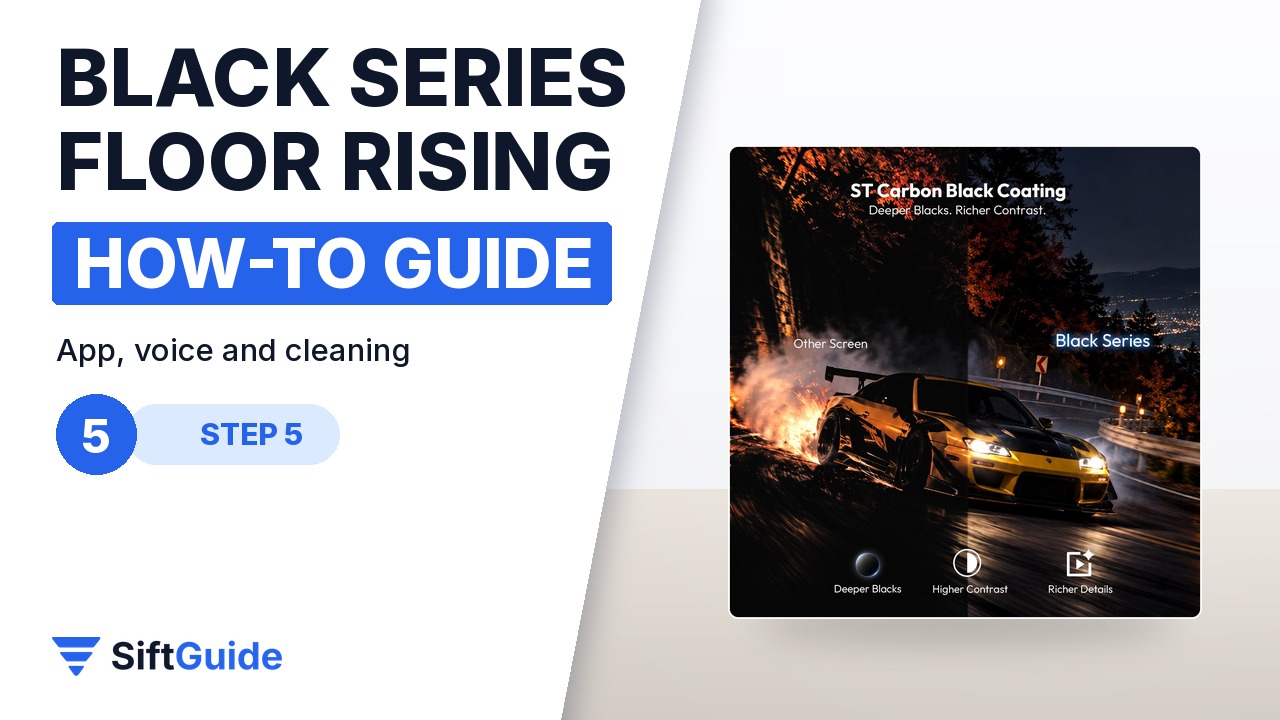
Install the Tuya Smart app, tap Add Device, open Small Home Appliances and choose Curtain (Wi-Fi) under Motor. Enter your Wi-Fi password: the screen only supports 2.4 GHz networks, not 5 GHz. Press the LEARN key on the back of the remote three times quickly and the motor confirms with a short movement. The app then gives you rise, stop and fall buttons, and once it is linked you can use Alexa, Google Assistant or Siri. Lower the screen into its case after use to keep dust off, wipe it gently with a soft cloth or the soft brush, and never use harsh chemicals on the surface.
Tip: measure the throw before you order the size
A UST projector’s image size depends on its distance from the wall, so measure where the projector will sit and check its throw chart (or NothingProjector’s screen size calculator) before choosing between 84 and 130 inches. The floor case also has to sit in front of the projector, so leave enough depth on the TV stand or floor for both. If small creases ever appear after long use, the carbon fiber strips in the box are there to flatten them, following the manual.
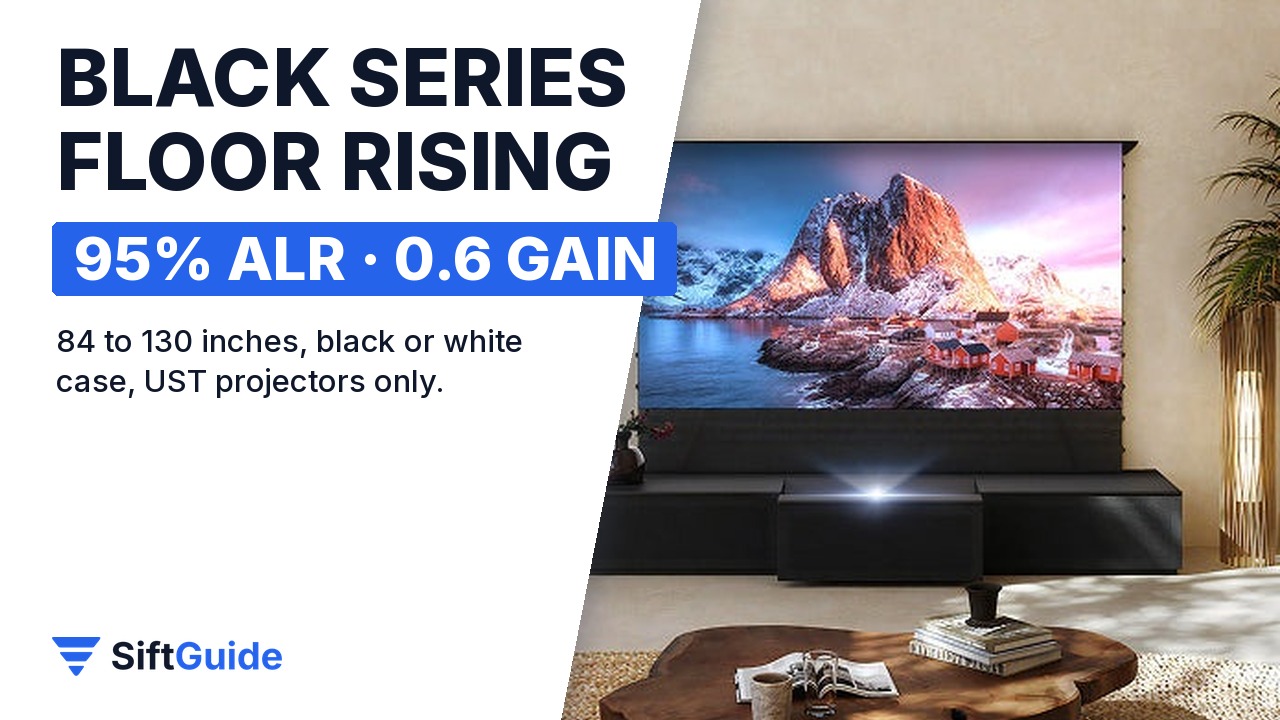
Once the trigger is paired, the Black Series floor rising screen disappears from daily life: turn the projector on and it rises, turn it off and it goes back into its case. The 95% ambient light rejecting surface with 0.6 gain keeps contrast in rooms you cannot fully darken, the 170-degree viewing angle covers a wide sofa, and the 0.4 mm micro-perforated acoustic border lets sound pass. It is the screen to consider when you want a big UST picture without a permanent screen on the wall.
NothingProjector Black Series 95% ALR Motorized Floor Rising Screen
Motorized floor rising UST screen: Premium HBST PET material with ST Carbon Black coating, 95% ambient light rejection, 0.6 gain, 170-degree viewing angle, 4K/8K and 3D support, micro-perforated acoustic border, auto-leveling, wireless remote, USB projector trigger, Tuya app and voice control (Alexa, Google Assistant, Siri), hidden handle, black or white case, 84 to 130 inches. Prices on nothingprojector.com on November 18, 2026: $1,299 for 84, 92 or 100 inches, $1,749 for 110 or 120 inches and $2,599 for 130 inches, in stock.
FAQ
Does it work with a normal (long-throw) projector?
No. The Black Series floor rising screen is made for ultra short throw projectors only; its ALR surface is designed for light coming from below.
Do I need to drill or mount anything?
No. The case stands on the floor in front of the projector, so there is no drilling and no wall mounting.
Why does the screen drop a little at the top?
That is the auto-leveling system: when the screen reaches its highest point it drops about 5 cm to keep the surface flat.
Can it rise automatically when I turn on the projector?
Yes. Pair the included USB trigger with the screen and plug it into the projector’s USB port; the screen then follows the projector’s power.
Does the app work on 5 GHz Wi-Fi?
No. The Wi-Fi module only supports 2.4 GHz networks.
How much does it cost?
On November 18, 2026 nothingprojector.com listed $1,299 for the 84, 92 and 100 inch sizes, $1,749 for 110 and 120 inches and $2,599 for 130 inches.