
Affiliate disclosure: this post contains affiliate links (CJ) to Contabo. If you order through them, SiftGuide may earn a commission at no extra cost to you; it does not change your price or terms. Plans, prices and setup steps come from Contabo’s official pages and help center, and the install, security and backup notes come from Dokploy’s official documentation, all checked on October 20, 2026 (Europe/Bucharest). We have not benchmarked these servers or tested Dokploy ourselves.
Dokploy is an open-source, self-hosted platform as a service (PaaS): a web dashboard that builds and runs your apps, databases and Docker Compose stacks on a server you control. Its documentation pitches it as a free, self-hostable alternative to platforms like Heroku, Vercel and Netlify. Contabo now sells “Dokploy VPS Hosting” and lists a free Dokploy Server 1-click app for its Cloud VPS plans. This guide covers what you get, which plan to pick, what it really costs, both ways to install it, and the hardening and backup steps Dokploy’s own docs ask for. Contabo’s pages don’t all agree on requirements, ports or even how the install works, so we flag every conflict along the way.
What Dokploy is, and what Contabo’s 1-click gives you
- A deployment dashboard. Dokploy deploys single applications from GitHub, Git or Docker sources (build types: Docker, Nixpacks, Heroku Buildpacks, Paketo Buildpacks) and full Docker Compose stacks, with environment variables, logs, domains and resource limits in the UI. Contabo’s page adds one-click templates such as Plausible, Pocketbase and Cal.com, and databases including PostgreSQL, MySQL, MongoDB, MariaDB, LibSQL and Redis.
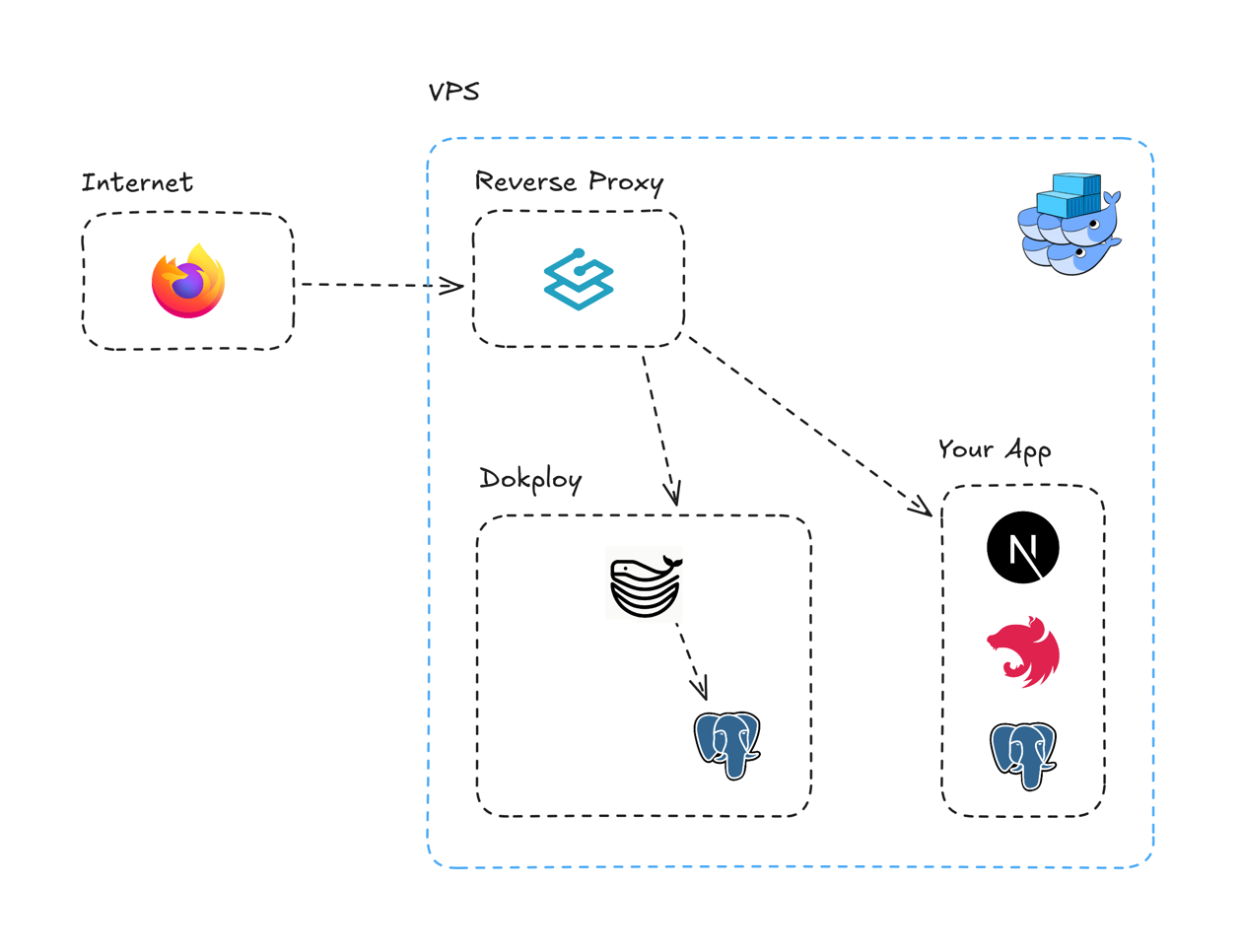
- Three parts on your server. Per Dokploy’s architecture page, an install sets up a Next.js application (the dashboard), a PostgreSQL database for Dokploy’s own data, and Traefik as reverse proxy and load balancer, which also handles your apps’ domains and Let’s Encrypt certificates.
- Free software. The self-hosted edition is listed as free in Dokploy’s edition comparison. Its licence file puts the code under Apache 2.0, except anything in a “/proprietary” directory. Enterprise extras such as SSO, audit logs and custom roles need a paid licence, and the separate Dokploy Cloud is a paid managed service. You don’t need either to run Dokploy on your own VPS.
- The 1-click app is €0. Contabo’s price data lists the “Dokploy Server” app at €0 on all three plans below, and its order configurator includes it. Contabo supports the VPS itself (hardware, network, basic OS issues). For Dokploy configuration it refers you to Dokploy’s documentation and community.
Which Contabo plan for Dokploy?
Contabo’s Dokploy page shows three Cloud VPS plans. Prices are in EUR before VAT. The monthly-term price is what you pay on a 1-month contract. The 24-month rate is the effective monthly price Contabo shows “for the first 24 months” of a 24-month subscription.
Plan: Cloud VPS 4
- Resources: 4 vCPU, 8 GB RAM, 100 GB SSD
- Port speed: 200 Mbit/s
- Monthly term: €5.50/mo
- 24-month rate: €4.40/mo
- Contabo’s label: Dokploy Starter
- Contabo suggests it for: your first self-hosted app, a test environment or a simple internal tool
Plan: Cloud VPS 8
- Resources: 8 vCPU, 24 GB RAM, 300 GB SSD or 150 GB NVMe
- Port speed: 600 Mbit/s
- Monthly term: €14.00/mo
- 24-month rate: €11.20/mo
- Contabo’s label: Dokploy Multi-App
- Contabo suggests it for: multiple services, databases and template-based deployments on one VPS
Plan: Cloud VPS 16
- Resources: 16 vCPU, 64 GB RAM, 500 GB SSD or 250 GB NVMe
- Port speed: 1 Gbit/s
- Monthly term: €37.00/mo
- 24-month rate: €29.60/mo
- Contabo’s label: Dokploy Team Deployment
- Contabo suggests it for: production apps, shared team workflows and heavier Docker-based deployments
How much server does Dokploy need? The minimums depend on which source you read (see the box near the end), but they range from 2 GB RAM, 1–2 vCPU and 30 GB disk upward. Even Cloud VPS 4 clears all of them, so the conflict doesn’t change what you buy. What matters is your apps: every build, container and database runs on the same box. Contabo’s own sizing guide on the Dokploy page: small app or testing 2–4 GB RAM and about 40–80 GB disk; a multi-app stack 4–8 GB RAM and about 80–160 GB; heavier or production use 8 GB+ RAM and 160 GB+ disk.
See Contabo Cloud VPS plans for Dokploy
Two ways to install it
Contabo’s help center describes a 1-click install. The “Get started” steps on Contabo’s Dokploy page describe Dokploy’s own install script instead. Both end with Dokploy running on your VPS; pick one.
Route A: Contabo’s 1-click app (new order or reinstall)
When ordering, open the Cloud VPS plans, choose a plan and pick Dokploy in the order configurator. Note that the Get Started buttons on Contabo’s Dokploy page open the plain plan configurator, without Dokploy preselected. For a server you already have, Contabo’s help article (it lists Ubuntu 24.04 LTS as the OS) gives these steps:
- Log in to the Customer Control Panel and open Servers & Hosting > VPS/VDS.
- Click the Quick Action (⋮) menu next to the server and select Reinstall.
- Switch to the Application Installation tab and select Dokploy.
- Enter an admin password and store it. You need it for SSH and for the first Dokploy login.
- Click Install. A reinstall replaces what is on that server, so back it up first.
First login (per Contabo): find the application URL in the Customer Panel (your instance > Applications). It has the form https://vmdXXXXX.contaboserver.net/. Contabo warns it can take up to 30 minutes until the app is fully installed and available. Sign in with the username root@ plus your server’s hostname and the admin password you set. If you use the Contabo Firewall, allow ports 22 (SSH), 80 (HTTP) and 443 (HTTPS).
Route B: Dokploy’s install script (any supported Linux VPS)
This is the route in Dokploy’s documentation, and the one Contabo’s Dokploy page describes as “Step 2”. Start from a clean server. Dokploy lists Ubuntu 24.04/23.10/22.04/20.04/18.04, Debian 12/11/10, Fedora 40 and CentOS 9/8 as tested. Ports 80, 443 and 3000 must be free, or the installation fails. Then run, over SSH on the server:
curl -sSL https://dokploy.com/install.sh | shThe script installs Docker if it is missing, then sets up Dokploy and Traefik. Open http://<your-server-ip>:3000 and create the admin account on the setup page.
Then, on either route: move the dashboard behind HTTPS
Dokploy’s docs call enabling HTTPS for the panel “crucial”: attach a domain with a Let’s Encrypt certificate to the Dokploy dashboard (see their Domains guide). Once that domain works over HTTPS, and only then, the docs recommend closing direct IP:port access. Do it in the wrong order and you lock yourself out:
docker service update --publish-rm "published=3000,target=3000,mode=host" dokployLock it down: Dokploy’s production checklist
Dokploy’s Production Hardening Guide splits the work: Dokploy secures the application layer (logins, roles, TLS automation), and you secure the host, firewall, Docker engine and backup storage. The essentials for a single Contabo VPS:
- Automatic security updates: install and enable
unattended-upgrades. - SSH keys only. Use key-based authentication, disable root login and disable password logins. Both install routes start you as root with a password, so first put your public key in
~/.ssh/authorized_keysfor the account you will use. Keep your current session open until a new login works. Use a non-root user (in thedockergroup) for day-to-day work. - Fail2Ban (or CrowdSec), enabled and jailing SSH.
- A firewall that really applies to Docker. Allow only 22, 80 and 443, and keep Dokploy’s port 3000 closed to the public internet. Note Dokploy’s warning: Docker writes its own
iptablesrules and bypasses UFW, so a container port can stay reachable even when UFW “blocks” it. Dokploy’s fixes: installufw-docker, or use your VPS provider’s firewall, which filters traffic before Docker’s rules. Contabo’s help article mentions the Contabo Firewall.
sudo apt install -y ufw
sudo ufw default deny incoming
sudo ufw default allow outgoing
sudo ufw allow 22/tcp
sudo ufw allow 80/tcp
sudo ufw allow 443/tcp
sudo ufw enable
sudo wget -O /usr/local/bin/ufw-docker https://github.com/chaifeng/ufw-docker/raw/master/ufw-docker
sudo chmod +x /usr/local/bin/ufw-docker
sudo ufw-docker install
sudo systemctl restart ufw- Passkeys or 2FA for every panel user (Settings → Profile), and store the 2FA backup codes safely. Without SSO there is no organisation-wide “require 2FA” switch, so make it a rule for your team.
- Docker hygiene: never expose the Docker socket over TCP; set log rotation in
/etc/docker/daemon.json(the guide warns a noisy container can otherwise fill the disk); pin image tags instead of:latestin production. - Keep internals internal: leave the Traefik dashboard off, and don’t enable a database’s External Credentials (a published port) unless you really need it. If you do, restrict it with a firewall rule or a VPN.
The full guide (with copy-paste commands and a 25-point checklist) is here: Dokploy Production Hardening Guide.
Backups and updates
- Dokploy itself: in Web Server → Backups, Dokploy backs up its own PostgreSQL database (
dokploy-postgres) and its file system (/etc/dokploy) into one zip, on a schedule, to an S3 destination you configure first. - Your databases have their own Backup tab (also to an S3 bucket). App data in volumes can be covered by Volume Backups, but only for Docker named volumes, not bind mounts.
- Encrypt and test. Dokploy doesn’t encrypt the backup archive itself, so turn on encryption at rest on the bucket and limit the credentials to that bucket. And, in the guide’s words, “A backup you haven’t restored isn’t a backup”: schedule restore drills.
- Server-level backups: Contabo’s Auto Backup is a paid extra (€1.65 per month on Cloud VPS 4, €5.00 on Cloud VPS 8 and €8.35 on Cloud VPS 16 in Contabo’s price data). It is a useful safety net, but it is not an off-server copy you can restore elsewhere.
- Updates are manual on self-hosted Dokploy. Its docs give this command (take a backup first):
curl -sSL https://dokploy.com/install.sh | sh -s updateWhat it really costs
- The server: from €5.50 per month (Cloud VPS 4) on a monthly term, or €4.40 per month on a 24-month term.
- VAT: these prices exclude VAT. Contabo adds your country’s rate at checkout; its site lists, for example, 19% for Germany, 20% for the United Kingdom and 21% for Romania (private customers).
- Location: the prices above are for the EU location. Other regions add a monthly surcharge per plan; in Contabo’s price data it runs from €1.05 (UK) to €2.55 (Japan) on Cloud VPS 4, €3.25 to €8.00 on Cloud VPS 8, and €8.55 to €21.15 on Cloud VPS 16. Our full Contabo price guide has the details.
- Dokploy: €0 for the self-hosted edition and the 1-click app. Paid only if you want Enterprise features (SSO, audit logs, custom roles) or Dokploy’s managed Cloud.
- Backups: you need S3-compatible storage for Dokploy’s backups, billed by whichever provider you choose. Contabo’s Auto Backup is optional and extra.
- Traffic and contract: incoming traffic is unlimited and unmetered. Outgoing traffic is unlimited under a fair usage policy, and Contabo reserves the right to throttle exceptionally high or disruptive usage. Minimum term 1 month; cancellation notice none for pre-paid, 4 weeks for post-paid.
Which plan should you pick?
- A few small apps, side projects or a staging server: Cloud VPS 4 (“Starter”). 8 GB RAM sits at the top of Contabo’s multi-app range, and builds have room.
- Many services plus databases on one box: Cloud VPS 8 (“Multi-App”), with 24 GB RAM and 300 GB SSD.
- Production for a team, heavy builds: Cloud VPS 16 (“Team Deployment”). Or split the work: Dokploy can deploy to remote servers, so you can keep the dashboard on one VPS and the apps on others.
Order a Contabo Cloud VPS for Dokploy · Contabo home page
Where the official sources don’t agree (checked October 20, 2026 (Europe/Bucharest))
- 1-click or install script? Contabo’s help article installs Dokploy as a 1-click app (Reinstall > Application Installation > Dokploy), and its price data and order configurator list a €0 “Dokploy Server” app. The “Get Started in Minutes” steps on Contabo’s Dokploy page instead say to SSH into the server and run the one-line Dokploy install script. Both work; the 1-click route simply does the script’s job for you.
- Admin account: the hosting page says to open Dokploy and “create an admin account” (as Dokploy’s docs do for the script route). Contabo’s help article says the 1-click app signs you in as
root@hostnamewith the admin password you set. Its own example gives two forms of that username (root@vmi123456androot@vmi123456.contaboserver.net), so if one is rejected, try the other. - Minimum CPU: Contabo’s Dokploy page says 1 vCPU; its help article says 2 CPU minimum and 4 recommended; Dokploy’s docs give only RAM and disk (at least 2 GB and 30 GB). All three plans have 4 vCPU or more.
- Plan names that don’t exist: the help article’s requirements table names “Cloud VPS 10” (minimum) and “Cloud VPS 20” (recommended). Contabo’s current Cloud VPS lineup and its Dokploy page have no such plans; they offer Cloud VPS 4, 8 and 16 for Dokploy.
- Which port the dashboard uses: the hosting page body says ports 80 and 443 “for the Dokploy dashboard” (plus 22). Its FAQ says “port 3000 open for the dashboard”. Dokploy’s docs need 80, 443 and 3000 free for the install and open the panel on port 3000, but their hardening guide says to keep 3000 closed to the public internet once the panel is on an HTTPS domain. Contabo’s 1-click article opens the panel at an HTTPS contaboserver.net address and only lists 22/80/443. In practice: 22/80/443 public, 3000 only until your domain works.
- Price footnote: the plan cards show the 24-month rate “for the first 24 months”, with an Including/Excluding VAT switch. The page footnote says the displayed price is “the effective monthly rate for a 12-month subscription including applicable taxes”. Contabo’s price data matches the cards (24-month rate, before VAT), so that is what we list.
- Licence: Contabo’s FAQ says the self-hosted version is free and open source under Apache 2.0, and another paragraph mentions a “Dokploy Source Available License” for some future premium features. Dokploy’s licence file says Apache 2.0, except for content in a “/proprietary” directory. Paid features are the Enterprise ones.
- Monitoring: Contabo’s page promises “real-time monitoring”. Dokploy lists per-app CPU, memory, disk and network monitoring, while its edition table shows only basic monitoring for self-hosted (the advanced dashboard is Cloud) and its hardening guide calls built-in Monitoring “currently a Cloud-only feature”. Plan on your own log shipping and alerts.
More free 1-click apps on Contabo: for workflow automation, see self-hosting n8n on a Contabo VPS; for an AI agent, OpenClaw on Contabo; for Git hosting and CI, GitLab CE on Contabo.
FAQ
Is Dokploy on Contabo free?
The software is. Contabo’s price data lists the Dokploy Server app at €0, and Dokploy’s self-hosted edition is free (Apache 2.0, apart from a proprietary directory). You pay for the VPS, plus any storage you use for backups.
What is the cheapest Contabo plan for Dokploy?
Cloud VPS 4 (4 vCPU, 8 GB RAM, 100 GB SSD, 200 Mbit/s port): €5.50 per month on a monthly term or €4.40 per month on a 24-month term, before VAT. Contabo labels it “Dokploy Starter”.
Do I install Dokploy with the 1-click app or the script?
Either. The 1-click app (in the order configurator, or Reinstall > Application Installation > Dokploy for an existing server) needs no command line. The script (curl -sSL https://dokploy.com/install.sh | sh) is Dokploy’s own method, and Contabo’s Dokploy page describes it. Both replace what is on a server you reinstall, so back up first.
How do I log in to Dokploy after the 1-click install?
Per Contabo’s help center, open the URL listed under Applications for your instance in the Customer Panel (https://vmd….contaboserver.net/), then sign in as root@ plus your hostname, with the admin password you set. Allow up to 30 minutes after installation.
Which ports does Dokploy need?
Dokploy’s installer needs 80, 443 and 3000 free; 22 is for SSH. Keep 22, 80 and 443 open. Once the dashboard has an HTTPS domain, Dokploy’s docs recommend closing port 3000 to the internet. Remember that Docker bypasses UFW, so use ufw-docker or a provider firewall.
Does Contabo support Dokploy?
Only the VPS: hardware, network and basic OS issues. For Dokploy configuration and troubleshooting, Contabo refers you to Dokploy’s documentation and community. Self-hosted Dokploy’s own support is community-based (Discord, GitHub issues).
How do I back up Dokploy?
Configure an S3 destination, then use Web Server → Backups (Dokploy’s database and /etc/dokploy), each database’s Backup tab, and Volume Backups for named volumes. Encrypt the bucket and test restores. Contabo’s Auto Backup is an optional server-level extra.
Sources
All checked on October 20, 2026 (Europe/Bucharest).
- Contabo – Dokploy VPS Hosting: https://contabo.com/en/dokploy-hosting/
- Contabo – Cloud VPS: https://contabo.com/en/vps/
- Contabo Help Center – What is Dokploy and how do I use it on Contabo?: https://help.contabo.com/en/support/solutions/articles/103000399494
- Dokploy – Welcome: https://docs.dokploy.com/docs/core
- Dokploy – Installation: https://docs.dokploy.com/docs/core/installation
- Dokploy – Architecture: https://docs.dokploy.com/docs/core/architecture
- Dokploy – Features: https://docs.dokploy.com/docs/core/features
- Dokploy – Domains: https://docs.dokploy.com/docs/core/domains
- Dokploy – Production Hardening Guide: https://docs.dokploy.com/docs/core/guides/production-hardening
- Dokploy – Remote servers: Security: https://docs.dokploy.com/docs/core/remote-servers/security
- Dokploy – Account Security: https://docs.dokploy.com/docs/core/account-security
- Dokploy – Backups: https://docs.dokploy.com/docs/core/backups
- Dokploy – Database backups: https://docs.dokploy.com/docs/core/databases/backups
- Dokploy – Volume Backups: https://docs.dokploy.com/docs/core/volume-backups
- Dokploy – Cloud vs Self-Hosted: https://docs.dokploy.com/docs/core/differences
- Dokploy licence (GitHub): https://github.com/Dokploy/dokploy/blob/canary/LICENSE.MD
