
When a folder disappears, the first minutes matter more than the software you pick: every file you save to that drive can overwrite the data you want back. Wondershare Recoverit is a desktop data recovery tool for Windows and Mac that scans hard drives, SSDs, USB sticks, SD cards and other storage for deleted or lost files, lets you preview what it finds and then restores it. This guide follows Wondershare’s official Recoverit user guide for Windows, with the safety habits that make recovery more likely to work.
Disclosure: this guide contains affiliate links (Awin). If you buy through them we may earn a commission at no extra cost to you. Specs come from the official product page.
What you need
- A Windows PC (Recoverit also has a Mac version)
- A second drive or USB stick to install Recoverit on and to save recovered files to
- The drive, folder or memory card where the files were lost
- Patience: a full scan of a large disk can take a while
- A Recoverit plan if you want to save the files (scanning and preview are free)
Step 1: Install Recoverit on a different drive
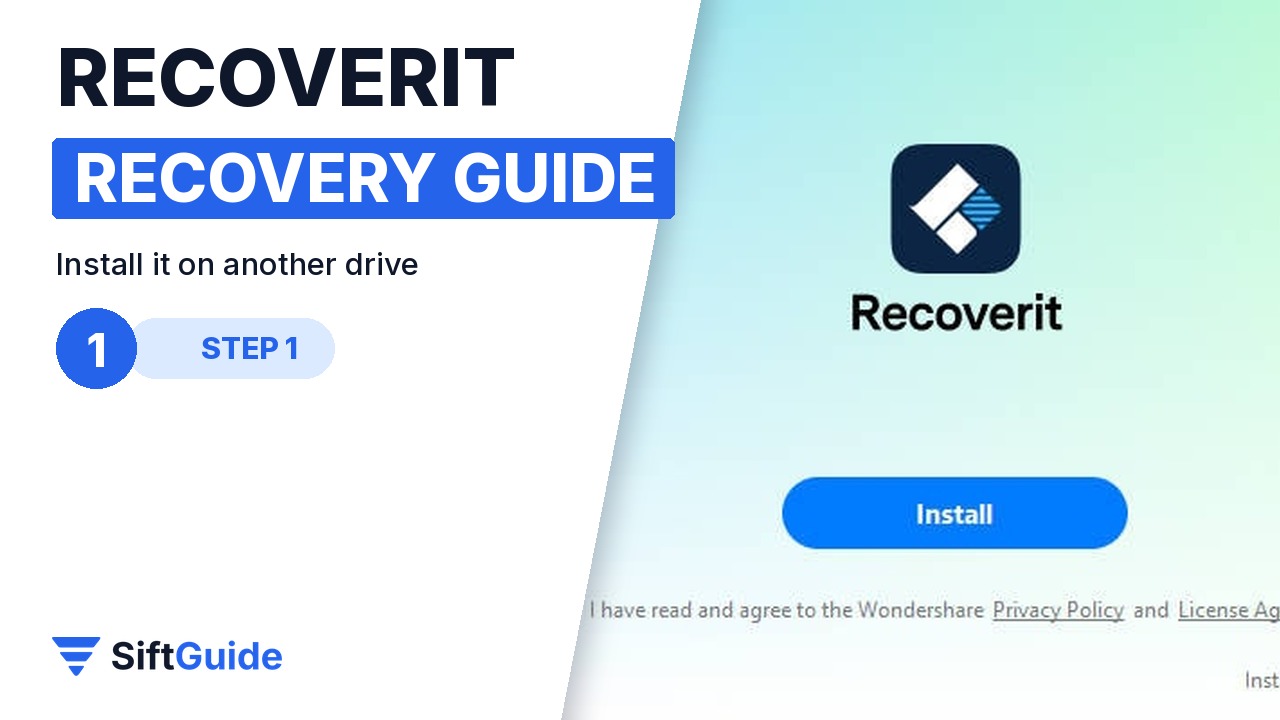
Download Recoverit from Wondershare and run the installer. Click Install, or use Customize Install to choose the language and the destination folder: point it to a different drive from the one that lost the files, so the installation does not overwrite them. Wondershare lists Windows 11, 10, 8.1, 8, 7 and Vista as supported, with 2 GB of RAM minimum.
Step 2: Pick the location to scan
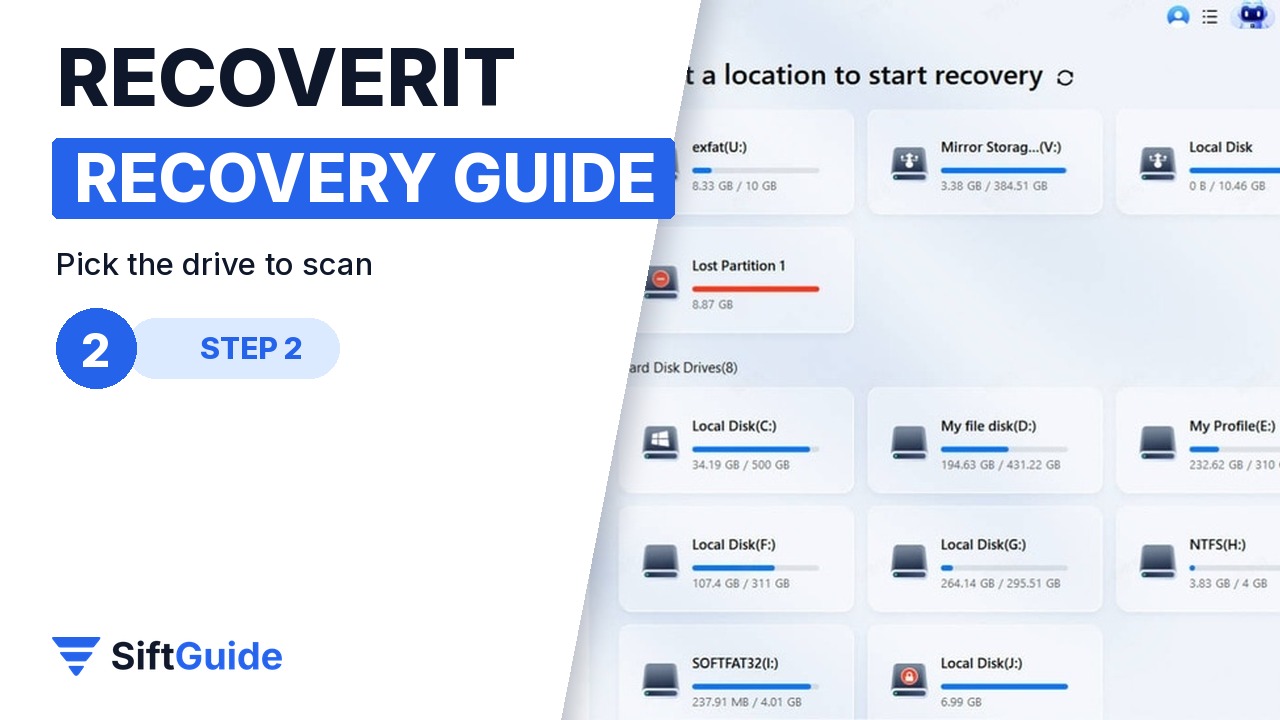
When Recoverit opens, Hard Drives and Locations is shown on the left. Select the hard disk under Hard Disk Drives, or choose Desktop or another folder under Quick Access, then click Start. Shortcut: right-click the drive or folder in File Explorer and choose to scan it for deleted files with Recoverit.
Step 3: Let the scan run and filter the results
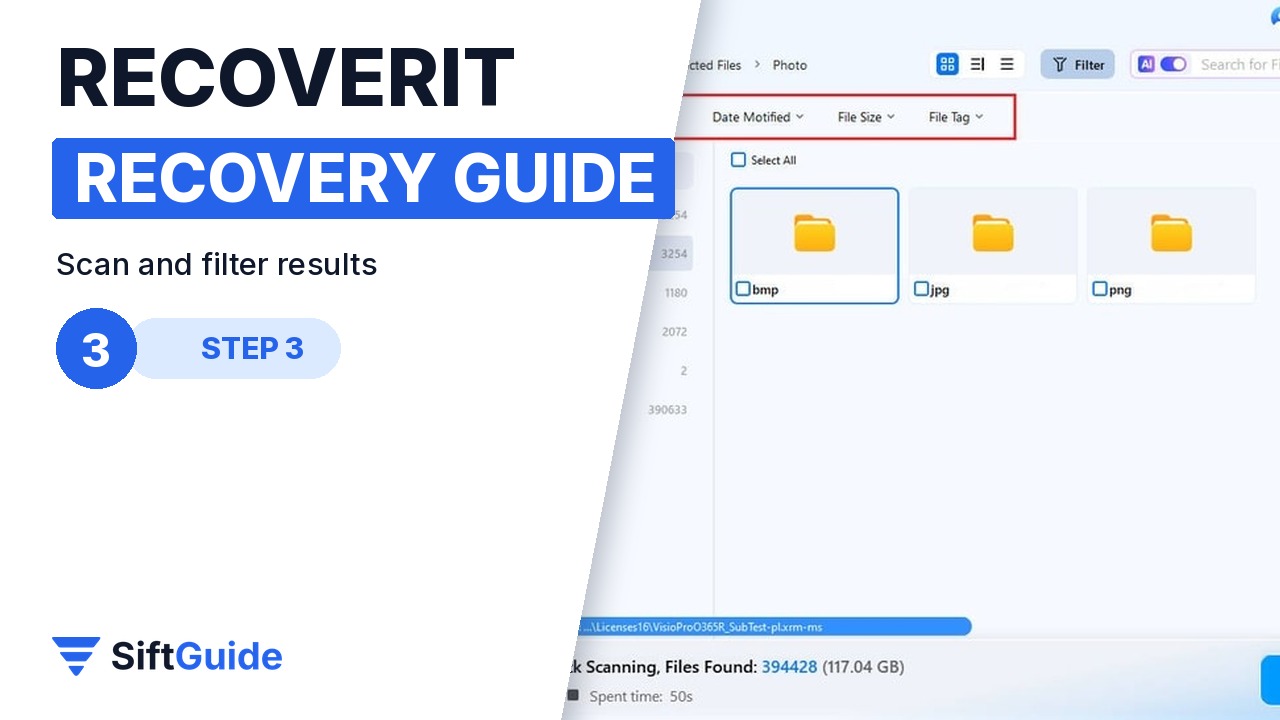
Recoverit starts an all-around scan and shows results in real time, so you can check them while it works. Filter by File Type, Time or File Size, or type a file name in the search box at the top right. You can pause or stop the scan as soon as you see the files you need.
Step 4: Preview before you recover
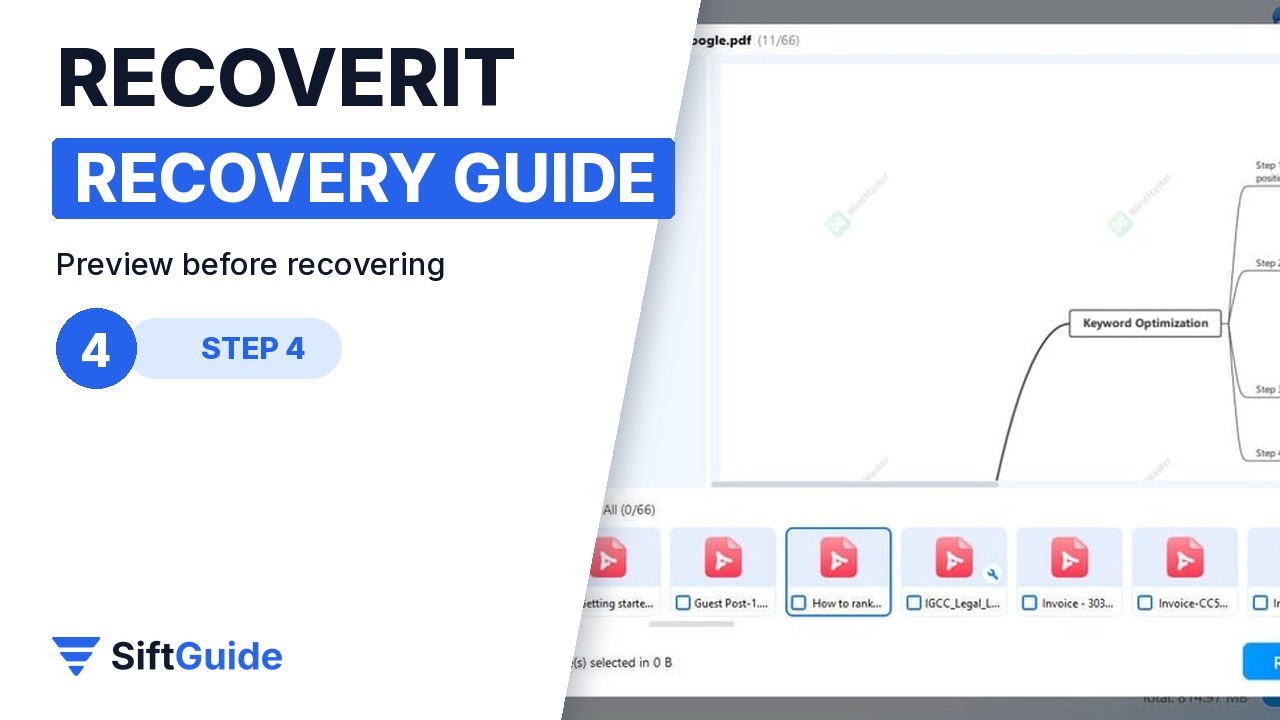
Double-click a file, or select it and use the preview, to check it before recovery. Photos, videos, audio, Word, Excel, PowerPoint and PDF files can be previewed. If a preview looks broken, the file may be partly overwritten; that is useful to know before you buy a plan.
Step 5: Recover to a different drive
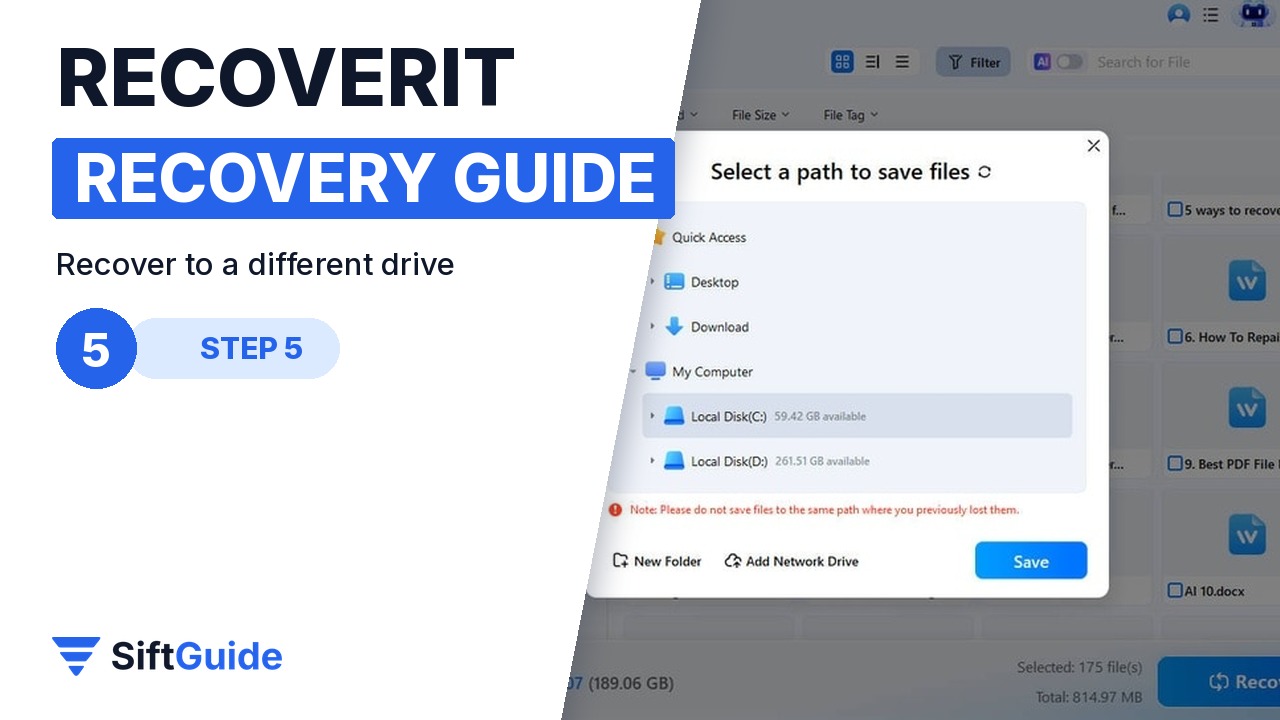
Tick the files you want and click Recover, then choose a save location. Always pick a different drive or a USB stick, never the drive you are recovering from. Saving and recovering files requires a registered Recoverit plan; scanning and previewing do not.
Pro tip
Stop using the affected drive as soon as you notice the loss: do not install apps, download files or empty more of the Recycle Bin to it. For big video files that come back corrupted, look at Enhanced Recovery in the left menu, which Wondershare designed for large videos and photos (it may need a higher plan).
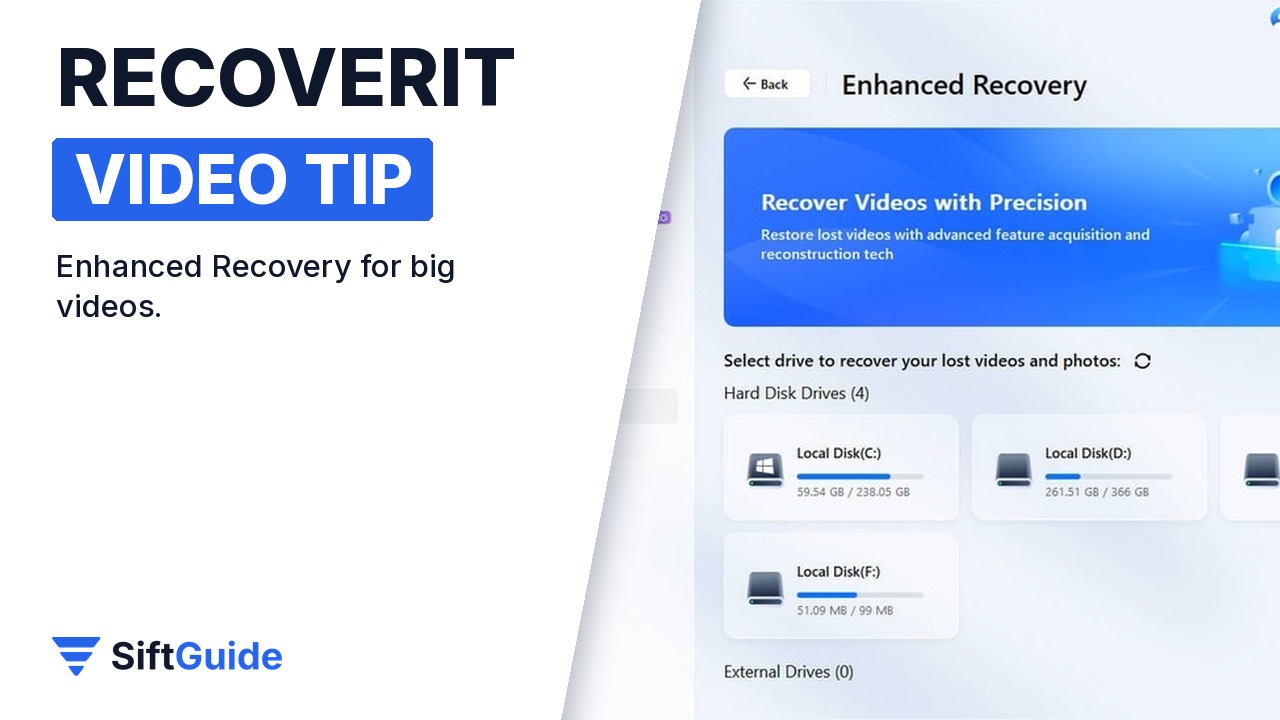
Know the limits: Wondershare is clear that Recoverit cannot recover files from physically damaged drives, files that have already been overwritten, or Android and iPhone storage. For a clicking or dead disk, go to a professional recovery lab instead of running more scans.
Wondershare Recoverit for Windows
Data recovery software for Windows and Mac: recovers deleted and lost files from internal and external drives, USB sticks, SD cards, cameras and more, with real-time scan results, filters, file preview and Enhanced Recovery for large videos. Price in the Wondershare affiliate feed for Recoverit Essential for Windows (1-year licence) in October 2026: $59.95. Prices and plans change, so check before you buy.
FAQ
Is Recoverit free?
You can scan and preview for free. To save the recovered files you need to register and buy a Recoverit plan.
Can Recoverit recover files from an SD card or USB stick?
Yes. Recoverit works with external devices such as SD cards, USB flash drives and external hard drives, as well as internal disks.
Why should I recover to a different drive?
Saving files to the same drive can overwrite the deleted data you are trying to get back. Always choose another drive or a USB stick.
What can Recoverit not recover?
Wondershare says it does not support physically damaged drives, files already overwritten by new data, or Android and iOS devices.
