
Switching phones is easy until you reach WhatsApp. Moving between two iPhones or two Android phones usually works with the official backup tools, but crossing platforms, or moving onto a phone that is already set up and has its own chats, is where people get stuck. Dr.Fone WhatsApp Transfer from Wondershare is a desktop tool that handles all four directions (Android to iPhone, iPhone to Android, Android to Android and iPhone to iPhone) for both WhatsApp and WhatsApp Business. This guide walks through a full transfer on a Windows PC, from plugging in the cables to checking the chats on the new phone.
Disclosure: this guide contains affiliate links (Awin). If you buy through them we may earn a commission at no extra cost to you. Specs come from the official product page.
What you need
- A Windows PC with Dr.Fone installed (the Windows licence is the one linked below; a Mac version is sold separately)
- Both phones, charged, plus a working USB cable for each
- WhatsApp installed on the new phone (it does not have to be empty)
- Enough free storage on the new phone for your chat media
- 15–30 minutes, depending on how many photos and videos your chats hold
Step 1: Connect both phones to your PC
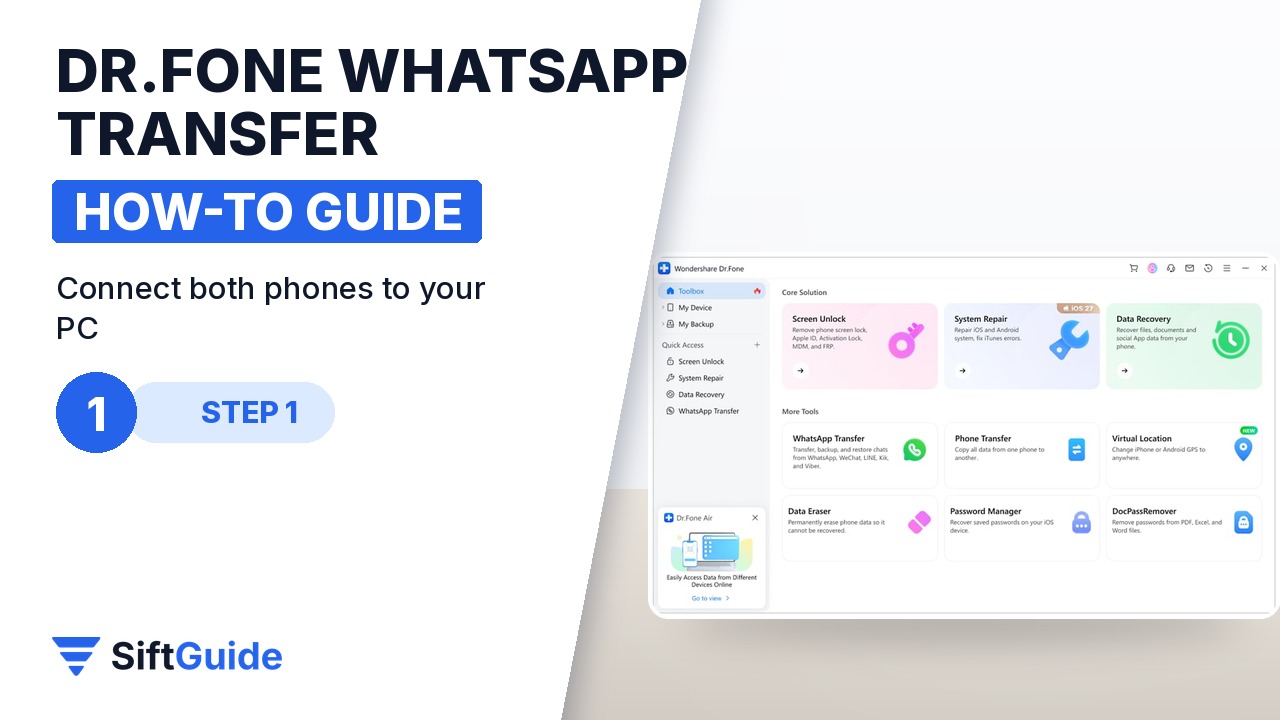
Install Dr.Fone on your computer and open it. Connect the old phone and the new phone with their USB cables at the same time; on an iPhone, tap Trust when the prompt appears, and on Android allow the USB connection. Then open the Toolbox and choose WhatsApp Transfer. Use cables you know are good for data, not charge-only cables, because the transfer needs a stable connection from start to finish.
Step 2: Choose Transfer WhatsApp messages
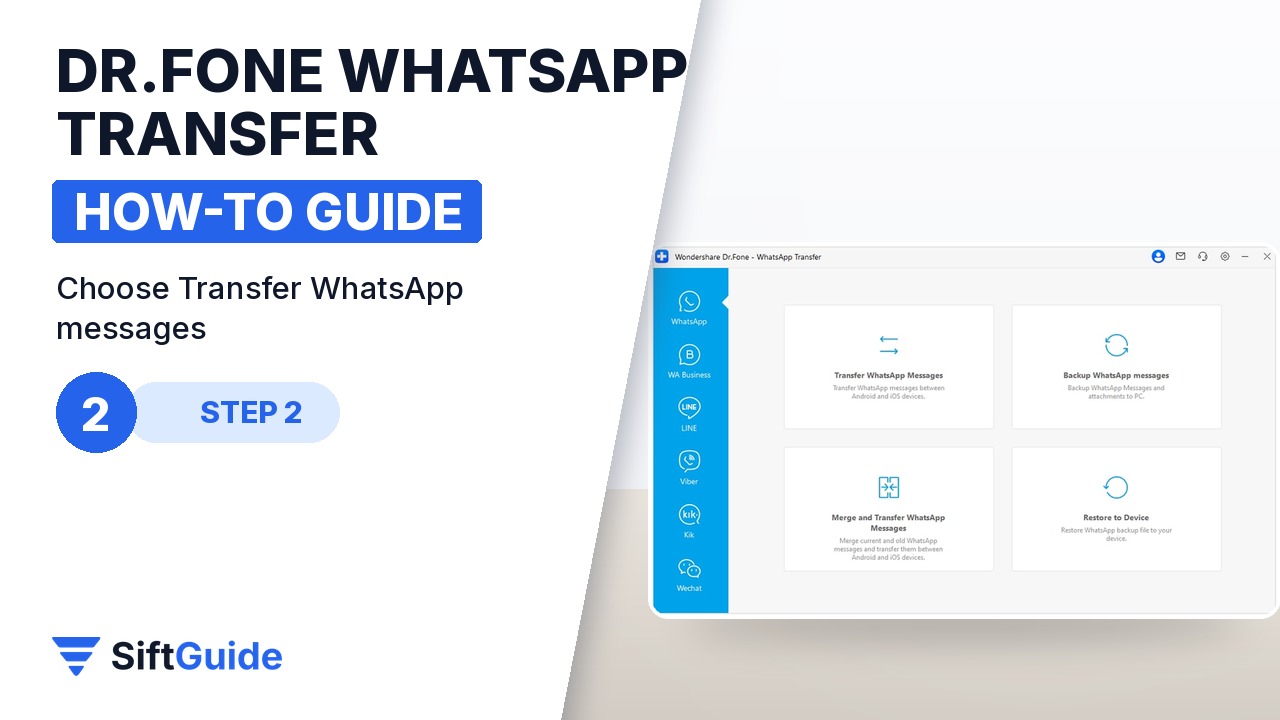
On the WhatsApp Transfer screen, click Transfer WhatsApp messages. The same panel has separate entries for WhatsApp Business, backing up WhatsApp to your computer and restoring a backup, so make sure you pick the right account type before you continue. If you use both regular WhatsApp and WhatsApp Business on the old phone, move them one at a time.
Step 3: Set Source and Destination
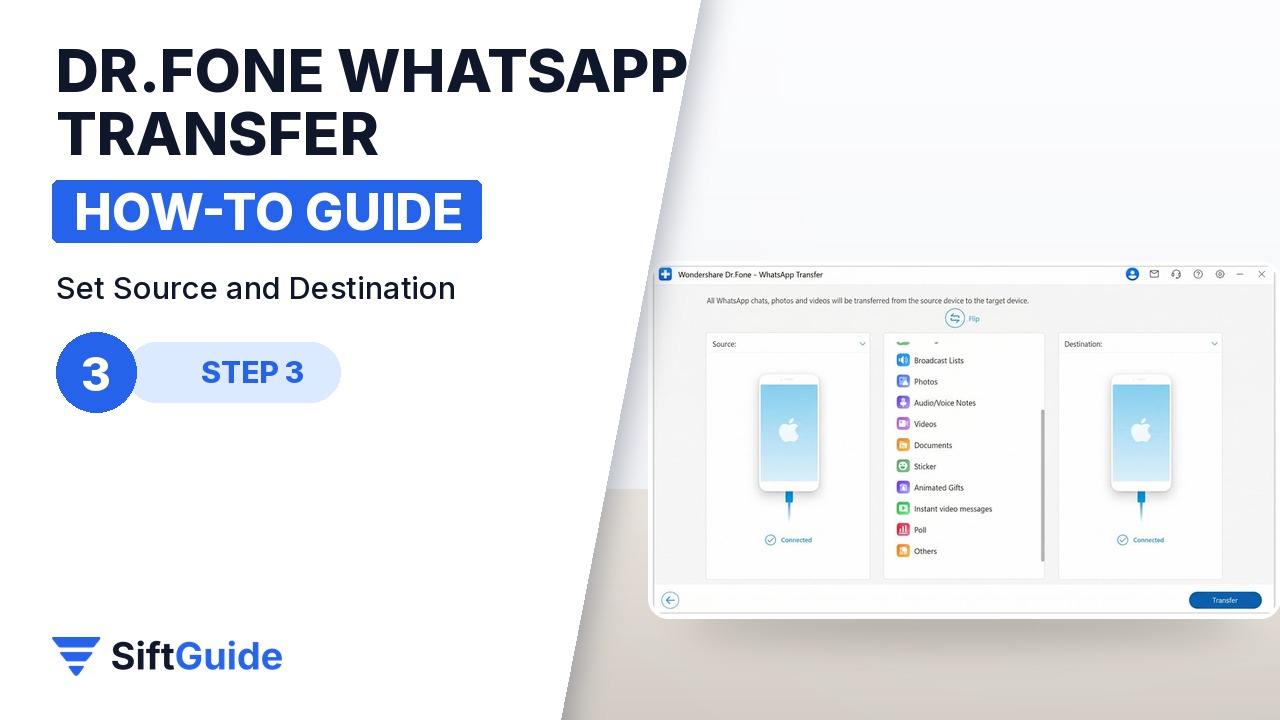
Dr.Fone shows the two phones side by side. The old phone must be the Source and the new one the Destination; if they appear the wrong way round, click Flip. When you move from Android to iPhone, Dr.Fone lets you choose which data types to bring across, such as messages, photos, videos, voice notes, stickers, documents and call logs. The other directions move the full set of supported data.
Step 4: Back up or continue, then wait
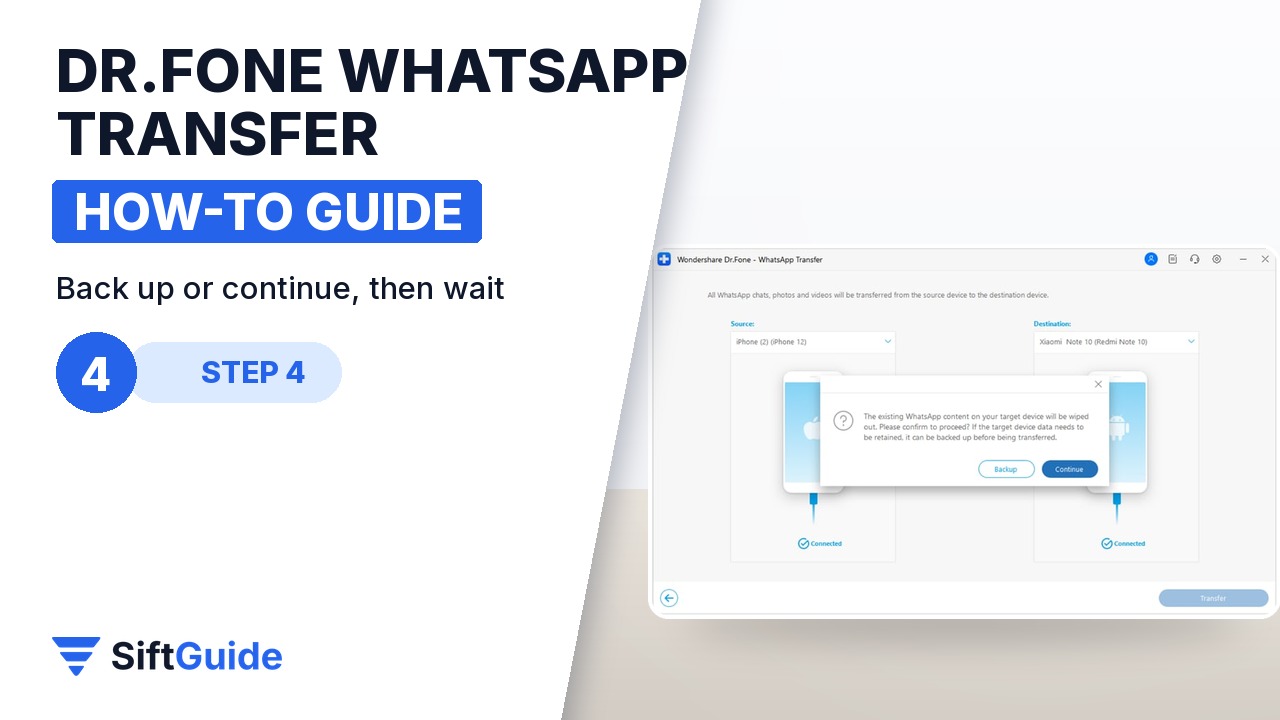
If the new phone already has WhatsApp chats, Dr.Fone asks what to do with them. You can back them up to the computer first or click Continue to go ahead with the transfer. Then start the transfer and leave both phones connected while the progress bar runs. Do not unplug a cable, open WhatsApp on either phone or let the computer sleep until the transfer has finished.
Step 5: Check chats on the new phone
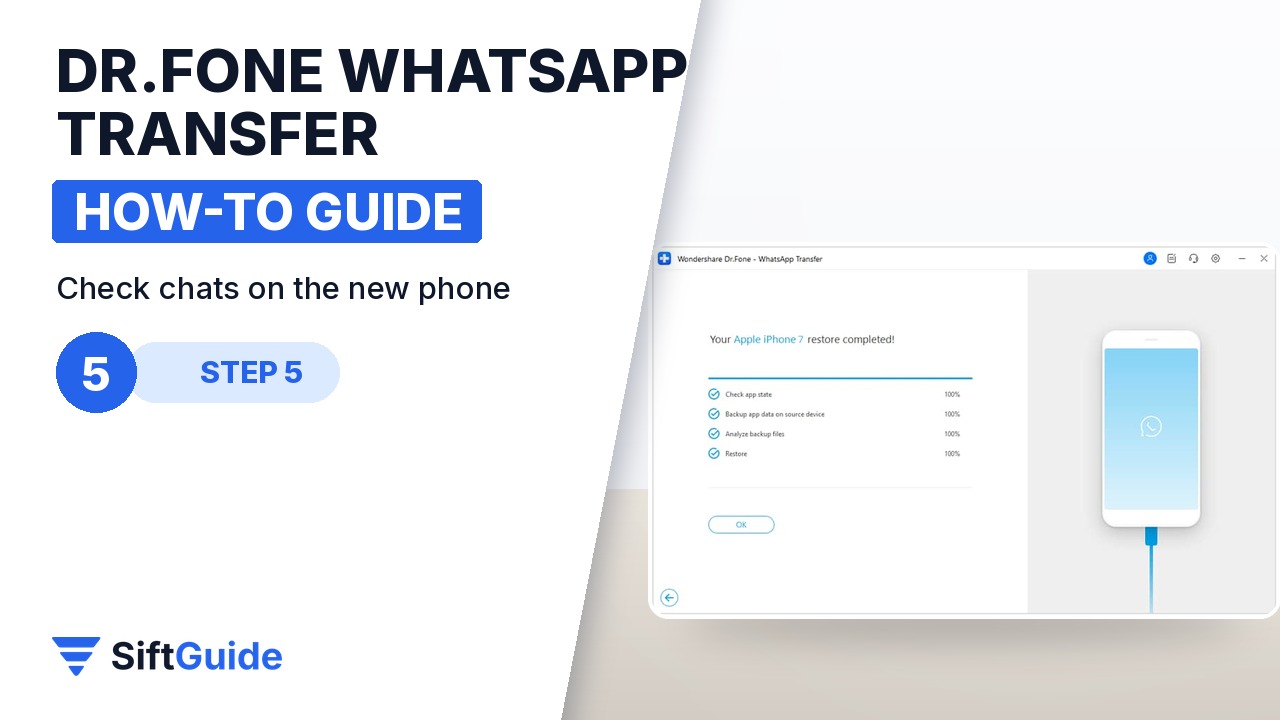
When the completed screen appears, click OK and disconnect the phones. Open WhatsApp on the new phone, verify your number if asked, and scroll through a few long chats and groups: check that the photos, videos, documents and voice notes open, not just the text. Keep the old phone as it is for a few days, in case you notice a chat that is missing.
Tip
Before you start, make a backup of the old phone to the computer from the same WhatsApp Transfer panel. If anything goes wrong mid-transfer, you can restore that backup to either phone instead of starting from zero.
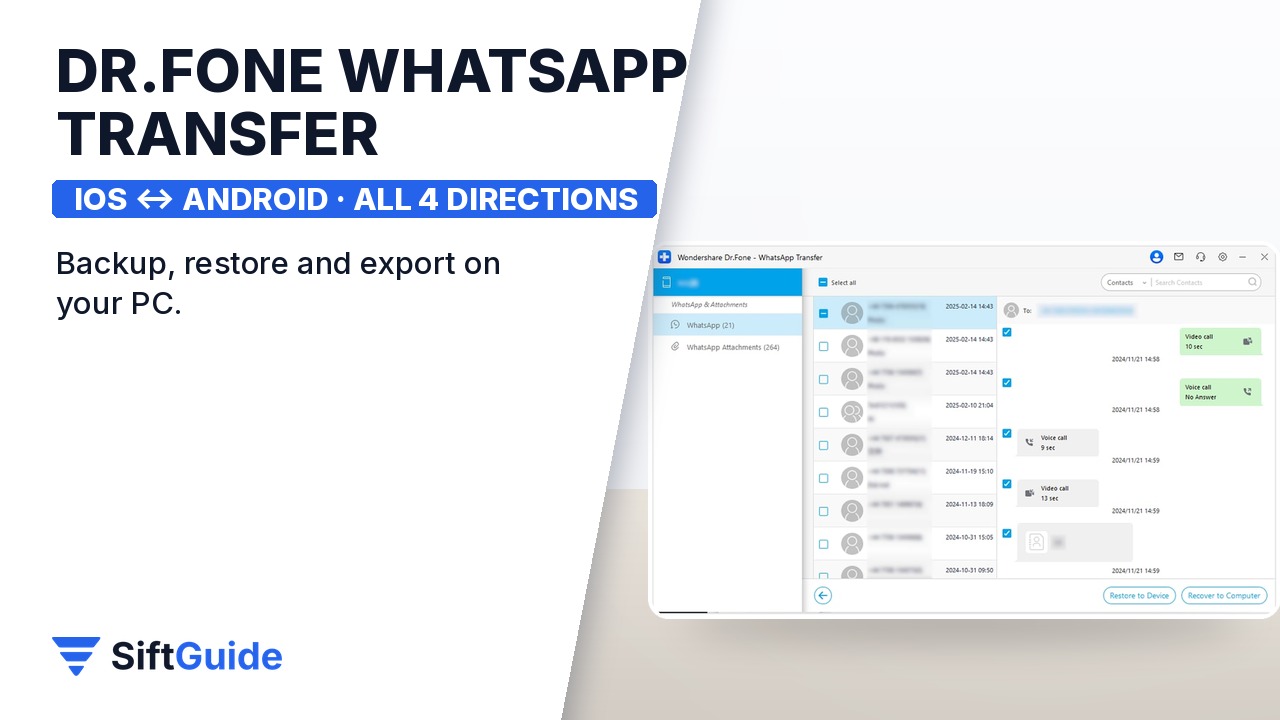
Bottom line: connect both phones, pick the correct Source and Destination, decide what happens to any chats already on the new phone and let the progress bar finish without interruptions. Beyond the transfer itself, the same tool backs up and restores WhatsApp on your computer, exports chats to PDF, HTML, CSV or Excel, and also backs up chats from LINE, Kik, Viber and WeChat.
Wondershare Dr.Fone – WhatsApp Transfer (Windows)
Desktop tool for moving WhatsApp and WhatsApp Business between iPhone and Android in all four directions, plus backup, restore and export to PDF, HTML, CSV or Excel. Supports messages, photos, videos, voice notes, stickers, documents and call logs. Listed at $21.95 for Windows in the Wondershare affiliate catalog (November 2026); check the store for the current price and plans.
FAQ
Does it work from Android to iPhone?
Yes. Dr.Fone WhatsApp Transfer supports all four directions: Android to iPhone, iPhone to Android, Android to Android and iPhone to iPhone. Android to iPhone is also the one direction where you can choose specific data types.
Will it delete the chats already on my new phone?
Dr.Fone warns you when the destination already has WhatsApp data and offers to back it up to the computer first. Make that backup if the chats matter to you.
Does it work with WhatsApp Business?
Yes. WhatsApp Business has its own entry in the WhatsApp Transfer panel, with the same transfer, backup and restore options.
Can I export my chats as a document?
Yes. After backing up to the computer you can preview the backup and export records as PDF, HTML, CSV or Excel files.
Is there a Mac version?
Yes, but it is a separate licence. The link in this guide points to the Windows version in the Wondershare store, where you can switch to the Mac plan.