
Affiliate disclosure: this post contains affiliate links (CJ) to Contabo. If you order through them, SiftGuide may earn a commission at no extra cost to you; it does not change your price or terms. Plans and prices come from Contabo’s official pages and price data; Vaultwarden facts and commands from its official GitHub README and wiki; Bitwarden’s requirements from Bitwarden’s help center; firewall behaviour from Docker’s documentation. All checked on October 28, 2026 (Europe/Bucharest). We have not benchmarked these servers or placed an order. Figures marked “our arithmetic” are our own calculations.
Vaultwarden is “an alternative server implementation of the Bitwarden Client API, written in Rust”. In plain terms: you run a small server, and the normal Bitwarden apps, browser extensions and web vault sync your passwords to it instead of to Bitwarden’s cloud. The server side is the easy part. A password manager is the one app where a sloppy setup really hurts, so this guide spends less time on the plan (the cheapest Contabo plan is plenty) and more on the five things that keep a self-hosted vault safe: HTTPS, closed sign-ups, a hashed admin token, no stray open ports, and off-server backups.
The short answer
- Plan: Cloud VPS 4 (4 vCPU, 8 GB RAM, 100 GB SSD, 1 snapshot) at €5.50 a month, or €4.40 a month on a 24-month term, before VAT. That is far more than Vaultwarden needs, and it leaves room for other apps.
- Add Contabo’s Auto Backup (€1.65 a month on Cloud VPS 4) as a safety net, but also run Vaultwarden’s own database backup to another place. Vaultwarden’s wiki says to avoid relying on VM snapshots as your backup.
- Install: Docker Compose with Vaultwarden plus Caddy for automatic HTTPS. Do not publish Vaultwarden’s own port; Docker opens published ports past UFW.
- Right after your first login: set
SIGNUPS_ALLOWEDto false, turn on two-step login, and if you enable the admin page, use an argon2 hash as theADMIN_TOKEN. - Want the server from Bitwarden itself, with its support? Then use the official Bitwarden server (paid features need a Bitwarden license). It asks for at least 2 GB RAM (4 GB recommended), so Cloud VPS 4 still covers it.
What it needs: Vaultwarden vs the official Bitwarden server
Bitwarden publishes system specifications for its own self-hosted server. Vaultwarden’s README and wiki do not give a RAM figure; the numbers in the Vaultwarden column come from Contabo’s Bitwarden tutorial.
What: Memory
- Official Bitwarden server (Bitwarden help): 2 GB minimum, 4 GB recommended
- Vaultwarden (Contabo tutorial): “Runs comfortably on 512 MB RAM”; “~256 MB RAM” in use
What: CPU
- Official Bitwarden server (Bitwarden help): x64, 1.4 GHz minimum; x64, 2 GHz dual core recommended
- Vaultwarden (Contabo tutorial): not stated
What: Storage
- Official Bitwarden server (Bitwarden help): 12 GB minimum, 25 GB recommended
- Vaultwarden (Contabo tutorial): not stated
What: Setup
- Official Bitwarden server (Bitwarden help): Bitwarden’s install script; needs an installation ID and key from Bitwarden
- Vaultwarden (Contabo tutorial): one container plus a reverse proxy; no license key
What: Clients
- Official Bitwarden server (Bitwarden help): Official Bitwarden apps
- Vaultwarden (Contabo tutorial): The same official Bitwarden apps
Vaultwarden’s README lists a “nearly complete implementation” of the Bitwarden client API: personal vault, Send, attachments, organizations with collections and groups, two-factor methods (authenticator, email, FIDO2 WebAuthn, YubiKey, Duo), emergency access and an admin backend. Two things to know before you commit:
- “This project is not associated with Bitwarden or Bitwarden, Inc.” If something breaks, report it to Vaultwarden; the README says “DO NOT use the official Bitwarden support channels”.
- It is open source under AGPL-3.0, with over 69K stars on GitHub when we checked.
Which Contabo plan
Prices are for the EU location, before VAT, from Contabo’s own price data and plan cards on October 28, 2026 (Europe/Bucharest). The 12-month column is our arithmetic from Contabo’s listed term discount.
Plan: Cloud VPS 4
- CPU / RAM / disk: 4 vCPU / 8 GB / 100 GB SSD
- Snapshots: 1 Snapshot
- Monthly: €5.50/mo
- 12 months: €4.68/mo
- 24 months: €4.40/mo
- Auto Backup: €1.65
- Notes: Our pick. Snapshot plus Auto Backup option.
Plan: Cloud VPS 6
- CPU / RAM / disk: 6 vCPU / 12 GB / 200 GB SSD or 100 GB NVMe
- Snapshots: 2 Snapshots
- Monthly: €7.50/mo
- 12 months: €6.38/mo
- 24 months: €6.00/mo
- Auto Backup: €3.35
- Notes: Only if you will add heavier apps.
Plan: Storage VPS 10
- CPU / RAM / disk: 2 vCPU / 4 GB / 300 GB SSD or 150 GB NVMe
- Snapshots: none listed
- Monthly: €5.50/mo
- 12 months: €4.68/mo
- 24 months: €4.40/mo
- Auto Backup: not offered
- Notes: Same price; more disk, fewer cores, no snapshot.
Order Cloud VPS 4 at Contabo · See Storage VPS plans
- Why not something smaller? Cloud VPS 4 is the entry Cloud VPS plan in Contabo’s price data. Storage VPS 10 costs the same €5.50 a month with 2 vCPU, 4 GB RAM and 300 GB SSD, but its specs list no snapshot and its order options have no Auto Backup add-on. Pick it only if you also want bulk storage on the same machine.
- Region: on Cloud VPS 4, the UK and US Central add €1.05 a month, US East €1.55, US West €1.30, Australia €2.15, India €2.40, Singapore €2.50 and Japan €2.55. Contabo’s country list shows, for example, 19% VAT for Germany, 20% for the UK and 21% for Romania; our prices are before VAT.
- Traffic: plan cards say “Unlimited Traffic*”; the footnote on the Storage VPS page reads “fair usage policy applies based on average server workloads”. A password vault syncs tiny amounts of data, so this will not matter.
- Docker preinstalled: Docker is listed as a free application option when you order Cloud VPS 4. You can also install it yourself (below).
Our arithmetic: Cloud VPS 4 plus Auto Backup, monthly term: €5.50 + €1.65 = €7.15 a month before VAT. On a 24-month term the plan alone comes to €4.40 × 24 = €105.60 for the two years.
Where the sources disagree
- Price. Contabo’s Bitwarden tutorial (last updated August 24, 2026) calls Cloud VPS 4 “€4.50/mo”. Contabo’s current price data shows €5.50 a month, or €4.40 on a 24-month term. Trust the order page.
- Traffic. The same post says both “Unlimited traffic is included on all Contabo plans” and “truckloads of RAM and traffic (32 TB!)”. Today’s plan cards say unlimited, with a fair-usage footnote.
- Names. The tutorial’s button says “Get a Contabo Core VPS”; the plan cards and price data say Cloud VPS 4, 6 and 8. Same products.
- The older method in that tutorial opens a port. Its Apache section starts Vaultwarden with
-p 8081:80, which publishes the port on every interface. Docker’s docs say published ports go around UFW. The tutorial’s newer Compose method binds to127.0.0.1:8080, which is the safe version. Vaultwarden’s README also binds to 127.0.0.1. - The admin token. The tutorial’s Compose file puts a plain-text
ADMIN_TOKENin the file. Vaultwarden’s wiki recommends hashing it with argon2 (steps below). - Backups. The tutorial suggests a daily cron job copying the
vw-datafolder. Vaultwarden’s wiki says to back up the SQLite database with its online backup method or the built-in/vaultwarden backupcommand, because a plain copy is safe only when the database is not in use.
Install Vaultwarden with Docker Compose and Caddy
You need: the VPS (Ubuntu or Debian), a subdomain such as vault.example.com pointing to its IP, and ports 80 and 443 open. HTTPS is not optional. Vaultwarden’s README says the web vault “requires the use of HTTPS and a secure context for the Web Crypto API”, and its hardening guide warns that the built-in Rocket TLS “is not considered ready for production use”, so use a reverse proxy.
- Install Docker (skip this if you chose the Docker option when ordering). Contabo’s tutorial uses Docker’s convenience script:
curl -fsSL https://get.docker.com | sh- Create a folder and a
compose.yaml. This is Vaultwarden’s official “Caddy with HTTP challenge” example with your own domain and email filled in:
mkdir ~/vaultwarden && cd ~/vaultwarden
nano compose.yaml
services:
vaultwarden:
image: vaultwarden/server:latest
container_name: vaultwarden
restart: always
environment:
DOMAIN: "https://vault.example.com"
SIGNUPS_ALLOWED: "true" # set to "false" after you create your account
volumes:
- ./vw-data:/data
# no "ports:" here - only Caddy is exposed
caddy:
image: caddy:2
container_name: caddy
restart: always
ports:
- 80:80
- 443:443
- 443:443/udp
volumes:
- ./Caddyfile:/etc/caddy/Caddyfile:ro
- ./caddy-config:/config
- ./caddy-data:/data
environment:
DOMAIN: "https://vault.example.com"
EMAIL: "you@example.com"Note what is missing: there is no ports: line under vaultwarden. Caddy reaches it over the private Docker network, so, in the wiki’s words, “only Caddy being publicly exposed”. Vaultwarden’s minimal template publishes 11001:80 instead; that one is for local servers or your own proxy. If you do publish it, use 127.0.0.1:11001:80.
- Create the
Caddyfilein the same folder (trimmed from the wiki’s example; the wiki’s version adds an access log):
{$DOMAIN} {
  tls {$EMAIL}
  encode zstd gzip
  reverse_proxy vaultwarden:80 {
    header_up X-Real-IP {remote_host}
  }
}- Start it and watch the logs until Caddy reports the certificate:
docker compose up -d && docker compose logs -f- Firewall. Allow only SSH, 80 and 443. Docker’s docs say that when you publish a container’s ports, traffic “gets diverted before it goes through the ufw firewall settings”, so UFW does not protect a published container port. That is why the Compose file above publishes nothing but Caddy.
ufw allow OpenSSH
ufw allow 80/tcp
ufw allow 443
ufw enable- Create your account at https://vault.example.com right away, then connect the apps: in any official Bitwarden app or extension, choose the self-hosted option on the login screen and enter your URL.
Do not want it on the public internet at all? Put the vault behind a private VPN on the same server and reach it only from your devices. Our WireGuard on Contabo guide covers Contabo’s free 1-click WireGuard option. Note that you still need a valid HTTPS certificate; the wiki’s “Caddy with DNS challenge” example is made for this case.
Lock it down: five changes after the first login
- Close sign-ups. “By default, anyone who can access your instance can register for a new account.” Set
SIGNUPS_ALLOWED: "false"incompose.yamland rundocker compose up -d. Even then, organization owners and admins can still invite users; setINVITATIONS_ALLOWEDto false if you do not want that. - Turn on two-step login for every account in the web vault (authenticator app, FIDO2 key or YubiKey). Vaultwarden’s hardening guide also suggests Fail2Ban against password guessing.
- Admin page: off, or hashed. The
/adminpanel can view and delete users and invite people “even when registration has been disabled”. It is off unless you set anADMIN_TOKEN. If you want it, generate an argon2 hash and use that, not the plain password:
docker exec -it vaultwarden /vaultwarden hashPaste the result as ADMIN_TOKEN. In a Compose file the wiki says to “escape all five occurrences of the dollar sign $ in the generated argon2 PHC string using two dollar signs $$”. Admin sessions last 20 minutes by default.
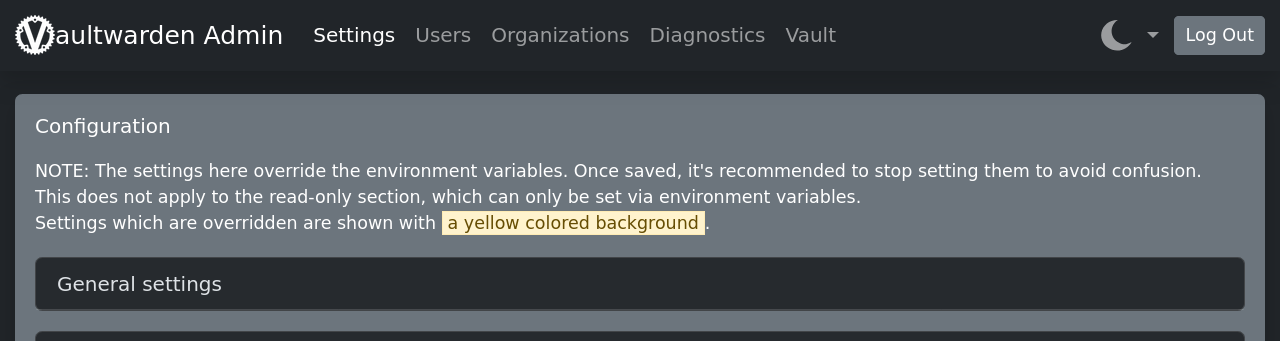
- Know which setting wins. Once you save settings in the admin panel, Vaultwarden writes a
config.jsonthat “will take the highest precedence”. After that, changingSIGNUPS_ALLOWEDincompose.yamlmay seem to do nothing. Change it in the panel instead. - Hide password hints. The hardening guide notes that hints shown on the login page can help password-guessing. Set
SHOW_PASSWORD_HINTto false, or untick it in the admin panel.
Optional: instant sync on phones. Since version 1.29.0, Vaultwarden can use Bitwarden’s push relay. Request an installation ID and key at bitwarden.com/host and set PUSH_ENABLED=true with PUSH_INSTALLATION_ID and PUSH_INSTALLATION_KEY.
Back up the vault (and test a restore)
If the server dies and you have no backup, every password on it is gone. Vaultwarden’s wiki asks for an automated backup, “preferably at least once a day”, with at least one copy stored remotely, and adds: “Avoid relying on filesystem or VM snapshots as a backup method”. Here is what is in the data folder:
Item: db.sqlite3
- Back up?: Required
- Why: Almost all vault data and state
Item: attachments/
- Back up?: Required
- Why: File attachments live outside the database
Item: config.json
- Back up?: Recommended
- Why: Admin-page settings; contains the admin token and SMTP password in plain text, so encrypt it
Item: rsa_key*
- Back up?: Recommended
- Why: Sign login tokens; losing them only logs everyone out
Item: sends/, icon_cache/
- Back up?: Optional
- Why: Temporary Send files and cached website icons
The Docker image has no sqlite3 or cron, so run the job on the host. Since version 1.32.1, Vaultwarden has a built-in backup command (the wiki’s example uses -it; drop it inside cron, where there is no terminal):
docker exec vaultwarden /vaultwarden backupThen copy the backup file plus attachments/, config.json and the rsa_key* files off the server. The wiki names rclone for cloud storage, and restic or rustic for larger attachment sets. Encrypt the copy if it includes config.json.
Where to send it at Contabo:
- Object Storage (S3-compatible), which Contabo’s tutorial suggests: “Prices from €2.49/month”. Note that it is “available exclusively to existing Contabo customers” and is bought in the Customer Control Panel, not in the VPS order form.
- FTP backup space add-on in the VPS order form: 100 GB for €4.59 a month (also 500 GB, 1 TB and 2 TB). Cloud VPS 4 plus 100 GB comes to €10.09 a month (our arithmetic).
- Auto Backup (€1.65 a month on Cloud VPS 4): Contabo says it “runs daily off-server backups”. Useful for restoring the whole server, but keep the Vaultwarden backup above as your main copy.
- Somewhere outside Contabo (a home NAS or another provider) is the best second copy: one provider problem cannot take both.
The wiki also suggests running through a restore now and then to prove the backups work; a spare VPS is a good place for it.
Keep it updated
Vaultwarden’s wiki says the latest tag is “recommended for most users”, and that it is “important for Vaultwarden users to keep up-to-date” because Bitwarden’s apps auto-update and can break against an old server. The latest release when we checked was 1.37.4, published October 5, 2026 (UTC), with fixes for 7 security advisories; its notes say “We strongly advise updating as soon as possible”. Back up, then:
cd ~/vaultwarden
docker compose pull && docker compose up -d
Is it worth it?
Vaultwarden is free, and the official apps are free. Your costs are the server, a domain and your time. You get your vault on hardware you control, and features like organizations, attachments and emergency access without a paid plan. In exchange you are the security team: updates, backups and the lock-down steps above are your job. If that sounds like a chore, a hosted password manager is the better choice. If you already run a VPS for other things (Nextcloud, Immich or a Coolify stack), Vaultwarden adds almost nothing to the load.
Get a Contabo Cloud VPS for Vaultwarden · Contabo homepage
What we could not confirm
- Vaultwarden’s real memory use on these plans. The 256 MB and 512 MB figures come from Contabo’s tutorial; Vaultwarden’s own docs give no number, and we did not measure it.
- Whether add-ons such as Auto Backup get the same term discount as the plan on 12- or 24-month terms. Contabo’s price data lists them as monthly prices; check the order summary.
- Object Storage tiers beyond the “from €2.49/month” starting price, because it is sold only inside the Customer Control Panel.
More Contabo guides: all Contabo VPS prices, a private WireGuard VPN, Nextcloud, Immich and Coolify on Contabo.
FAQ
Which Contabo plan is best for Vaultwarden?
Cloud VPS 4: 4 vCPU, 8 GB RAM and 100 GB SSD for €5.50 a month (€4.40 on 24 months) before VAT, with a snapshot and an Auto Backup add-on for €1.65. It is far more than Vaultwarden needs, so it can host other apps too.
Does Contabo have a 1-click Vaultwarden image?
No. Contabo’s own tutorial says it “does not yet offer a dedicated 1-click Vaultwarden image”. Docker is a free option when you order, and the install takes a few minutes.
Do the official Bitwarden apps work with Vaultwarden?
Yes. Choose the self-hosted option on the login screen and enter your server’s HTTPS address. Vaultwarden is not made or supported by Bitwarden, Inc.
Can I run Vaultwarden without HTTPS?
Not usefully. The web vault needs HTTPS and a secure context for the Web Crypto API, and Contabo’s tutorial notes that Bitwarden clients refuse to connect over HTTP.
Does UFW protect a Docker-published port?
No. Docker routes published container ports before UFW’s rules apply. Publish only the reverse proxy (80/443), or bind any other port to 127.0.0.1.
How do I back up Vaultwarden?
Run docker exec vaultwarden /vaultwarden backup daily from the host, and copy the result with attachments/, config.json and the rsa_key* files to another location. Do not rely only on VM snapshots.
Vaultwarden or the official Bitwarden server?
Vaultwarden for individuals, families and small teams. The official server if you want software and support from Bitwarden itself (paid features need a Bitwarden license); Bitwarden asks for 2 GB RAM minimum and 4 GB recommended.
Sources
All checked on October 28, 2026 (Europe/Bucharest).
- Contabo – VPS (Cloud VPS): https://contabo.com/en/vps/
- Contabo – Storage VPS: https://contabo.com/en/storage-vps/
- Contabo – Object Storage: https://contabo.com/en/object-storage/
- Contabo blog – How to Self-host Bitwarden on a VPS: https://contabo.com/blog/bitwarden-self-hosting-vps/
- Vaultwarden on GitHub (README): https://github.com/dani-garcia/vaultwarden
- Vaultwarden release notes (latest): https://github.com/dani-garcia/vaultwarden/releases/latest
- Vaultwarden wiki – Using Docker Compose: https://github.com/dani-garcia/vaultwarden/wiki/Using-Docker-Compose
- Vaultwarden wiki – Backing up your vault: https://github.com/dani-garcia/vaultwarden/wiki/Backing-up-your-vault
- Vaultwarden wiki – Enabling admin page: https://github.com/dani-garcia/vaultwarden/wiki/Enabling-admin-page
- Vaultwarden wiki – Disable registration of new users: https://github.com/dani-garcia/vaultwarden/wiki/Disable-registration-of-new-users
- Vaultwarden wiki – Hardening guide: https://github.com/dani-garcia/vaultwarden/wiki/Hardening-Guide
- Vaultwarden wiki – Which container image to use: https://github.com/dani-garcia/vaultwarden/wiki/Which-container-image-to-use
- Vaultwarden wiki – Mobile client push notifications: https://github.com/dani-garcia/vaultwarden/wiki/Enabling-Mobile-Client-push-notification
- Vaultwarden wiki – Configuration overview: https://github.com/dani-garcia/vaultwarden/wiki/Configuration-overview
- Bitwarden help – Install and deploy on Linux (system specifications): https://bitwarden.com/help/install-on-premise-linux/
- Docker docs – Packet filtering and firewalls (Docker and ufw): https://docs.docker.com/engine/network/packet-filtering-firewalls/
- Docker docs – Port publishing: https://docs.docker.com/engine/network/port-publishing/
