
Cloud backups are convenient until you need them: iCloud fills up, Google only keeps some data types, and restoring usually means wiping the phone and pulling everything back. Wondershare Dr.Fone Phone Backup takes a different route. It saves your phone to your own Windows PC or Mac, lets you look inside the backup, and restores only what you pick, to an iPhone or an Android phone. This guide walks through the routine that works for most people: one manual backup, a quick check, automatic backups over Wi-Fi, and a selective restore when something goes missing.
Disclosure: this guide contains affiliate links (Awin). If you buy through them we may earn a commission at no extra cost to you. Specs come from the official product page.
What you need
- A Windows PC (Windows 7 or newer) or a Mac
- Your iPhone, iPad or Android phone and its USB cable
- Enough free disk space on the computer for your photos and videos
- Dr.Fone installed (free to try; Phone Backup is a paid module for the full features)
- For automatic backups: phone and computer on the same Wi-Fi network
Step 1: Install Dr.Fone and connect your phone
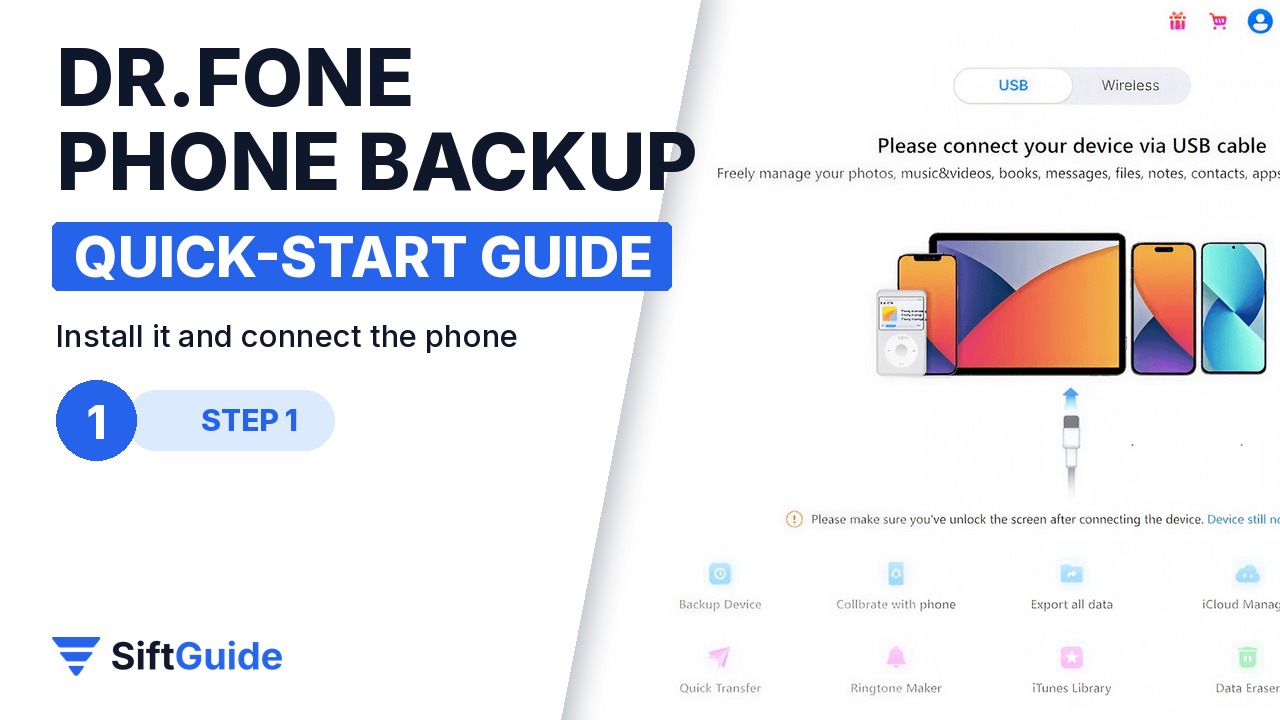
Download Dr.Fone from Wondershare and install it on your Windows PC or Mac. Open it and connect the phone with a USB cable. On an iPhone, unlock the screen and tap “Trust” when it asks about the computer; on Android, allow the USB connection and file access prompts. Once the phone shows up in the left panel with its name and storage, Dr.Fone can see it. Wondershare notes that the Mac version still uses an older interface, but the backup functions are the same.
Step 2: Run your first backup with Back Up Now
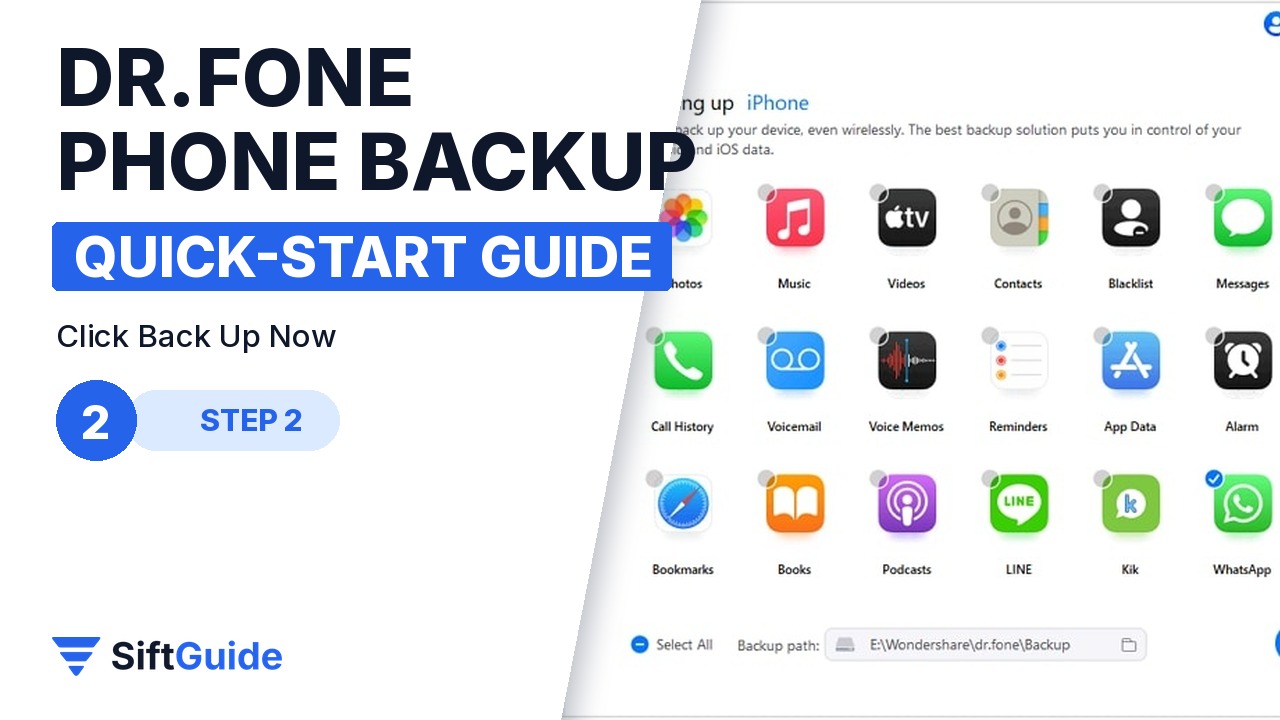
Open the My Backup section in the left panel and click Back Up Now. Dr.Fone detects the data types on the phone and saves them automatically. For an iPhone, Wondershare lists photos, music, videos, messages, WhatsApp, LINE, Viber and Kik data, call history, voicemail, reminders, Safari data, calendar, contacts, notes, voice memos, app data, alarms and more. Keep the cable connected and the phone unlocked during the first run, which is the longest one.
Step 3: Check the backup and open its folder
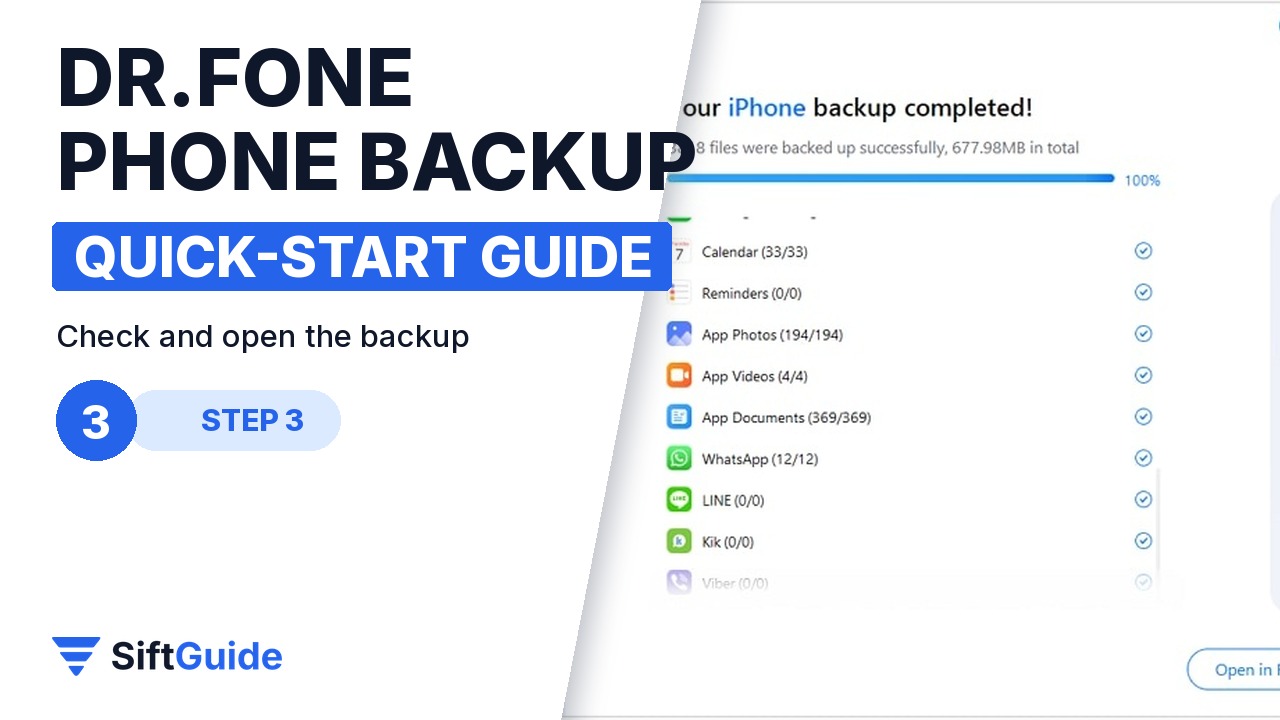
When the backup finishes, Dr.Fone shows a summary of everything that was saved. Click View Backups to browse the contents by category, or Open in Folder to see the backup files on your disk. This is the step most people skip, and the one that matters: open a few photos or a chat thread and confirm they are really there. The backup stays local, on your computer, rather than on someone else’s server.
Step 4: Turn on automatic Wi-Fi backups
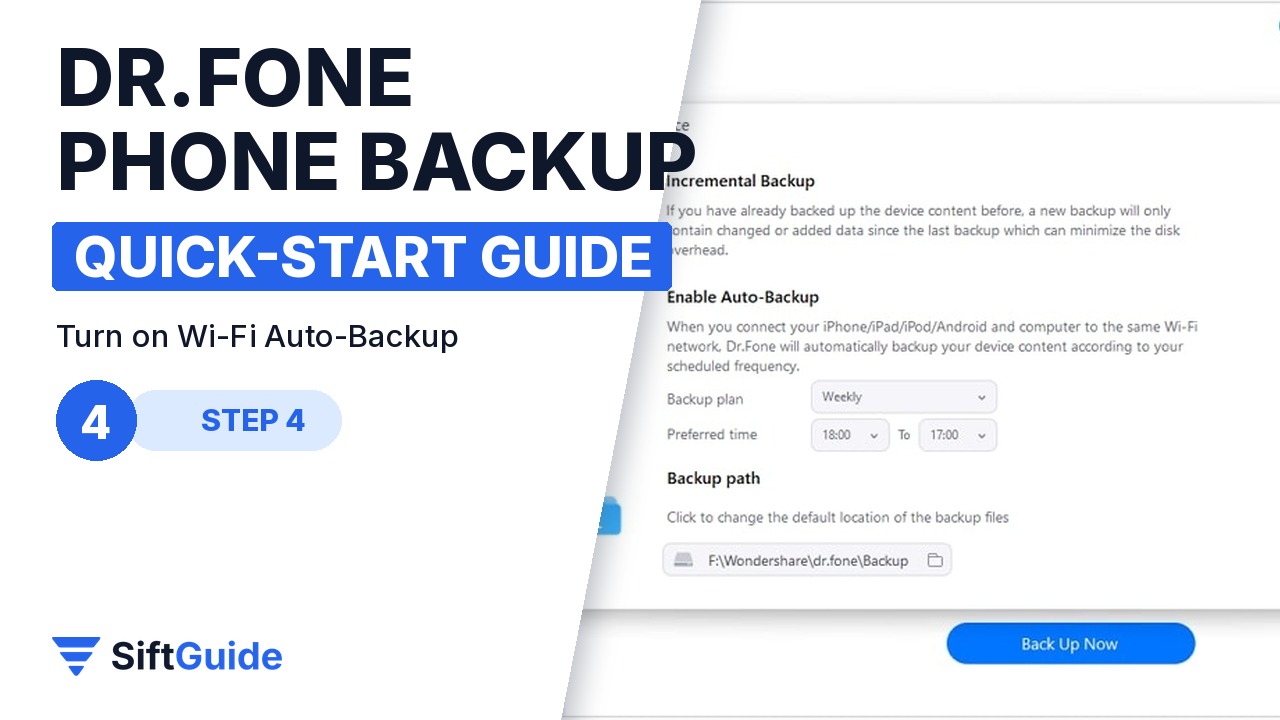
Manual backups only work if you remember them. Go to My Devices, open Backup preferences and enable Auto-Backup, then choose the backup plan and preferred time. The phone and the computer must be on the same Wi-Fi network. Dr.Fone backups are incremental, so each run adds only what changed since the last one instead of copying your whole camera roll again, and older backups are not overwritten.
Step 5: Restore only what you need
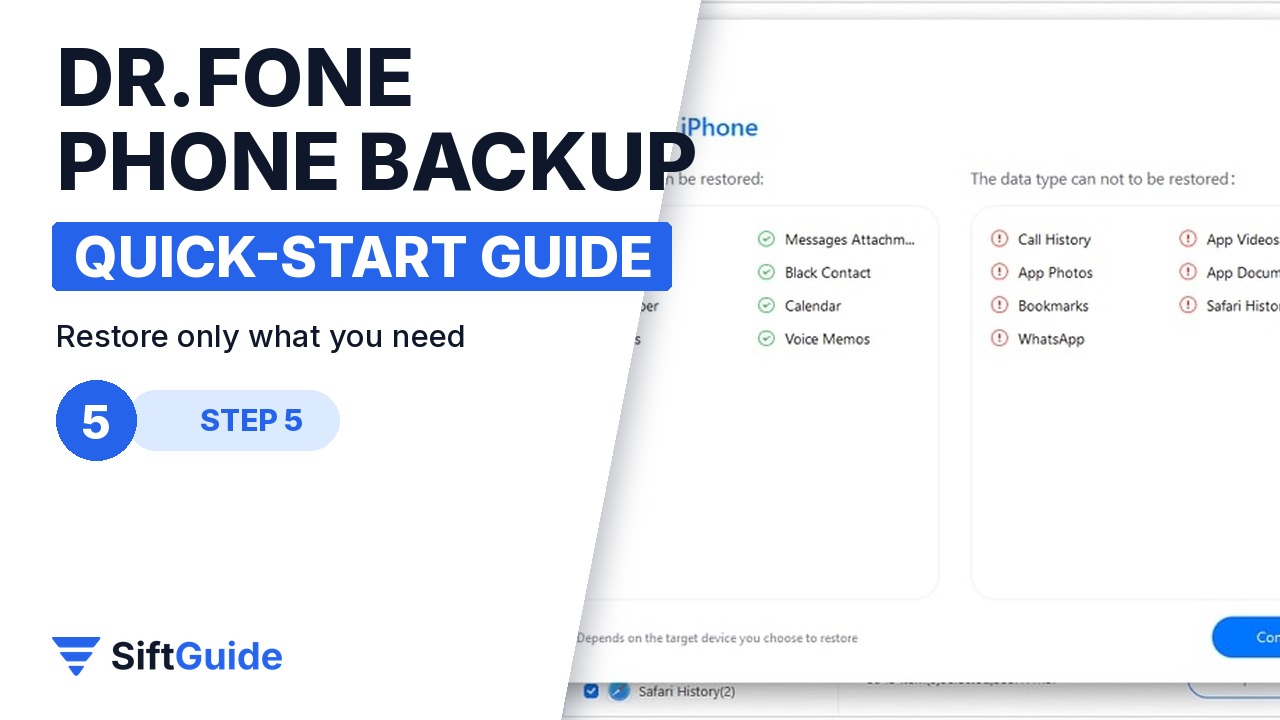
When you lose something, open Backup History, pick a backup and click View. Choose a category, for example call history or messages, tick the specific items you want and click Restore to Device. Because the restore is selective, the rest of the phone is left alone. Wondershare also lets you preview and restore from iTunes and iCloud backups, and to restore iPhone data onto an Android phone, which helps when you switch platforms.
Pro tip
Give the backup folder its own home on a drive that is itself backed up, or on an external disk. A local backup protects you from a lost phone, but not from a dead laptop. Two copies in two places is the rule that actually saves photos.
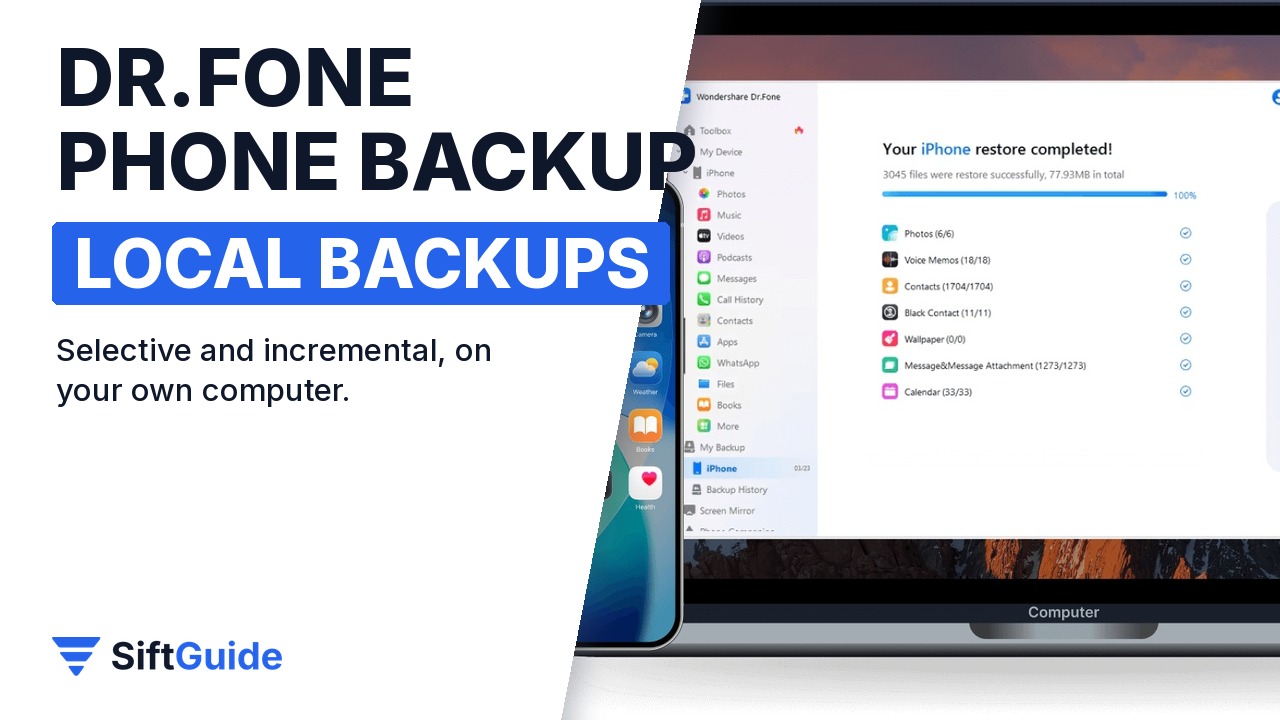
Done: one full backup you have checked, automatic incremental backups over Wi-Fi, and the ability to pull back a single chat or contact without resetting the phone. That is a much better position than hoping the cloud kept everything.
Wondershare Dr.Fone – Phone Backup (Windows)
Backs up iPhone, iPad and Android data to your own computer: photos, videos, messages, contacts, call history, WhatsApp, LINE, Viber and Kik data and more. Automatic backups over Wi-Fi, incremental backups that add only new data, browsing of backup contents, and selective restore to iOS or Android, including from iTunes and iCloud backups. Listed at $19.95 in the Wondershare affiliate catalog (October 2026); a Mac version is available at the same list price. Check the store for the current plan and term.
FAQ
Does Dr.Fone back up both iPhone and Android?
Yes. Wondershare offers iOS Backup and Restore and Android Backup and Restore in Dr.Fone, and the backups can be restored selectively to either platform.
Where is the backup stored?
On your own computer. After a backup you can click Open in Folder to see the files.
Does every backup copy everything again?
No. The backups are incremental: each run adds only data that changed since the previous backup.
Can I back up WhatsApp chats?
Yes. Wondershare lists WhatsApp, LINE, Viber and Kik data among the supported types, with preview and export of chats after backup.
