
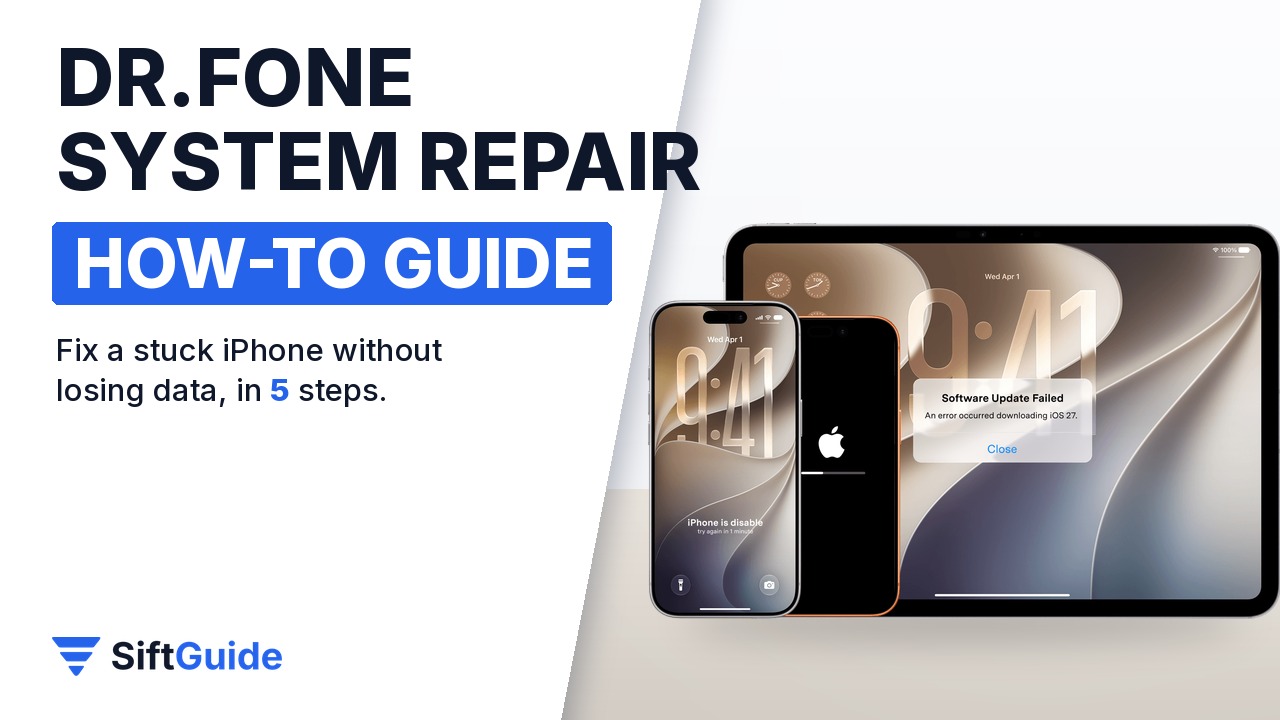
An iPhone that freezes on the Apple logo, restarts in a loop or dies halfway through an update usually has a software problem, not a hardware one. Apple’s own fix is a restore through Finder or iTunes, which typically wipes the phone. Wondershare Dr.Fone System Repair (iOS) offers a Standard Repair mode that reinstalls the system firmware while keeping your personal data, and Wondershare says it covers more than 150 iOS issues. This guide follows the official user guide step by step, with the one warning that matters: know which mode you are clicking before you click it.
Disclosure: this guide contains affiliate links (Awin). If you buy through them we may earn a commission at no extra cost to you. Specs come from the official product page.
What you need
- A Windows PC or Mac with Wondershare Dr.Fone installed (the System Repair module)
- The iPhone or iPad and an original or MFi-certified Lightning or USB-C cable
- A stable internet connection: the firmware package is several gigabytes
- At least 50% battery on the phone, or keep it charging during the repair
- If possible, a recent iCloud or computer backup, in case you later need Advanced Repair
Step 1: Connect and open System Repair
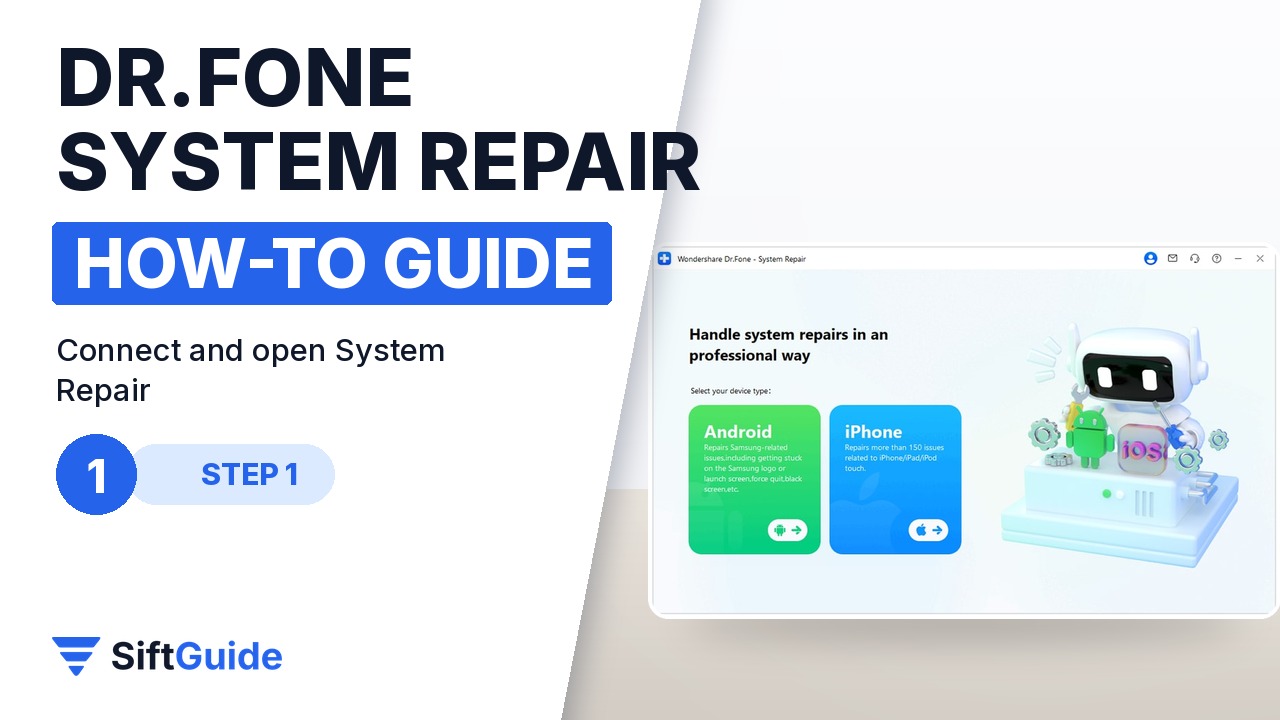
Launch Dr.Fone on your computer, go to Toolbox and choose System Repair, then connect the iPhone with the cable. Dr.Fone asks which kind of device you want to repair; choose iPhone. If the phone is stuck on a black or Apple-logo screen it may not unlock, and that is fine: the repair works through Recovery Mode in the next steps.
Step 2: iOS Repair, then Standard Repair
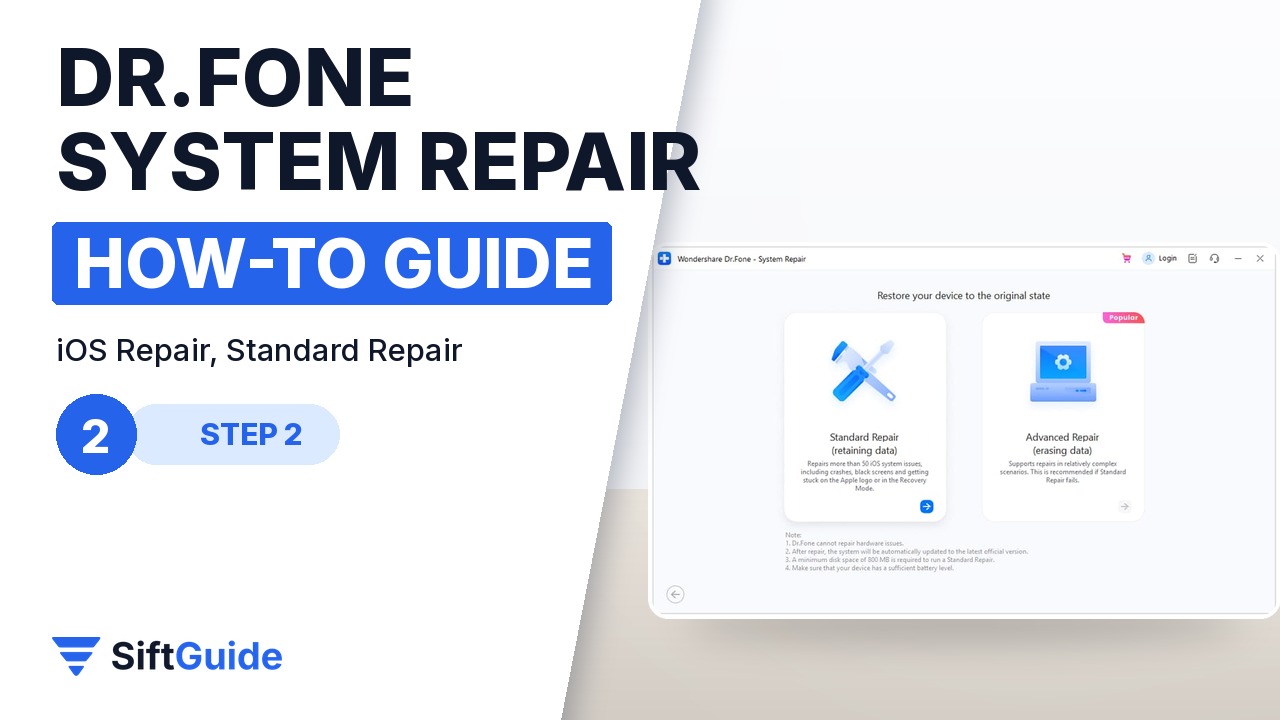
Click iOS Repair. Dr.Fone then offers two modes. Standard Repair fixes the common system problems and is designed to keep your data. Advanced Repair goes deeper for stubborn cases but erases everything on the phone. Always start with Standard Repair and only move to Advanced if Standard fails, after you have a backup.
Step 3: Enter Recovery Mode
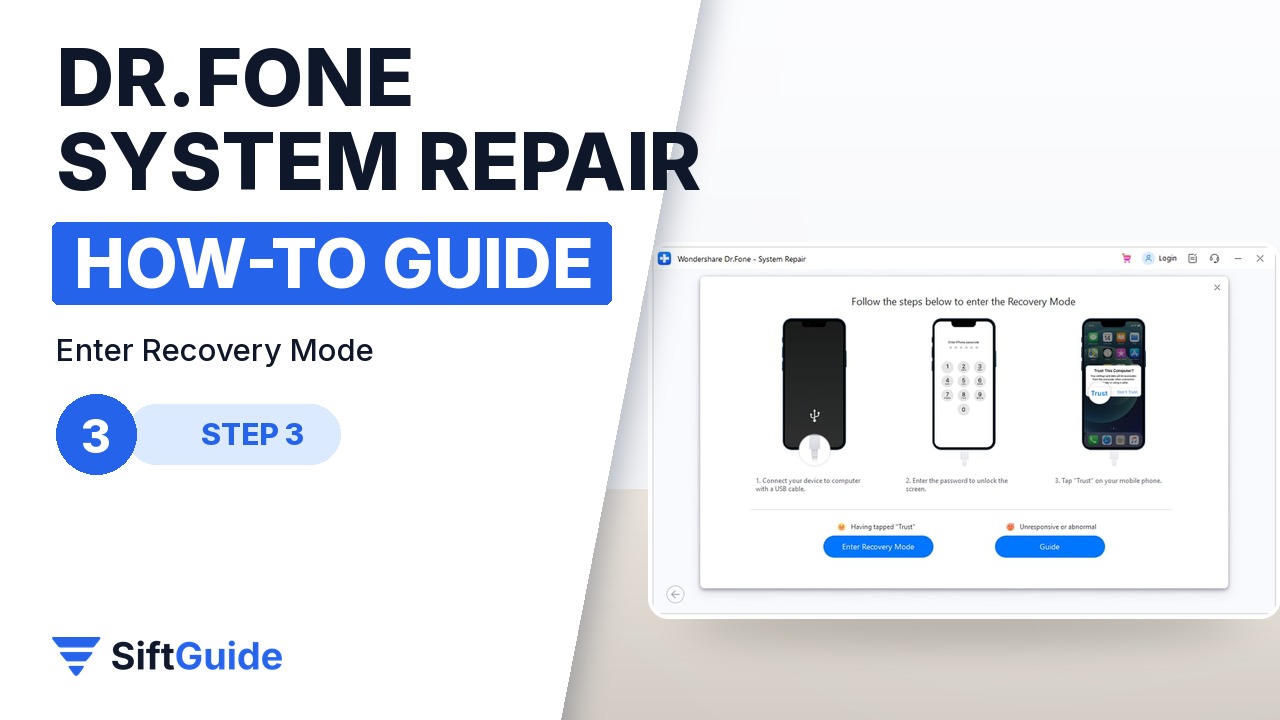
Dr.Fone shows the button sequence for your model to put the iPhone into Recovery Mode. Follow it on the phone, then confirm in Dr.Fone. If the phone does not respond to the buttons, the Guide link shows the alternative method. Recovery Mode is the state in which the computer is allowed to reinstall iOS.
Step 4: Download the firmware
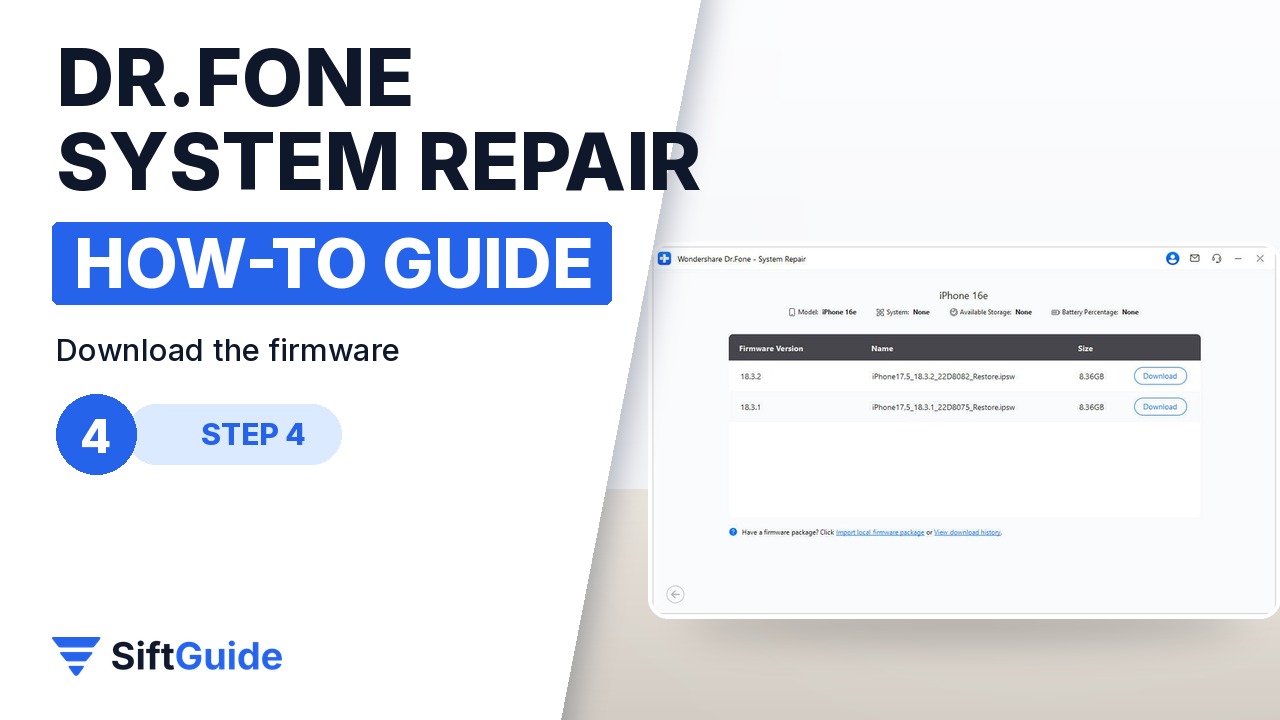
Once the phone is in Recovery Mode, Dr.Fone detects the model and lists the matching iOS firmware. Click Download next to the version it suggests. The package is large, so keep the computer on a stable connection; when it finishes, Dr.Fone verifies the firmware before it touches the phone, so a corrupted download does not get installed.
Step 5: Repair Now, then Done
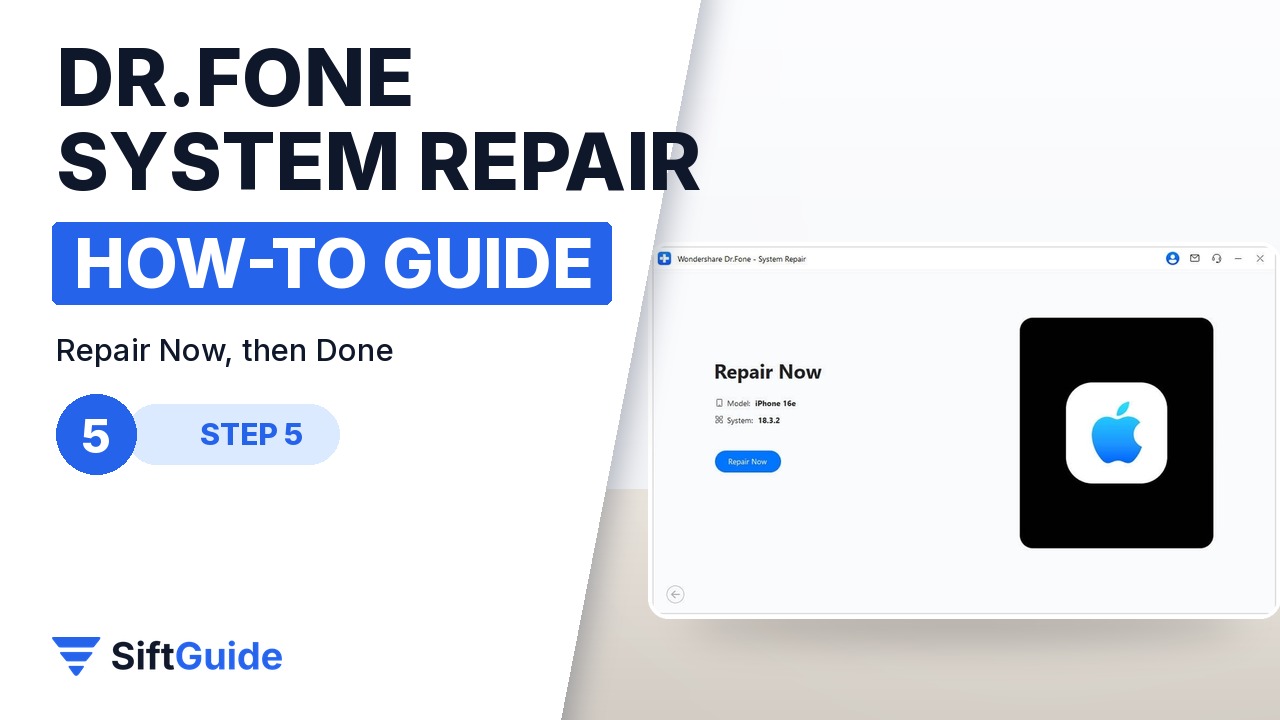
Click Repair Now. The progress bar shows the installation; keep the cable connected and do not use the phone or the computer for anything heavy until it finishes. When the Repair complete screen appears, click Done and let the iPhone restart. Note what Wondershare’s guide says: after the repair the device runs the latest iOS version, a jailbroken device goes back to non-jailbroken and a previously unlocked device is locked again.
If Standard Repair does not work
Try Standard Repair a second time with a different USB port and cable before you move on; loose connections cause a lot of failed repairs. If it still fails, Advanced Repair is the next step, but it erases the phone, so only use it when you have a backup or when the data is already lost anyway.
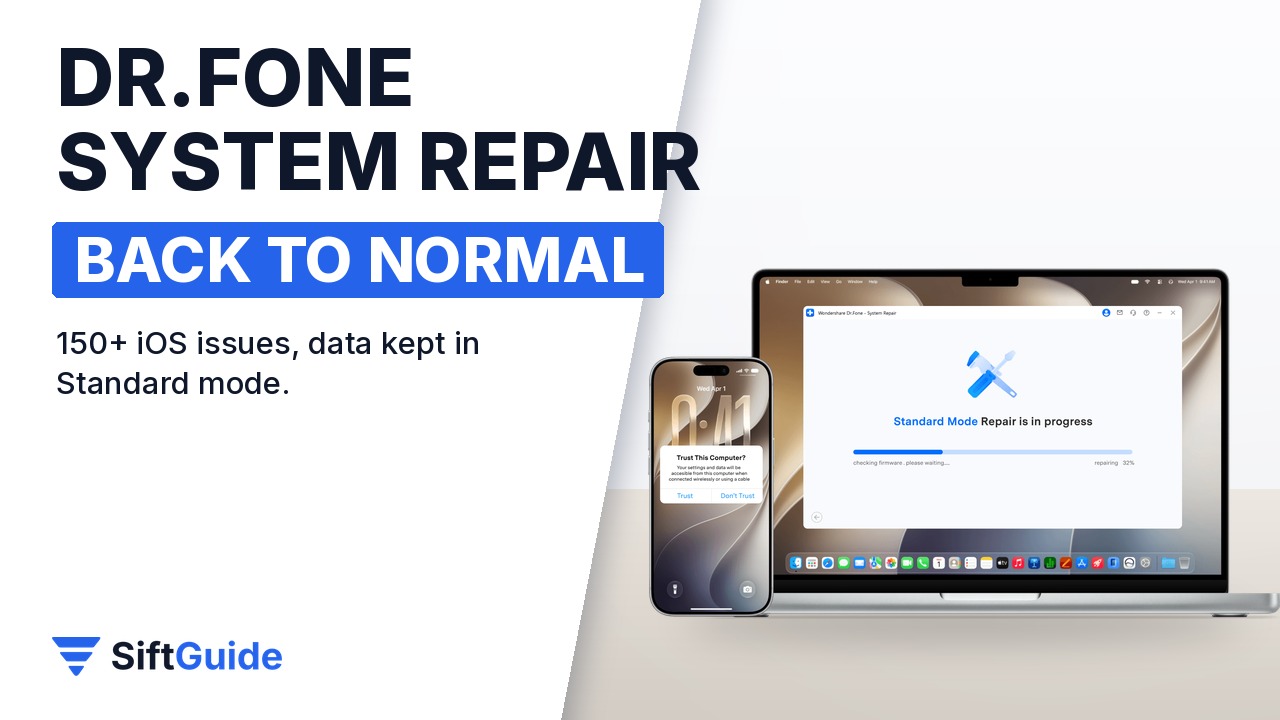
Done: the right mode chosen, Recovery Mode entered, verified firmware installed and the iPhone back on the latest iOS, with your photos and apps still there. If the problem returns after a repair, it is worth having the phone checked for hardware faults such as storage or battery issues.
Wondershare Dr.Fone – System Repair (iOS)
Desktop software for Windows and Mac that repairs iPhone and iPad system problems such as the Apple logo freeze, boot loops, white or black screens and failed updates. Standard Repair keeps your data; Advanced Repair handles harder cases and erases the device. Guided Recovery Mode entry, automatic firmware matching and verification, and iOS upgrade or downgrade tools. Wondershare says it fixes more than 150 iOS issues. Listed at $39.95 for the Windows version in the Wondershare affiliate catalog (October 2026); check the store for the current plans.
FAQ
Will I lose my data?
Not with Standard Repair, which is designed to keep personal data. Advanced Repair erases the device, so back up first if you need it.
What problems can it fix?
Software issues such as an iPhone stuck on the Apple logo, a boot loop, a white or black screen, a frozen phone or a failed update. Wondershare lists more than 150 iOS issues. It cannot fix hardware damage.
Will my iOS version change?
Yes. According to Wondershare’s guide, the repair updates the device to the latest iOS version and returns a jailbroken device to a non-jailbroken state.
Do I need iTunes?
No. Dr.Fone downloads and installs the firmware itself.
Does it work on iPad too?
Yes, the iOS repair covers both iPhone and iPad.
