
Selling, trading in or handing down a phone is mostly a question of trust. A normal factory reset marks your data as deleted, but Wondershare’s own guide warns that a reset alone is not the whole job if you want the data to be truly gone. Dr.Fone Data Eraser overwrites the storage, can go up to a three-pass, DoD-style wipe, and finishes with an erasure report you can keep or show to the buyer. It works with iPhone and Android over a USB cable. The routine below follows Wondershare’s official user guide, in the order that avoids the classic mistake: wiping first and remembering the photos second.
Disclosure: this guide contains affiliate links (Awin). If you buy through them we may earn a commission at no extra cost to you. Specs come from the official product page.
What you need
- A Windows PC or Mac with Wondershare Dr.Fone installed (the Data Eraser module)
- The phone and a working USB data cable, not a charge-only one
- A finished backup of everything you want to keep: photos, chats, 2FA codes, contacts
- On iPhone, Find My turned off and your Apple ID signed out; on Android, your Google account removed
- About 20 to 60 minutes, depending on storage size and the erase level you pick
Step 1: Back up, then open Data Eraser
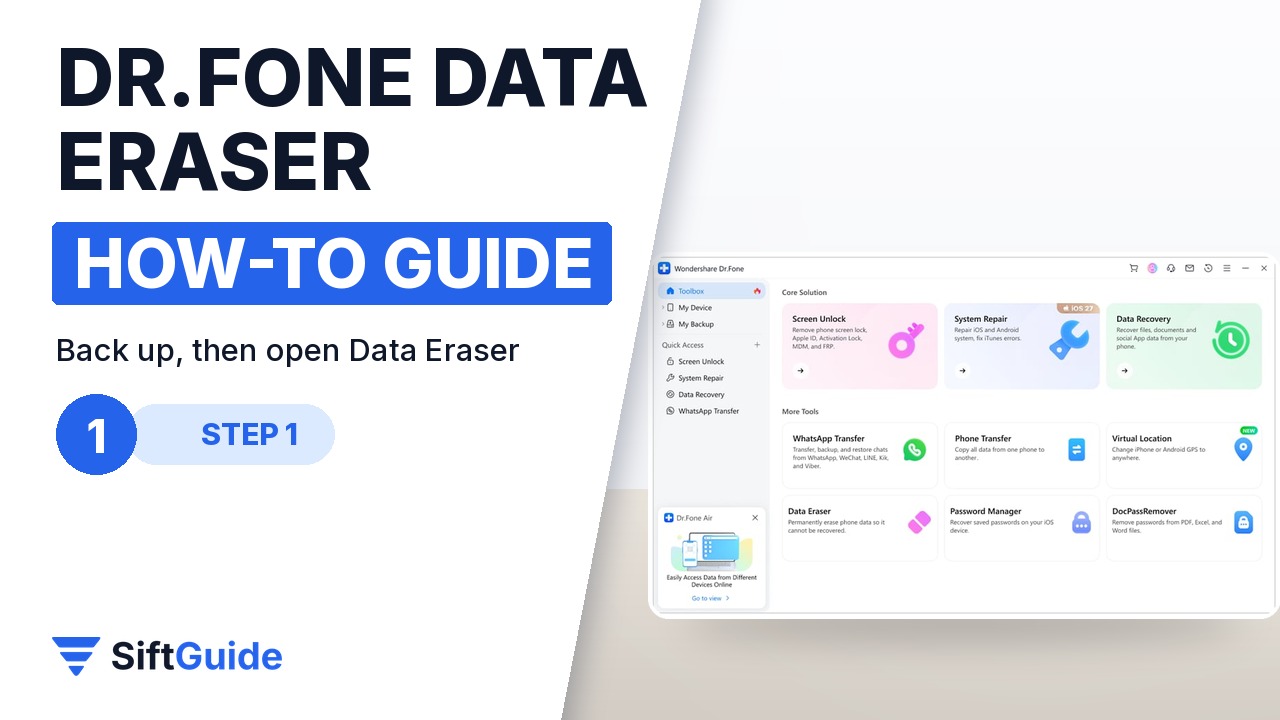
Erasing is the one operation with no undo, so make the backup first and check that it opens. Then launch Dr.Fone on the computer, go to Toolbox and choose Data Eraser, and connect the phone with the USB cable. Sign out of your Apple ID or remove your Google account before you go further, otherwise activation lock or factory reset protection will block the new owner.
Step 2: Erase All Data, then Start
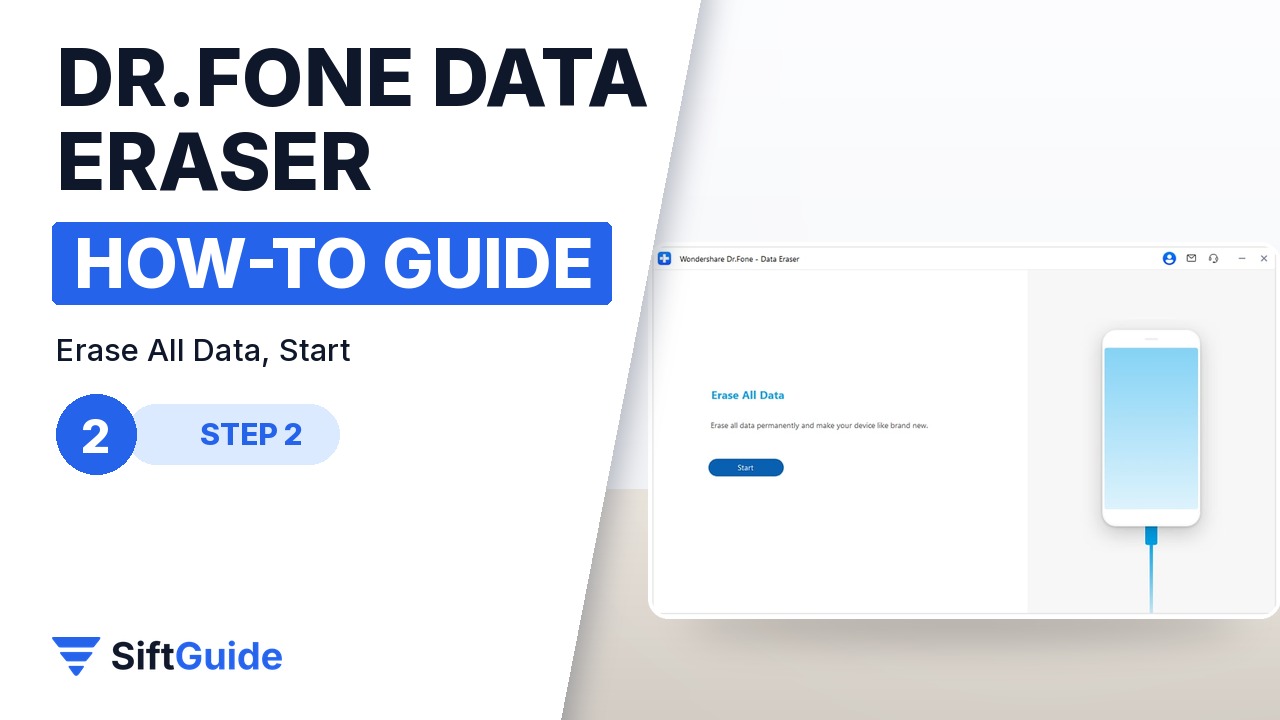
Wait until Dr.Fone shows the phone as connected; on Android, accept any connection or trust prompt on the screen. Choose Erase All Data for a full wipe, the mode you want before a sale, and click Start. On iPhone there is also a selective mode for private data only, which is useful when you keep the phone but want messages or browsing traces gone.
Step 3: Choose the erase level
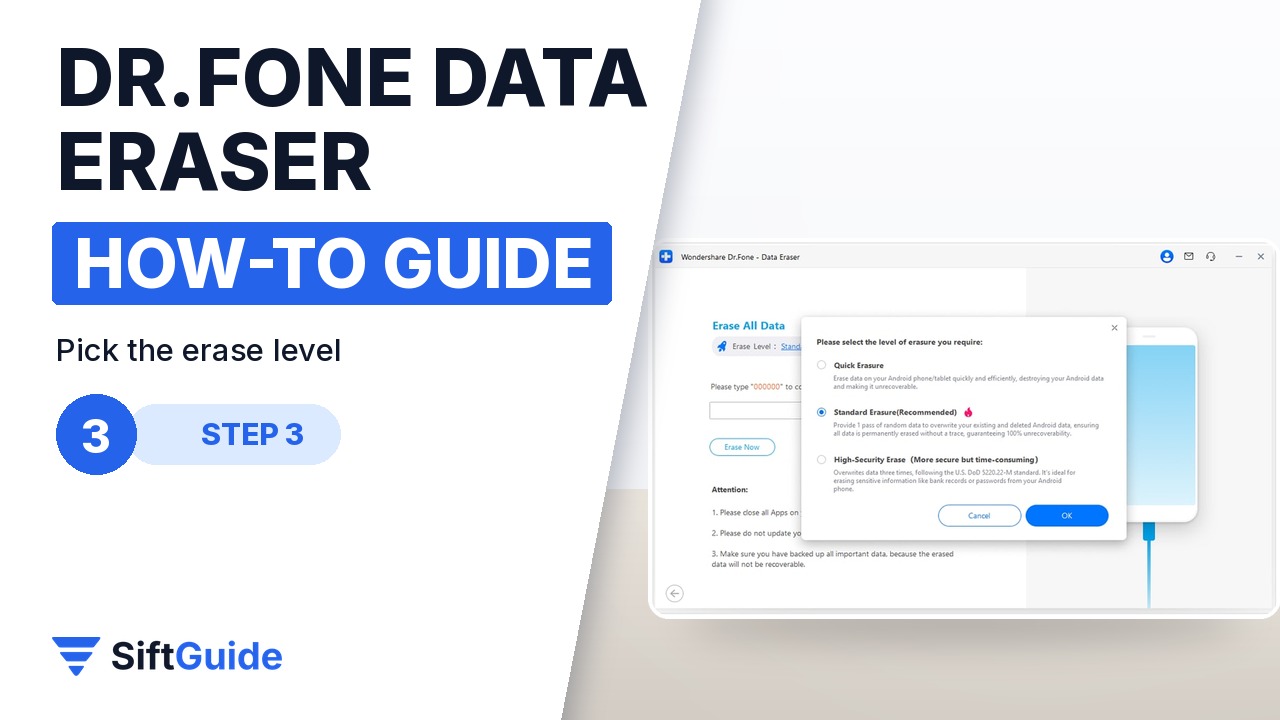
Dr.Fone offers three levels. Quick is the fastest; Standard is the recommended default and overwrites the storage once; High Security overwrites it three times, to the DoD 5220.22-M method, and takes the longest. For a phone you are selling to a stranger, Standard is enough for most people; choose High Security if the phone held work data or anything you would not want recovered in any lab.
Step 4: Type the code, then Erase Now
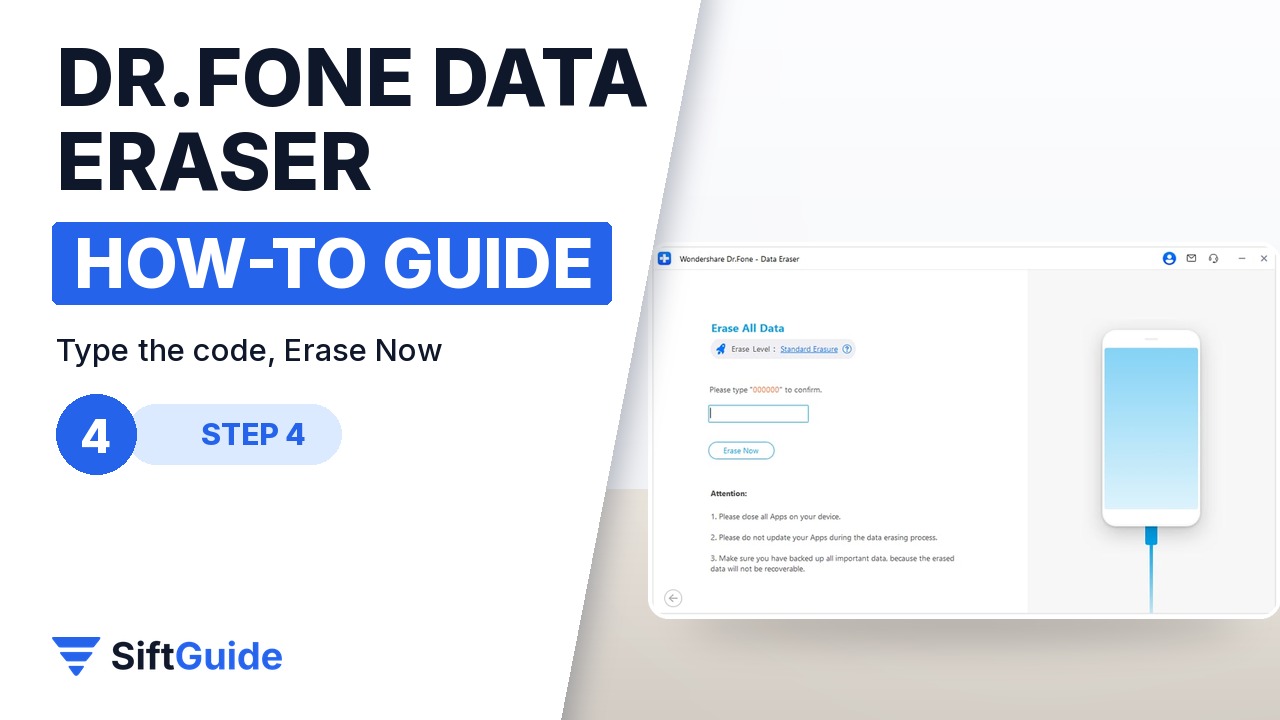
To prevent an accidental wipe, Dr.Fone asks you to type a confirmation code shown on screen (on iPhone it is 000000). Type it and click Erase Now. Keep the cable plugged in and do not use the phone or put the computer to sleep while the progress bar runs; you can stop the job from the same window if you really need to.
Step 5: Factory reset and the erasure report
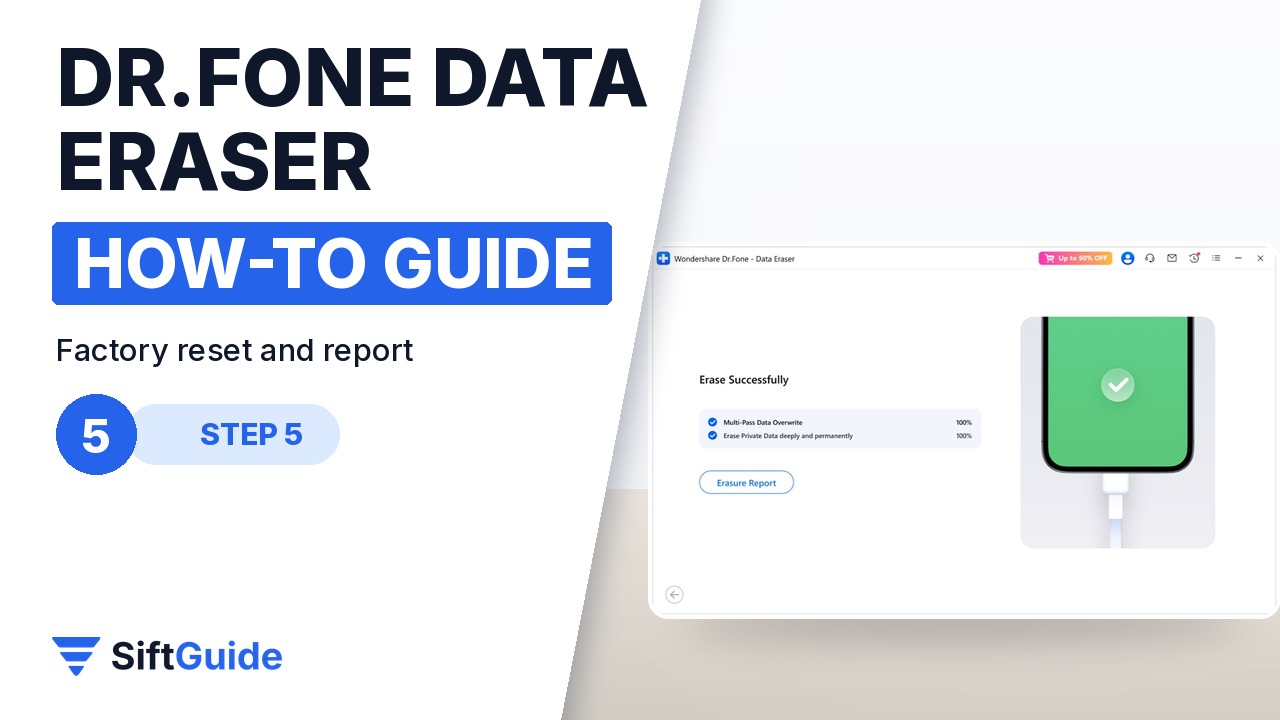
On Android, Dr.Fone asks whether the phone has already been factory reset. If not, it walks you through Settings, Backup and reset, and Factory data reset, so the phone ends up clean and ready for a new owner. When the screen says Erased successfully, open the erasure report: it records the device and the result of the wipe, which is handy proof for a buyer or for your IT department.
Do this before you click Erase
Sign out of every account first. On iPhone, turn off Find My and sign out of your Apple ID; on Android, remove the Google account under Settings, Accounts. A perfectly wiped phone that is still locked to your account is useless to the buyer and usually comes back to you as a return.
Done: a verified backup, accounts signed out, a full wipe at the level you chose, a factory reset on Android and an erasure report saved. The phone is ready for its next owner, and your photos, chats and banking apps are not going with it.
Wondershare Dr.Fone – Data Eraser
Desktop software for Windows and Mac that permanently erases iPhone and Android phones over a USB cable. Three erase levels (Quick, Standard, High Security with three DoD 5220.22-M passes), a confirmation code against accidental wipes, a guided factory reset for Android, a selective private-data mode for iPhone and a traceable erasure report at the end. Listed at $14.95 for the Windows version in the Wondershare affiliate catalog (October 2026); check the store for the current plans.
FAQ
Is a factory reset not enough?
For most everyday resales a reset helps, but Wondershare’s guide says a full wipe is the safer route if you want the data to be unrecoverable. Data Eraser overwrites the storage instead of only marking it as deleted.
Does it work on both iPhone and Android?
Yes. Data Eraser supports iOS and Android devices over a USB connection from a Windows or Mac computer.
Which erase level should I pick?
Standard (one pass) is the recommended default. High Security runs three passes to the DoD 5220.22-M method and takes longer; use it for work phones or very sensitive data.
Can I get my data back after erasing?
No. That is the point of the tool, so make and test your backup before you start.
What is the erasure report for?
It records the device and the result of the wipe. You can keep it for yourself, show it to a buyer or attach it when you return or recycle a company phone.
