

A flowchart is the quickest way to make a process readable, and the quickest way to make a messy one even messier if you start drawing before you know what you are drawing. EdrawMax is Wondershare’s diagram maker for Windows, Mac and Linux, with a ready-made flowchart library, smart connectors and export to the file types people actually use. This guide follows the five steps from the official EdrawMax flowchart page and adds the practical details around them.
Disclosure: this guide contains affiliate links (Awin). If you buy through them we may earn a commission at no extra cost to you. Specs come from the official product page.
What you need
- EdrawMax installed (Windows, Mac or Linux), or EdrawMax Online in a browser
- A rough idea of the process you want to draw, ideally written as a short list of steps and decisions
- The people who will read it in mind: a manager, a classmate or a developer need different levels of detail
- Optional: an existing Visio file, because EdrawMax can import and edit vsd and vsdx files
Step 1: Understand the type of flowchart

Before you place a single shape, decide what you are drawing. The official page splits flowcharts into categories such as process, workflow, swimlane and data flow, and says the design depends on which one you need. A process flowchart shows the sequential steps, a swimlane shows which person or team does what, and a data flow shows how information moves. Choosing first saves you from redrawing later.
Step 2: Pick the correct symbols
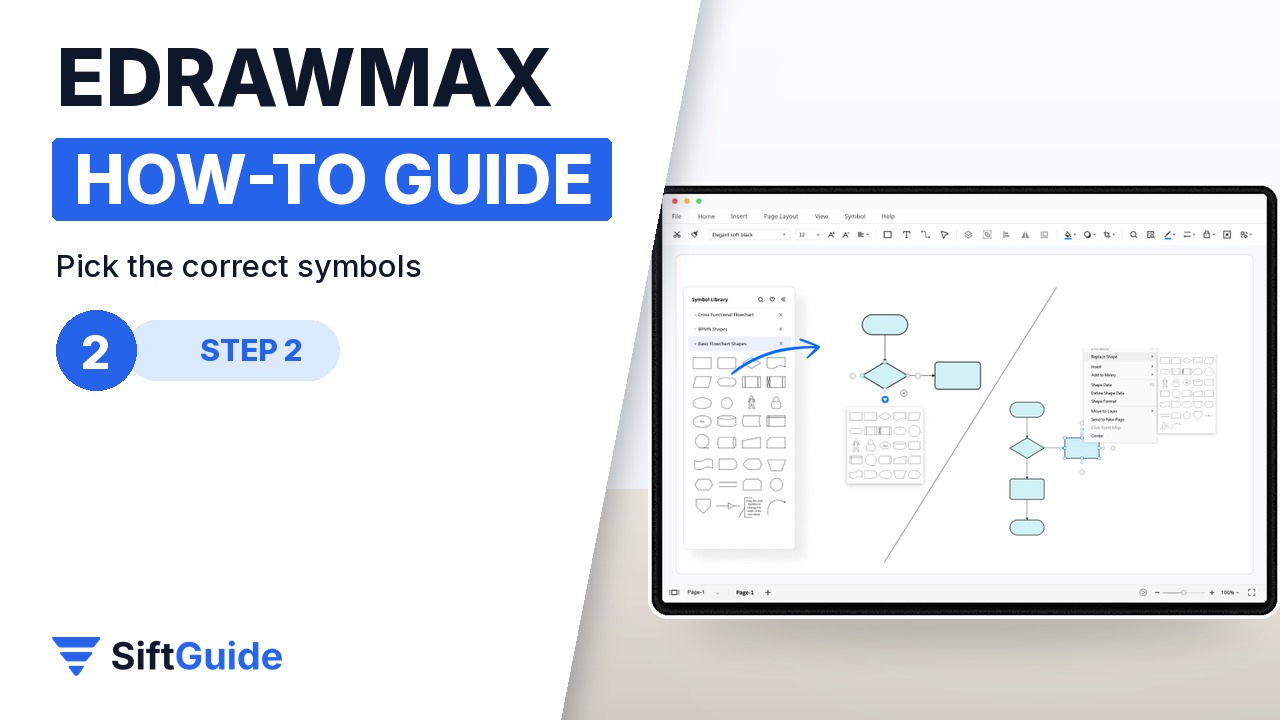
Start inserting the correct symbols from the built-in library: circles or rounded shapes for the start and end, rectangles for actions, diamonds for decisions. EdrawMax says its flowchart maker has a large number of built-in flowchart symbols for any type of process. A handy shortcut from the same page: create the next symbol with a single click on the pop-up menu next to the current one, instead of dragging each shape from the library.
Step 3: Connect the symbols and add the details
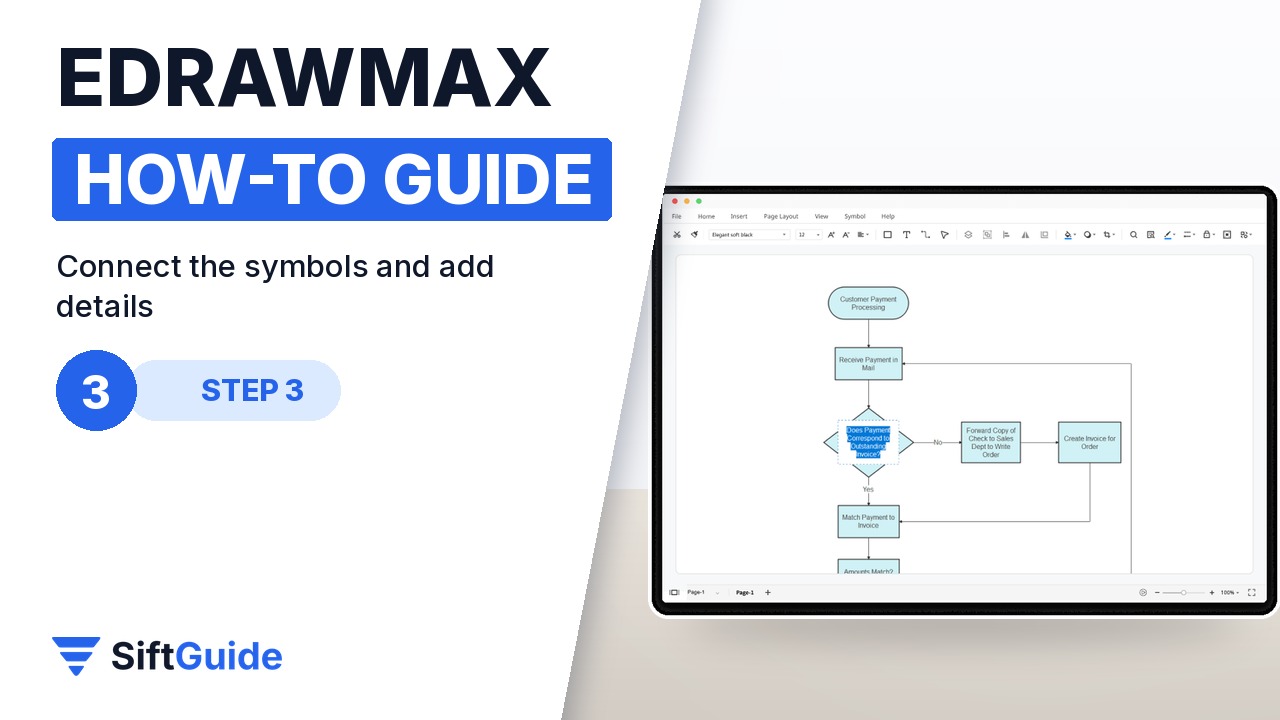
Join the symbols following the flow of the data, using the smart connectors, which EdrawMax says halves the effort of linking separate symbols. Then write the important details in each shape. If the flowchart shows an if-else decision, mark the Yes and No branches clearly, so nobody has to guess which way the process goes at a diamond.
Step 4: Customize colors, fonts and templates
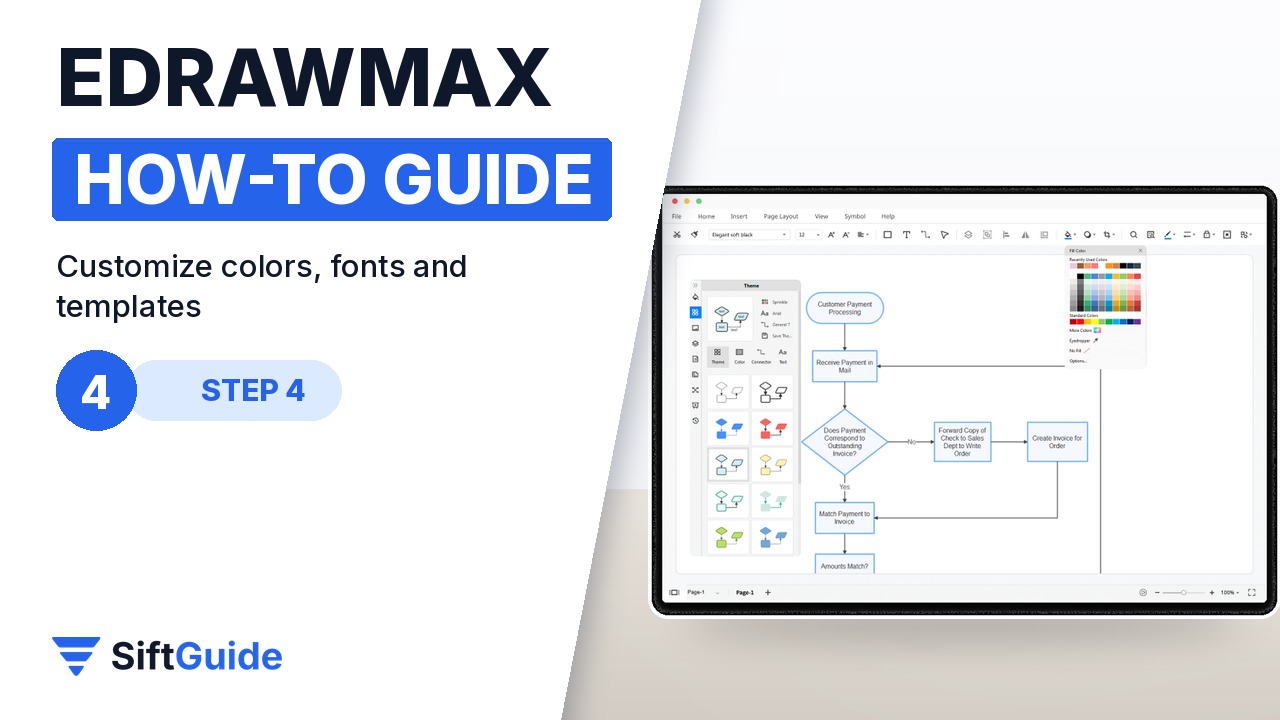
Make it yours: add color or change the font to fit the audience. EdrawMax offers editing and styling tools, including one-click styling, with automatic formatting for text and lines, and a Focus mode that simplifies the workspace. If you would rather not start from a blank canvas, the product page lists more than a thousand flowchart templates you can open and replace the content of.
Step 5: Export, share or present
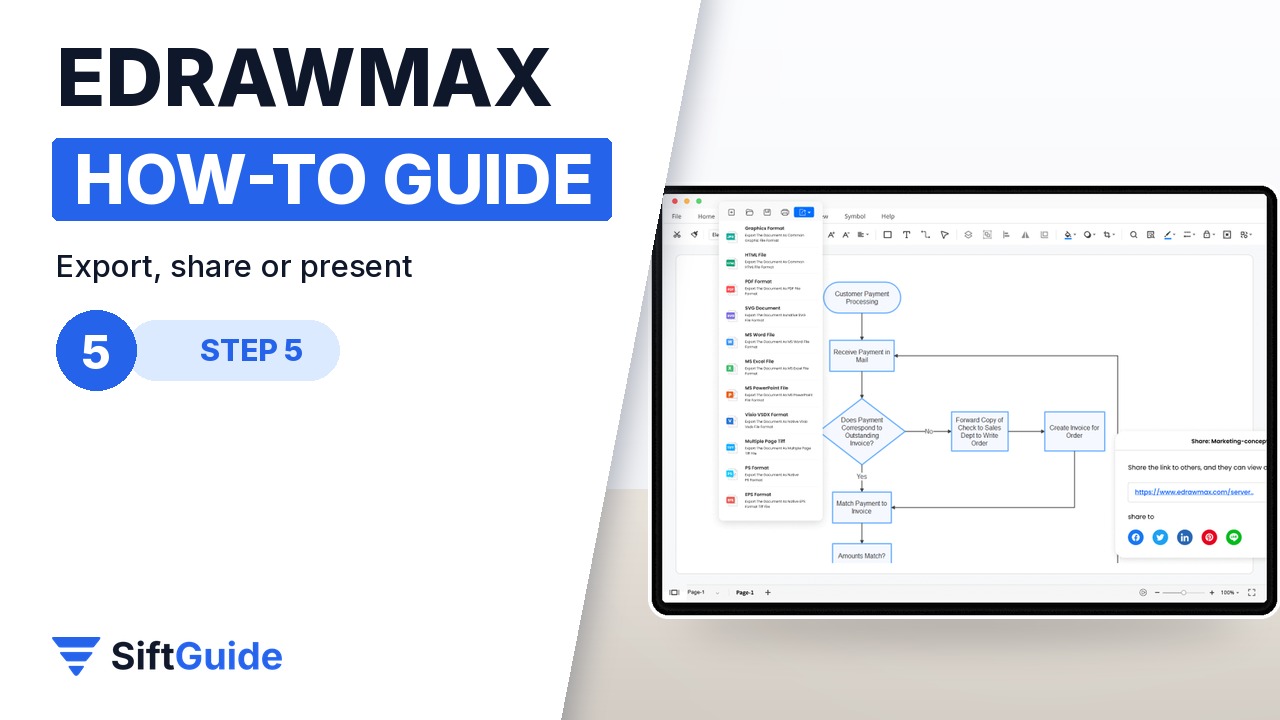
When the flowchart is finished, save it on your computer or in the cloud and share it. The official page lists export to PPTX, DOCX, XLSX, PDF, VSDX (Visio), PNG, JPG and HTML, so people without EdrawMax can still open it. You can also generate a sharing link, review the version history, or organize several diagrams in one file and press F5 to start a slide show right away.
Tip: one decision per diamond
Keep each diamond to a single yes or no question and label both exits. If a decision needs three outcomes, split it into two diamonds. A flowchart that can be read in one pass is worth more than a clever one.
Once you know the five steps, the same workflow carries over to the other diagram types in EdrawMax: org charts, mind maps, UML, network diagrams, floor plans and more, each with its own templates. The product page also mentions a PowerPoint add-in and AI features, which are worth a look after you are comfortable with the basics.
Wondershare EdrawMax (Annual License)
All-in-one diagram maker for flowcharts, org charts, mind maps, UML, network diagrams, floor plans and more, with built-in symbols and templates, smart connectors, one-click styling, Visio import and export, and export to PDF, Office, PNG, JPG and HTML. Price checked on the official EdrawMax pricing page on 9 November 2026 (Individuals): $99 for the annual plan (list price $119), $198 for the perpetual plan (list price $245); the annual plan renews automatically. Prices change, so check the page before you buy.
FAQ
What are the five steps to make a flowchart in EdrawMax?
Understand the type of flowchart, pick the correct symbols, connect them and add the details, customize the style, then export and share.
Which file formats can I export to?
The official EdrawMax flowchart page lists PPTX, DOCX, XLSX, PDF, VSDX (Visio), PNG, JPG and HTML.
Can I open my Visio files?
Yes. EdrawMax says you can import Visio files (vsd and vsdx) and customize them, and export back to VSDX.
Are there ready-made flowchart templates?
Yes. The flowchart page mentions more than a thousand templates, and the product page links to a template community.
Can I present the flowchart without PowerPoint?
Yes. EdrawMax can act as a presentation tool: organize your diagrams in one file and press F5 to start the slide show.
Does EdrawMax work on Mac and Linux?
Yes. The product page lists Windows, macOS, Linux, iOS, Android and EdrawMax Online.