
Deleting the wrong album or chat on Android does not always mean it is gone for good. Until new data overwrites the space, a recovery tool can often still find it, which is why the first minutes matter more than the software you pick. Wondershare Dr.Fone Data Recovery (Android) scans the phone from your computer, lets you preview what it found for free, and only asks you to pay when you want to save files. Here is the official workflow from Wondershare’s guide, with the decisions that make the difference between a good and a disappointing scan.
Disclosure: this guide contains affiliate links (Awin). If you buy through them we may earn a commission at no extra cost to you. Specs come from the official product page.
What you need
- The Android phone, running Android 5.0 or later (Dr.Fone lists over 6,000 supported models)
- A Windows PC (Windows 7 to 11) or a Mac (macOS 10.13 or later) with about 7 GB of free disk space
- Dr.Fone from the official Wondershare site, with the Data Recovery module
- A reliable USB cable and a charged phone
- A folder on your computer for the recovered files, ideally on a drive with plenty of space
Step 1: Stop using the phone, then open Data Recovery
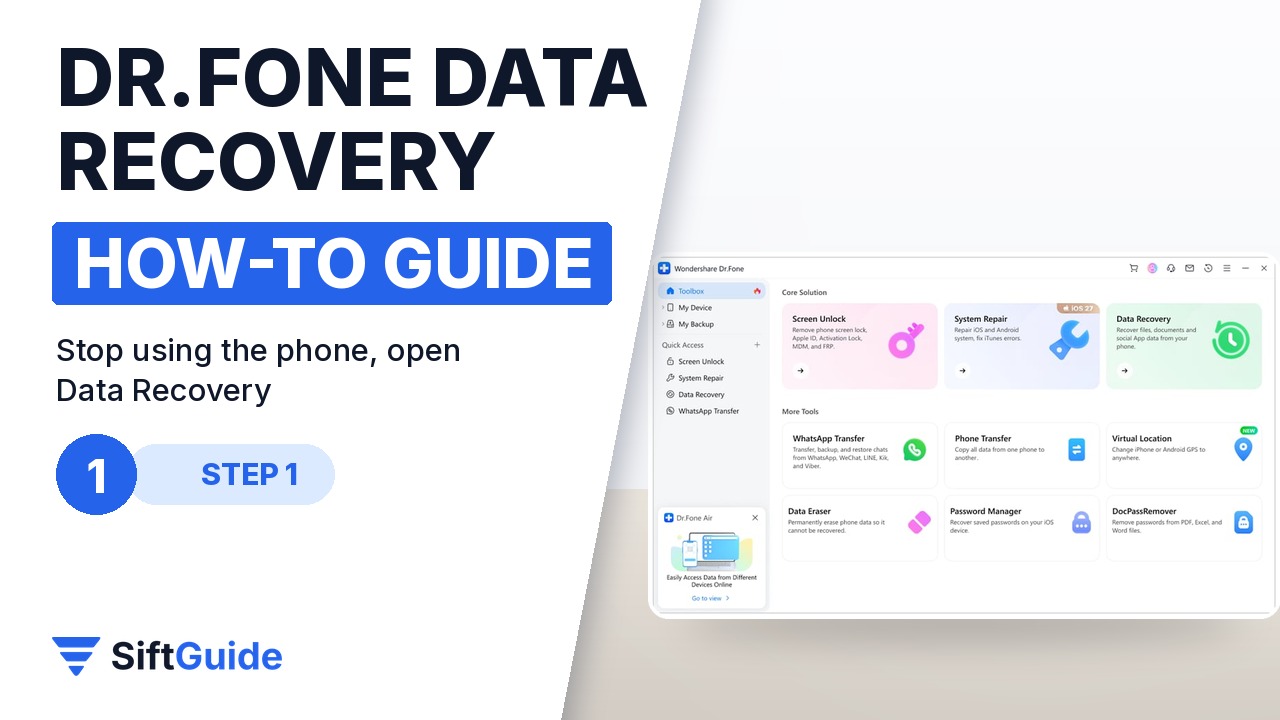
As soon as you notice the loss, stop taking photos, installing apps or downloading files on the phone, because new data can overwrite the deleted files. On your computer, launch Dr.Fone and go to Toolbox › Data Recovery. When the new window asks for the device type, choose Android, then pick Recover Android Data from the list of recovery options.
Step 2: Choose Standard Recovery and connect the phone
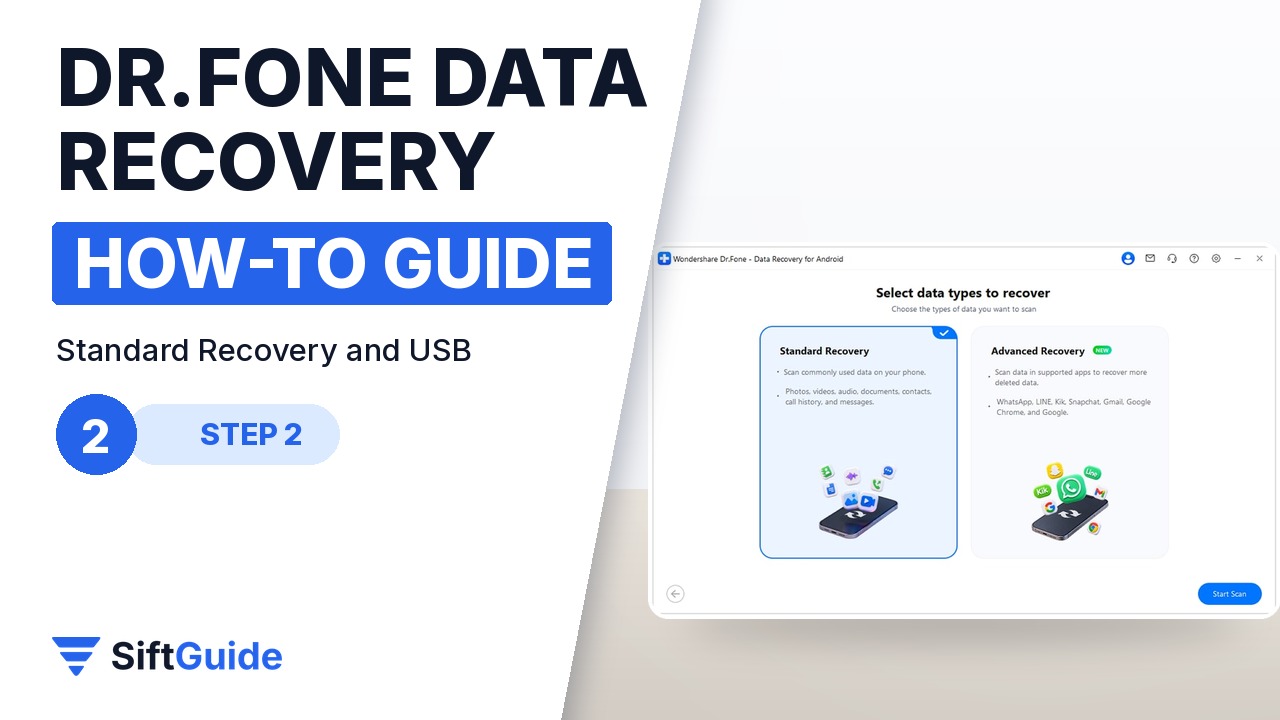
On the Select data types to recover screen, choose Standard Recovery on the left and click Start Scan. Dr.Fone then asks you to connect the phone: plug it in with the USB cable and wait while it shows Connecting and detects the device. Accept any connection or USB debugging prompts on the phone, and keep it unlocked during this step.
Step 3: Select the file types and scan
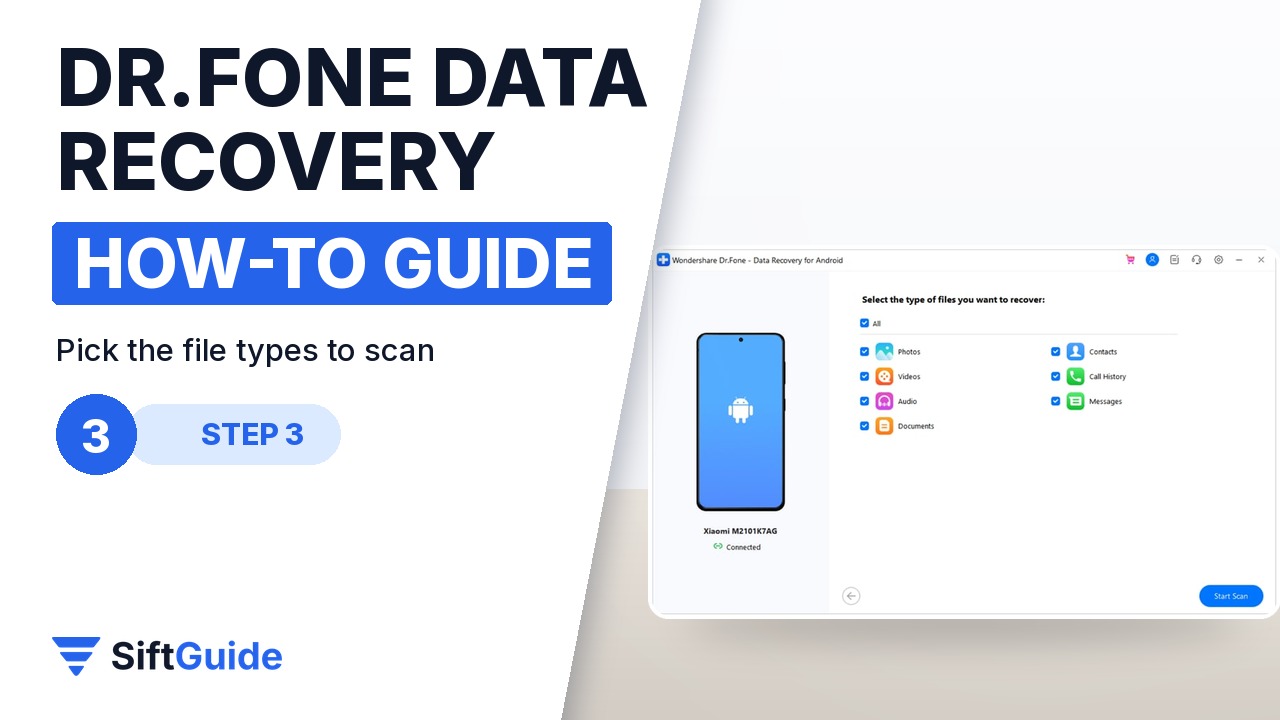
Next, tick the file types you want to look for: photos, videos, audio, documents, contacts, call history, messages and more. Selecting only what you need makes the scan faster and the results easier to read. Click Start Scan and leave the cable connected until the scan completes; the progress bar shows how far it has gone. If you must stop, click Cancel before unplugging.
Step 4: Preview and filter the results
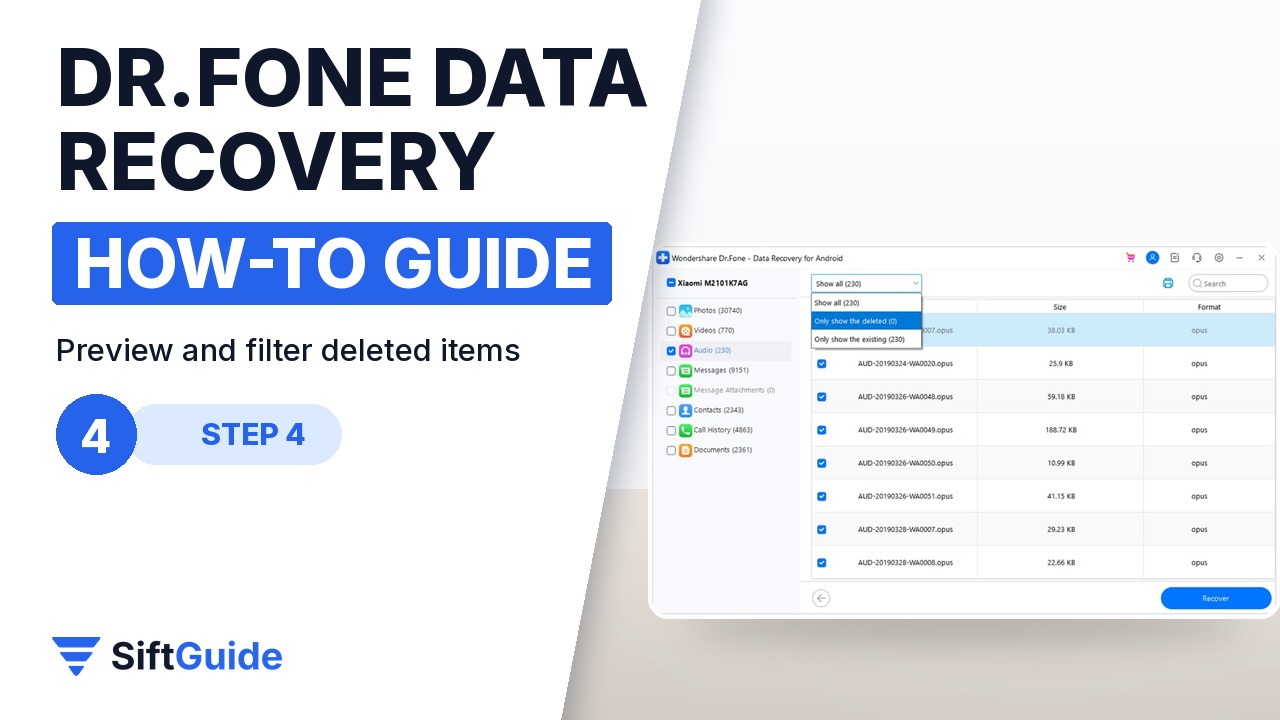
When the scan finishes, the results are grouped by category on the left. Click a category to preview the items, and use the filter at the top to switch from showing everything to showing only deleted items, which is usually what you came for. Open a few photos or messages to confirm they are intact, then tick the ones you want to keep.
Step 5: Recover to your computer (or try Advanced Recovery)
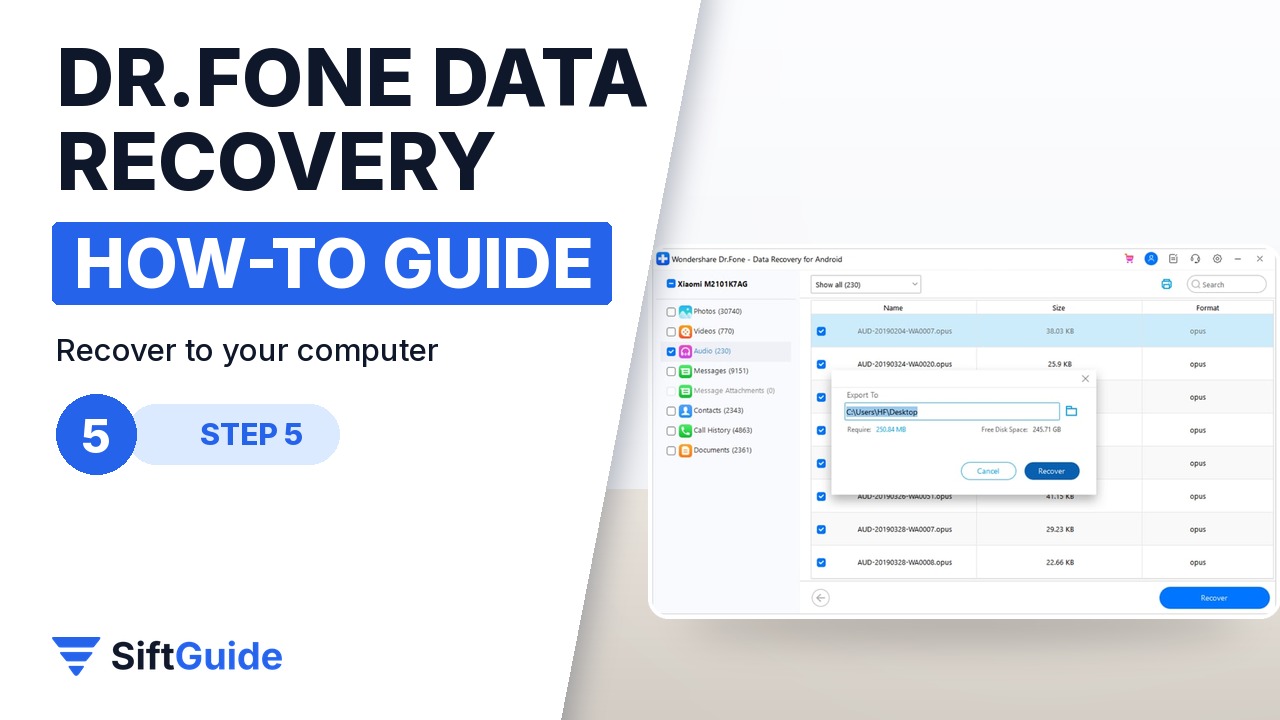
Click Recover at the bottom right, choose where the files go on your computer, and confirm in the pop-up. Save them to the computer, not back to the phone, so the recovery cannot overwrite anything else. If what you lost is WhatsApp or WhatsApp Business chats, LINE, Kik, Snapchat, Gmail or Chrome history, go back and try Advanced Recovery: it runs on Windows for phones with Android 9 to 13 (Huawei on Android 12–13 is not supported yet), and WhatsApp must be scanned separately from other categories.
Scan before you buy
The scan and the preview are free. If the preview does not show the files you need, buying the licence will not change that. If it does, save everything you want in one go, while the phone is still in the same state.
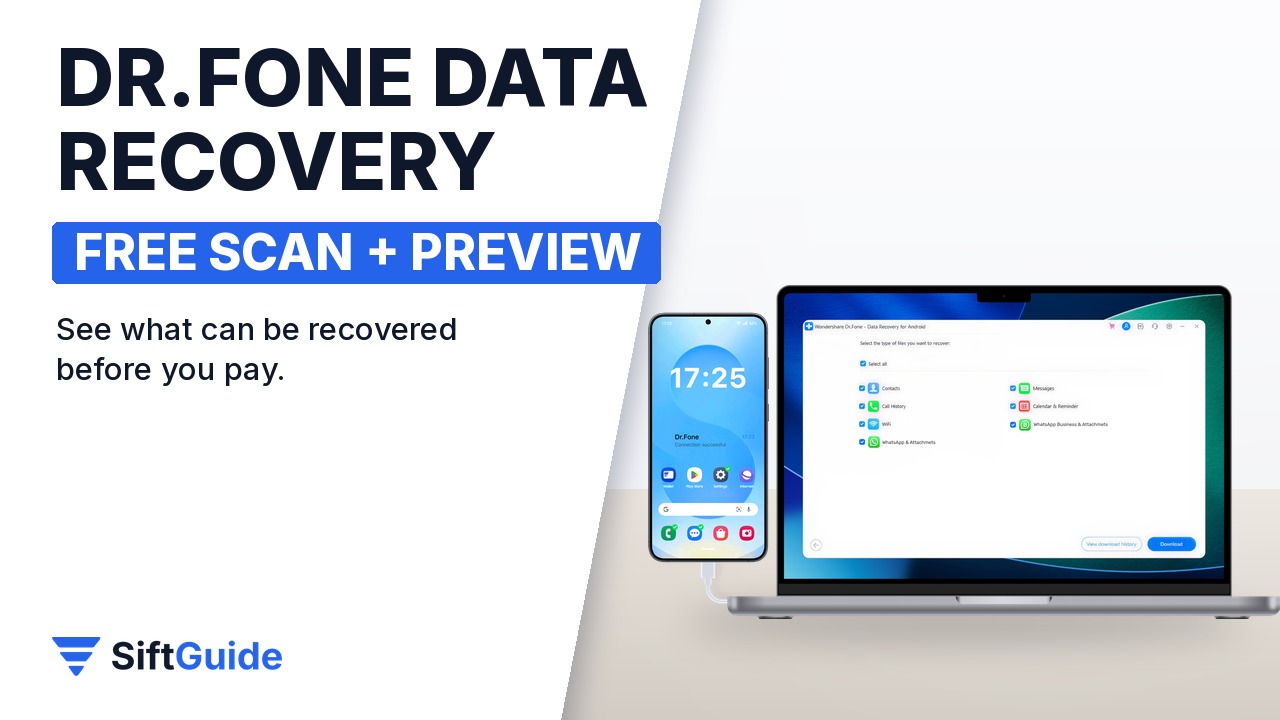
Done: the phone left alone after the loss, a Standard Recovery scan, a focused list of file types, a preview filtered to deleted items, and the results saved safely to your computer. Recovery is never guaranteed, since overwritten data cannot come back, but acting quickly and previewing first gives you the best odds and a clear answer before you spend anything.
Wondershare Dr.Fone – Data Recovery (Android, Windows)
Desktop recovery tool for Android phones: Standard Recovery for photos, videos, audio, documents, contacts, call history, messages, WhatsApp and Google Drive documents on 6,000+ models, plus Advanced Recovery (Windows, Android 9–13) for WhatsApp and WhatsApp Business, LINE, Kik, Snapchat, Gmail and selected browsing history. Can also recover from a Google Drive backup or a supported broken phone. Free scan and preview before purchase. Android 5.0+; Windows 7–11 (a macOS 10.13+ version is also available); 1 GB RAM (2 GB recommended) and 7 GB of disk space. Listed at $39.95 for Windows in the Wondershare affiliate catalog (October 2026); check the store for the current price and plans.
FAQ
Is the Dr.Fone Android scan free?
Yes. Wondershare lets you scan and preview recoverable data for free; you need a paid licence to save the files.
Can it recover deleted WhatsApp messages?
Standard Recovery covers WhatsApp among its data types, and Advanced Recovery on Windows adds deeper WhatsApp and WhatsApp Business recovery for Android 9–13. Scan WhatsApp separately from other categories.
Why should I stop using the phone?
Deleted files stay on storage only until new data overwrites them. Every new photo, app or download lowers the chance of recovery.
Does it work on any Android phone?
Dr.Fone lists support for over 6,000 Android models running Android 5.0 or later. Advanced Recovery does not yet support Huawei phones on Android 12–13.
Where should I save the recovered files?
On your computer. Saving back to the phone could overwrite other deleted data you might still want to recover.
