
Every phone maker has its own migration app, and they all work best when you stay inside one ecosystem. The moment you go from an iPhone to a Samsung, or from an old Android to an iPhone that is already set up, the built-in options get awkward or ask for a factory reset. Wondershare Dr.Fone Phone Transfer runs on your computer instead: both phones connect by cable, you choose what to copy, and it handles iOS to Android, Android to iOS, and same-platform moves. This guide follows Wondershare’s official instructions in order, including the one iPhone setting that trips most people up.
Disclosure: this guide contains affiliate links (Awin). If you buy through them we may earn a commission at no extra cost to you. Specs come from the official product page.
What you need
- A Windows PC (Windows 7 to 11) or a Mac (macOS 10.13 or later) with about 7 GB of free disk space
- Dr.Fone installed from the official Wondershare site, with the Phone Transfer module
- Both phones charged, plus a working USB cable for each (original cables are the safest)
- The old phone running iOS 5 or Android 5.0 or later, and the passcode for any iPhone so you can tap Trust
- About 15–30 minutes, depending on how many photos and videos you move
Step 1: Open Toolbox › Phone Transfer
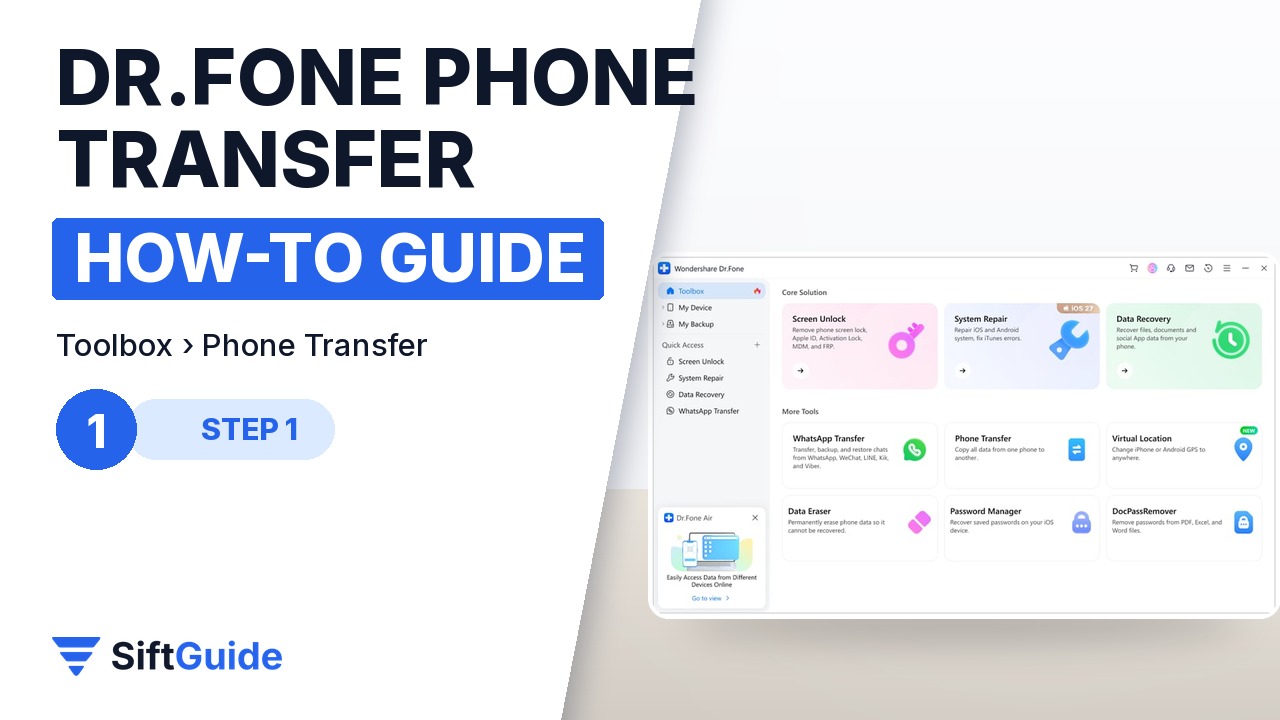
Download Dr.Fone from Wondershare’s official site, install it and launch it. On the home screen, go to Toolbox and click Phone Transfer. A new window opens and waits for the two devices. If either phone is an iPhone, unlock it when you plug it in and tap Trust on the prompt; on Android, accept any connection or USB debugging prompt Dr.Fone shows, so the app can read the data.
Step 2: Connect both phones and set Source and Destination
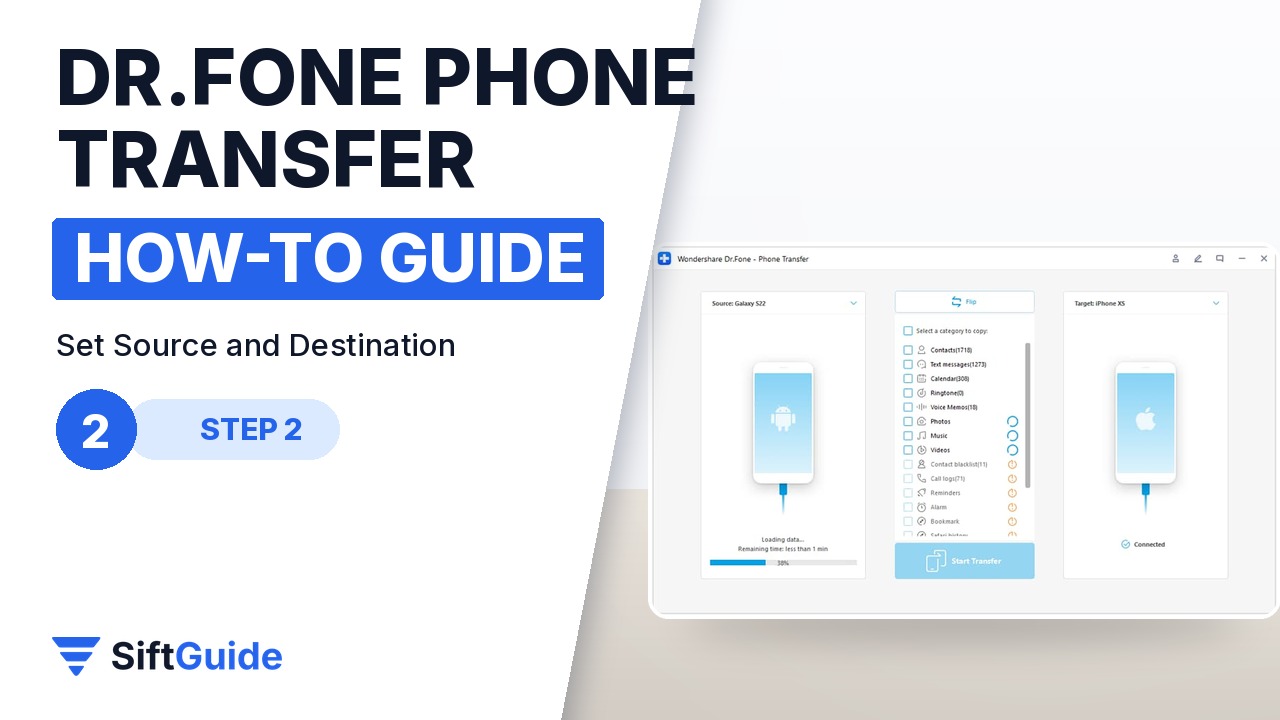
Plug in both phones. Dr.Fone loads each one and shows it on screen, with the phone you copy from on the left as the Source and the phone you copy to on the right as the Destination. Check this carefully, because data only moves one way. If they are reversed, click the Flip button at the top to swap them. Wait until both phones show as Connected before going on.
Step 3: Tick the data types and click Start Transfer
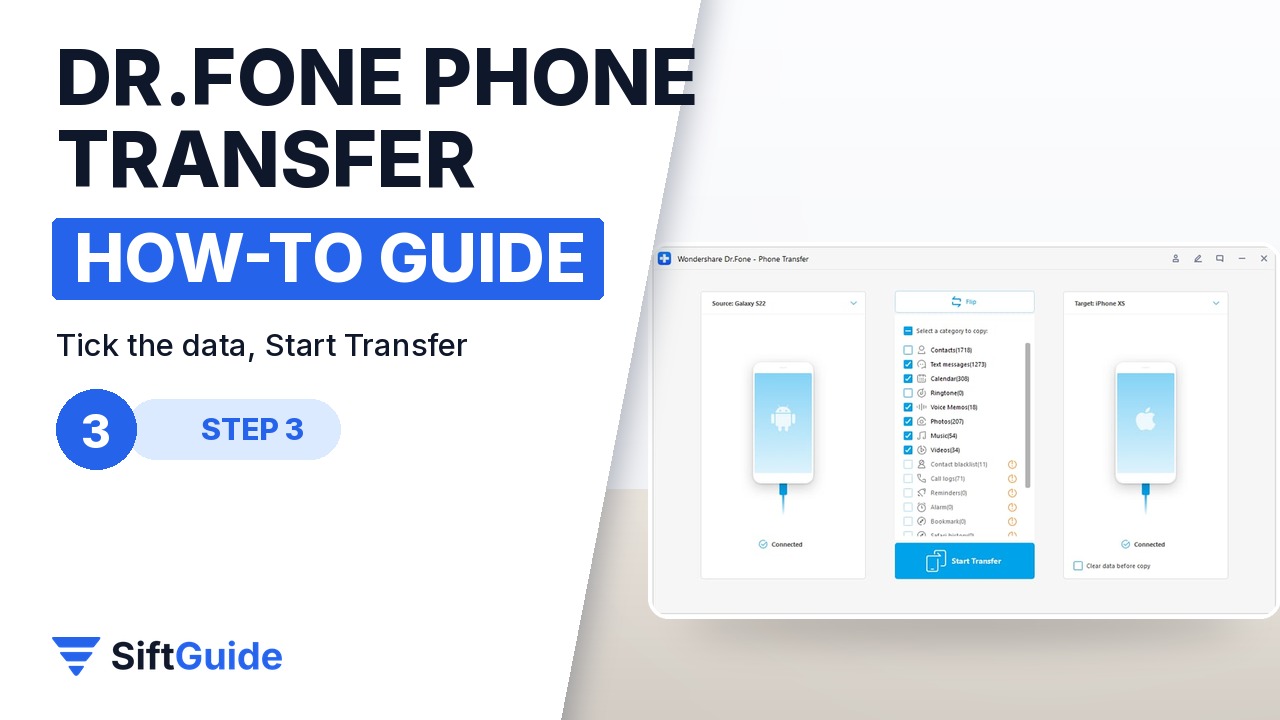
In the middle column, tick the categories you want. Depending on the direction, these include contacts, text messages, photos, music, videos, calendar, call logs, voice memos, bookmarks and more, up to 18 file types in total. Dr.Fone shows how many items are in each category. You can also tick Clear data before copy to remove existing data from the destination phone first, which is useful when the new phone has leftovers from a store demo or an old setup. Then click Start Transfer.
Step 4: iPhone involved? Turn off Find My
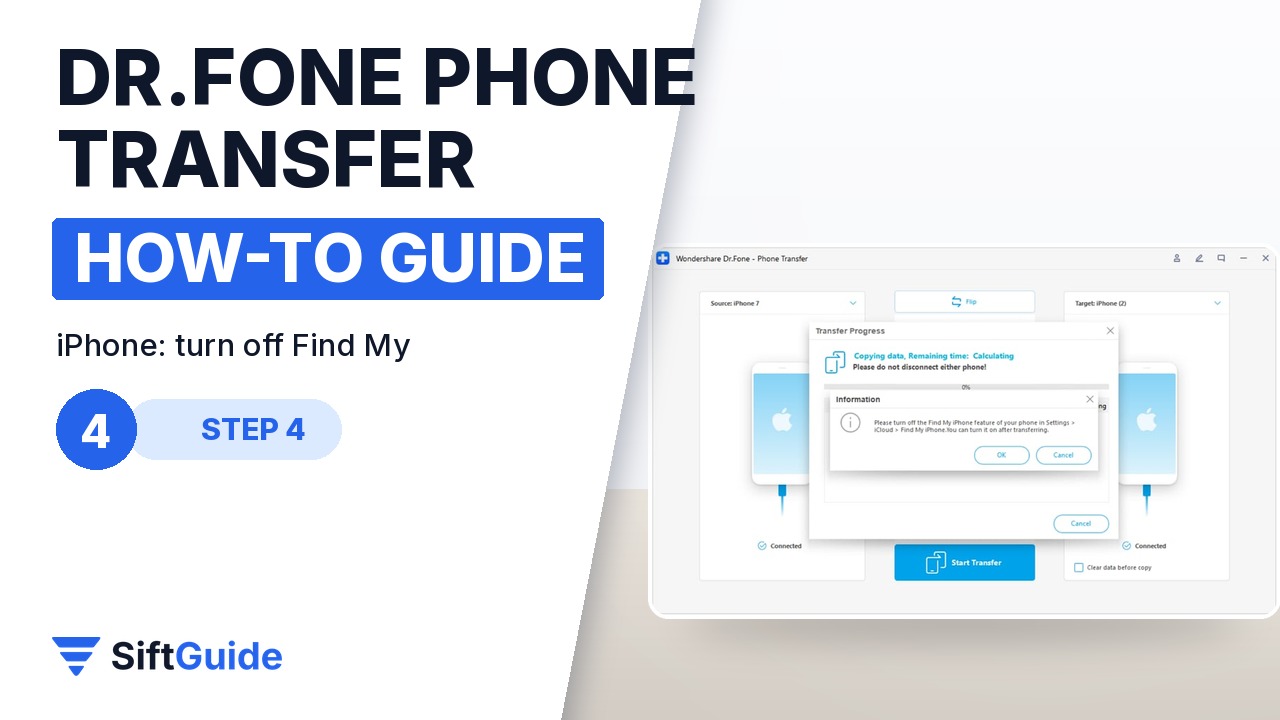
When an iPhone is part of the transfer, Dr.Fone asks you to turn off Find My before it can continue. On the iPhone, open Settings, tap your name at the top, then go to iCloud or Find My and switch Find My iPhone off. For moving messages to an iPhone, Wondershare also recommends turning off Messages syncing in iCloud first. You can turn both back on as soon as the transfer is done.
Step 5: Watch the progress, then click OK
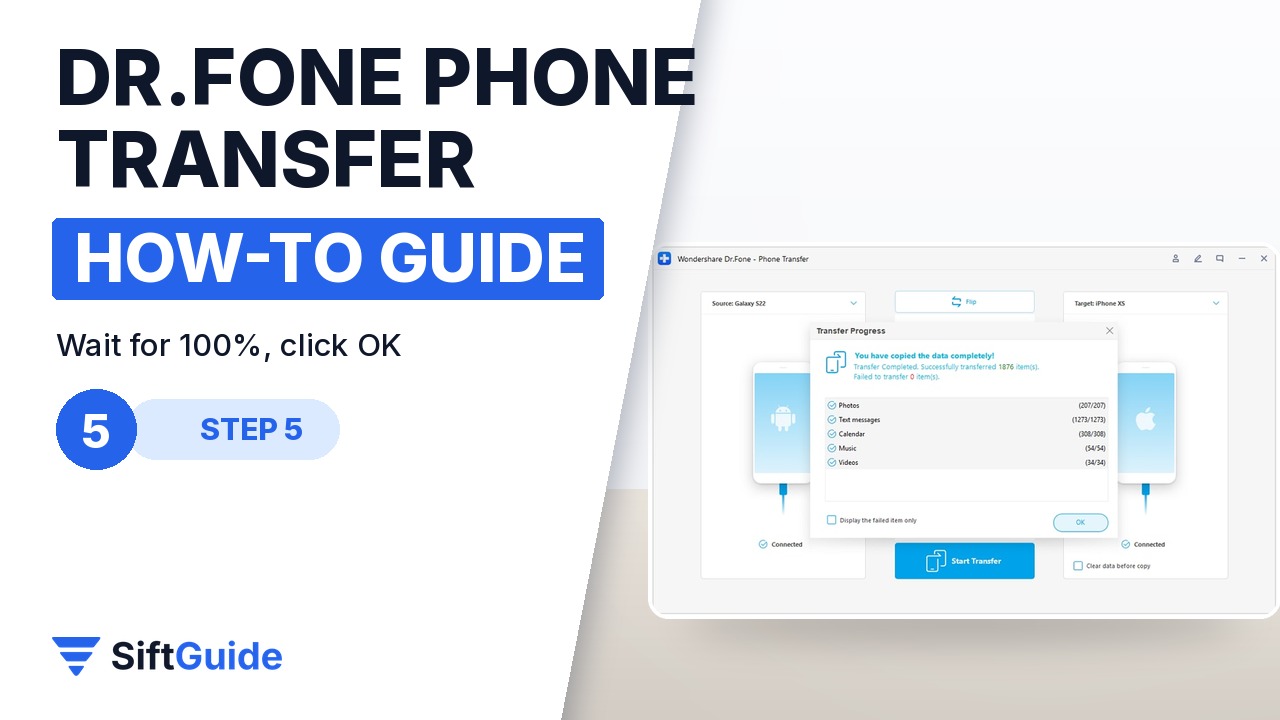
A progress window shows each category as it copies, with a warning not to disconnect either phone. Leave both cables plugged in and avoid using the phones until it finishes. When the window says the data has been copied completely, click OK and check a few contacts, photos and messages on the new phone. If something is missing, run the transfer again with only that category ticked.
Do not tick Clear data before copy by accident
That option erases the matching data on the destination phone before copying. It is great for a clean start, but if the new phone already has photos or contacts you want to keep, leave it unticked so the transfer only adds data.
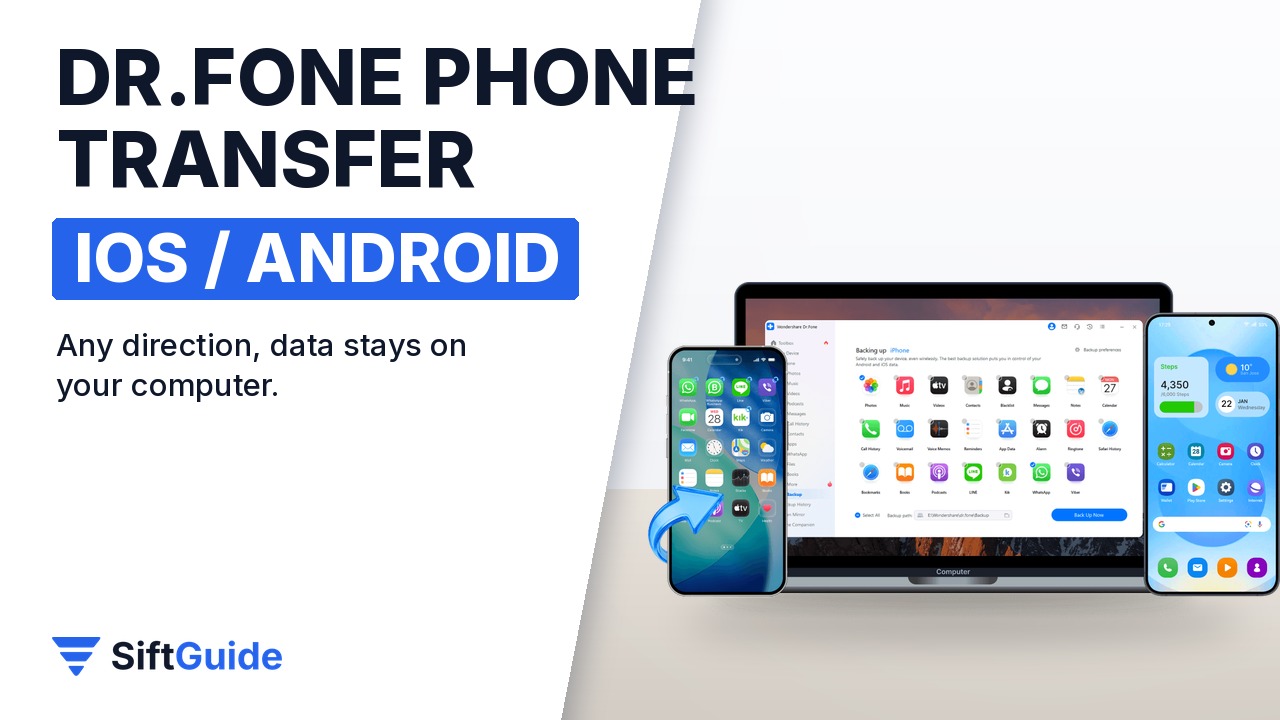
Done: both phones connected, Source and Destination checked, the right data ticked, Find My turned off for the iPhone, and everything copied. Because the transfer runs locally between two cables, nothing goes through a cloud account, and Wondershare notes that, unlike some migration tools, it does not require a factory reset of the new phone.
Wondershare Dr.Fone – Phone Transfer (Windows)
Desktop app for copying data between phones over USB: iPhone to Android, Android to iPhone, Android to Android and iPhone to iPhone. Supports up to 18 file types, including contacts, messages, photos, videos, music, calendar and call logs, with Source/Destination selection, a Flip button and an optional Clear data before copy. Works with iOS 5.0+ and Android 5.0+; runs on Windows 7–11 (a macOS 10.13+ version is also available). Needs a 1 GHz CPU, 1 GB RAM (2 GB recommended) and 7 GB of disk space. Listed at $29.95 for Windows in the Wondershare affiliate catalog (October 2026); check the store for the current price and plans.
FAQ
Can Dr.Fone transfer data from iPhone to Android?
Yes. It supports iPhone to Android, Android to iPhone, and same-platform transfers. Connect both phones to the computer and set the iPhone as the Source.
Do I need to factory reset the new phone?
No. Wondershare lists no reset requirement for Phone Transfer. The optional Clear data before copy setting only removes the selected data types from the destination phone.
Why does it ask me to turn off Find My?
When an iPhone is involved, Find My must be off for the transfer to complete. Turn it off in Settings › your name › iCloud › Find My, and turn it back on afterwards.
Does my data go to the cloud?
No. The phones are connected to your computer by cable, and the data is copied directly between them.
Which systems are supported?
iOS 5.0 and later and Android 5.0 and later, with Windows 7–11 or macOS 10.13 or later on the computer.
