
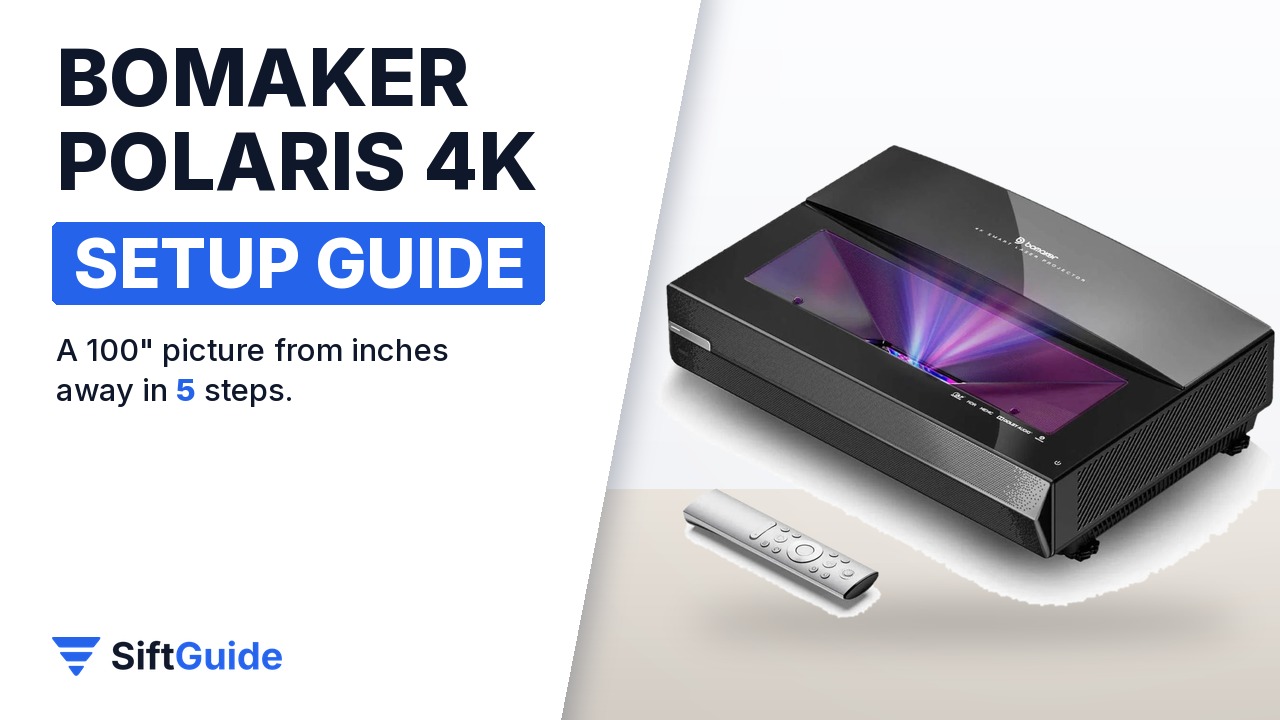
The Bomaker Polaris 4K Laser TV is an ultra short throw (UST) projector: instead of hanging from the ceiling at the back of the room, it sits on a low cabinet right under the wall and throws the picture upward. On paper it has everything a living-room laser TV needs, with a triple RGB laser, 4K resolution from a 0.47″ Texas Instruments DMD, 2,500 ANSI lumens and a 0.25:1 throw ratio. The catch with any UST projector is that placement decides almost everything. A few millimetres off and the picture bends, a slightly crooked cabinet and the corners stop lining up. This guide follows the official listing on the Nothing Projector store and goes through the setup in the order that saves you the most time.
Disclosure: this guide contains affiliate links (Awin). If you buy through them we may earn a commission at no extra cost to you. Specs come from the official product page.
What you need
- The Bomaker Polaris 4K projector and its remote
- A low, sturdy TV cabinet or shelf that is level and deep enough for the projector
- A flat, light wall or, better, a UST-compatible ALR screen (around 100″)
- A tape measure for the distance to the wall
- Your Wi-Fi password, plus any HDMI sources (console, streaming stick, set-top box)
Step 1: Place it a few inches from the wall
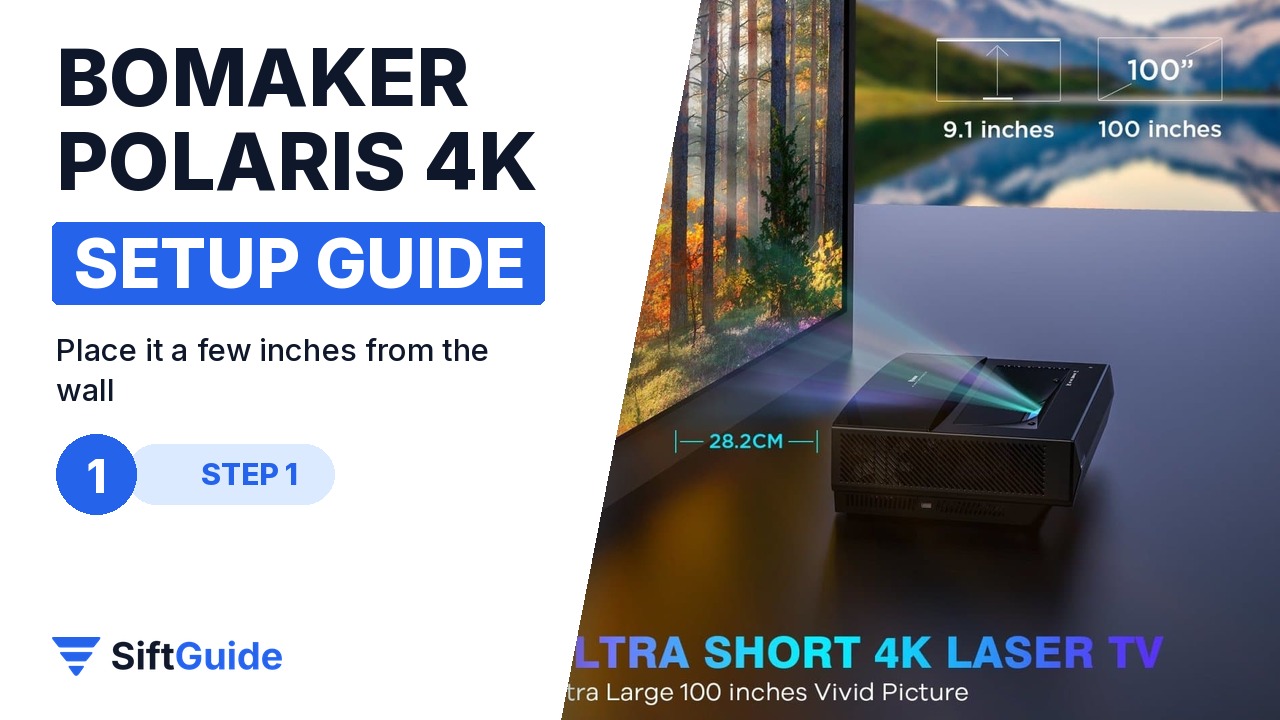
Put the projector on the cabinet with the lens side facing the wall. The Polaris has a 0.25:1 throw ratio, and the official listing shows a 100-inch picture from about 9.1 inches (28.2 cm) between the wall and the projector. Move it closer for a smaller picture and further back for a larger one. Before you fine-tune anything, make sure the cabinet is level and the projector is parallel to the wall. Fixing the physical position first avoids a lot of digital correction later, and digital correction always costs some sharpness.
Step 2: Square the image and set the focus

With the picture on the wall, use the vertical keystone correction to straighten the top and bottom edges. Bomaker lists up to ±40° of vertical keystone, which is plenty, but treat it as a last resort: the less you use, the cleaner the 4K image stays. Then use the focus setting (Bomaker calls it High Definition Focus) and check small text, such as a settings menu, in all four corners. With UST projectors the edges are where blur shows first.
Step 3: Connect Wi-Fi and Bluetooth
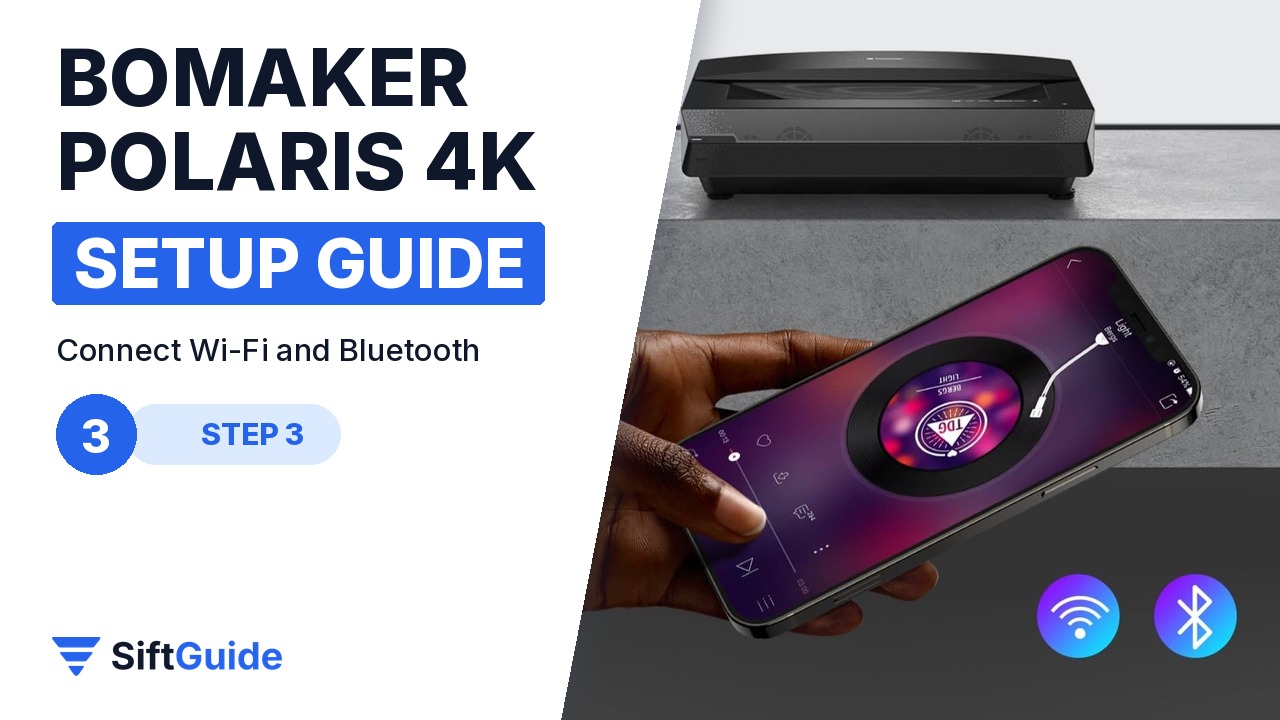
Go into the settings and join your home Wi-Fi so the built-in smart system can install apps and updates. The official listing also shows Bluetooth, which is handy for pairing a phone, a headset for late-night viewing or an external speaker. The projector has 3 GB of RAM and 32 GB of storage, so keep the installed apps to the ones you actually use. If the Wi-Fi signal is weak in your living room, a wired streaming stick in an HDMI port is often more reliable for 4K streams.
Step 4: Pick HDR10 and MEMC

For films, use HDR10 content and a picture mode meant for movies. The triple laser is the reason this projector is interesting: Bomaker quotes 193% of NTSC and 107% of BT.2020, so saturated colours do not need to be pushed in the menu. For football or fast games, try MEMC motion smoothing, then turn it off for films if you dislike the “soap opera” look. The 15,000:1 dynamic contrast figure benefits from a darker room, so close the curtains for the first test.
Step 5: Handle sound and sources
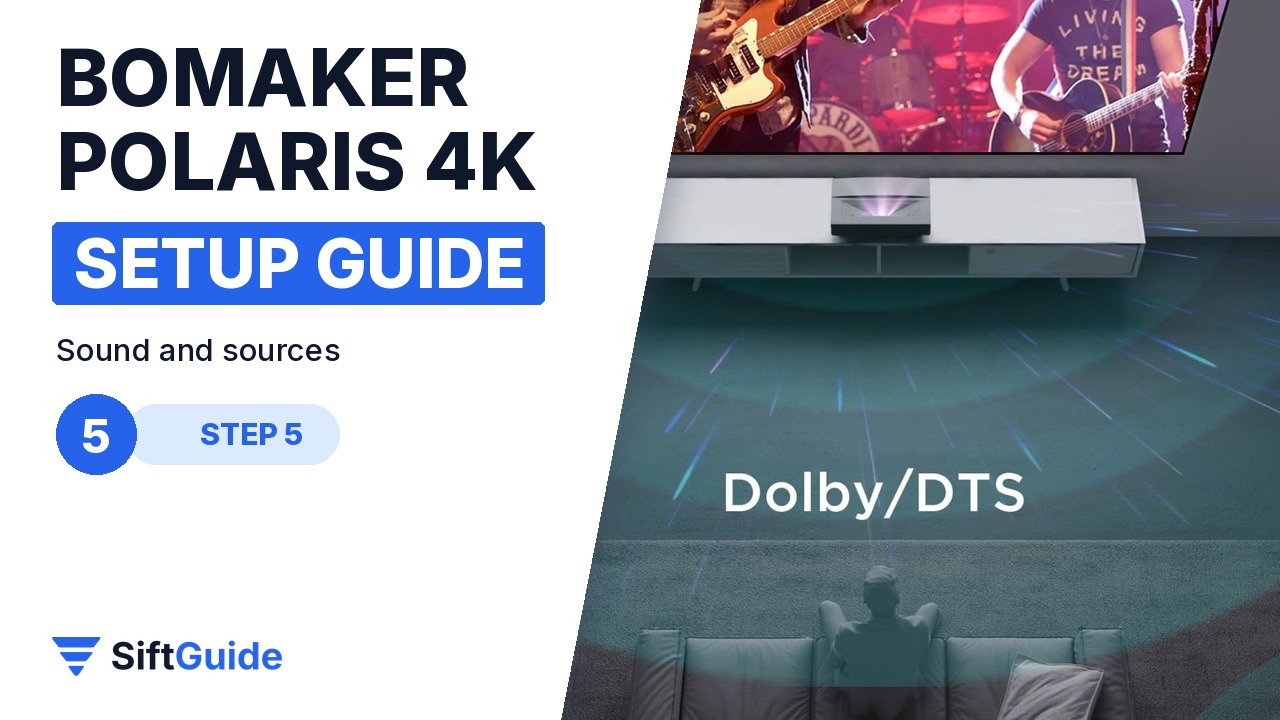
The listing shows Dolby and DTS support, so the built-in sound is enough for everyday TV. For movie nights, a soundbar or an AV receiver is the usual upgrade. Plug your console, streaming box or set-top box into the ports on the back panel (the listing shows HDMI and USB among them), and label the cables before they disappear behind the cabinet. Finally, enable the eye protection feature if children are around: it is part of the official spec list and stops the laser when someone gets too close to the lens.
Pro tip
Most UST image problems come from the surface, not the projector. A slightly wavy wall shows up as bent lines. If you can, pair the Polaris with an ALR screen made for ultra short throw projectors. It keeps the picture flat and rejects light from the ceiling, which is what makes a UST usable with the lights on.

Ready to watch: once the projector is level, the picture is square without heavy keystone and your sources are connected, the Polaris behaves like a very large TV that disappears into the cabinet when it is off.
Bomaker Polaris 4K Laser TV (UST projector)
Ultra short throw laser projector with a triple RGB laser, 4K UHD (3840 x 2160) from a 0.47″ DMD, 2,500 ANSI lumens, 0.25:1 throw ratio (about 100″ from 9.1 inches), 15,000:1 dynamic contrast, NTSC 193% / BT.2020 107% colour gamut, HDR10, MEMC, ±40° vertical keystone, eye protection, 3 GB RAM + 32 GB storage and a laser rated over 30,000 hours. On the Nothing Projector store in October 2026 it is listed at $2,150. Prices change, so check before you buy.
FAQ
How far from the wall does the Bomaker Polaris go?
About 9.1 inches (28.2 cm) for a 100-inch picture, according to the official listing. It has a 0.25:1 throw ratio.
Do I need a special screen?
No, it works on a flat light wall. A UST-compatible ALR screen gives a flatter, brighter picture in a lit room.
Is it really 4K?
The listing specifies 3840 x 2160 output from a 0.47″ Texas Instruments DMD, the chip used by most 4K home projectors.
How long does the laser last?
Bomaker rates the light source at more than 30,000 hours.
