
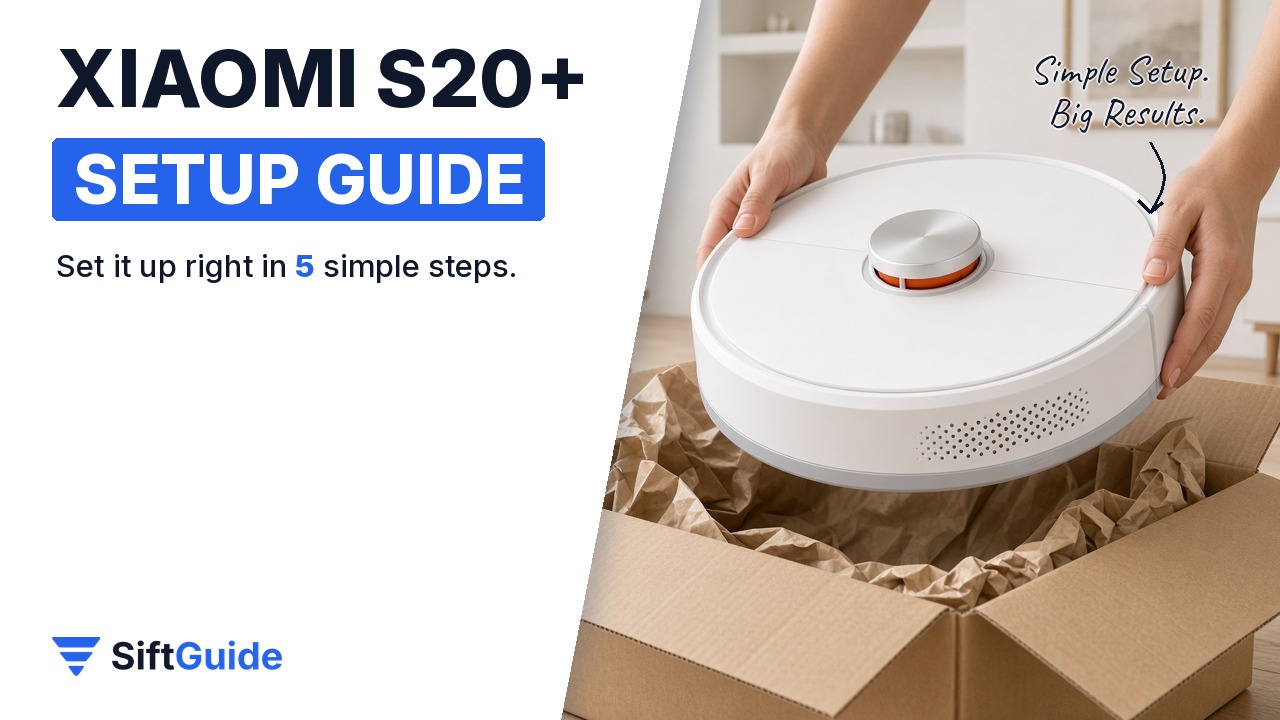
Just unboxed a Xiaomi Robot Vacuum S20+? A few minutes of careful setup make the difference between a robot that gets stuck under the sofa and one that quietly cleans your home for years. Here is exactly how to do it in five steps.
What you need
- Xiaomi Robot Vacuum S20+ and its auto-empty dock
- A free power socket near a wall with open floor space
- A smartphone with the Xiaomi Home app
- Your 2.4 GHz home Wi-Fi name and password
- 10 minutes to tidy the floor before the first run
Step 1: Clear the floor
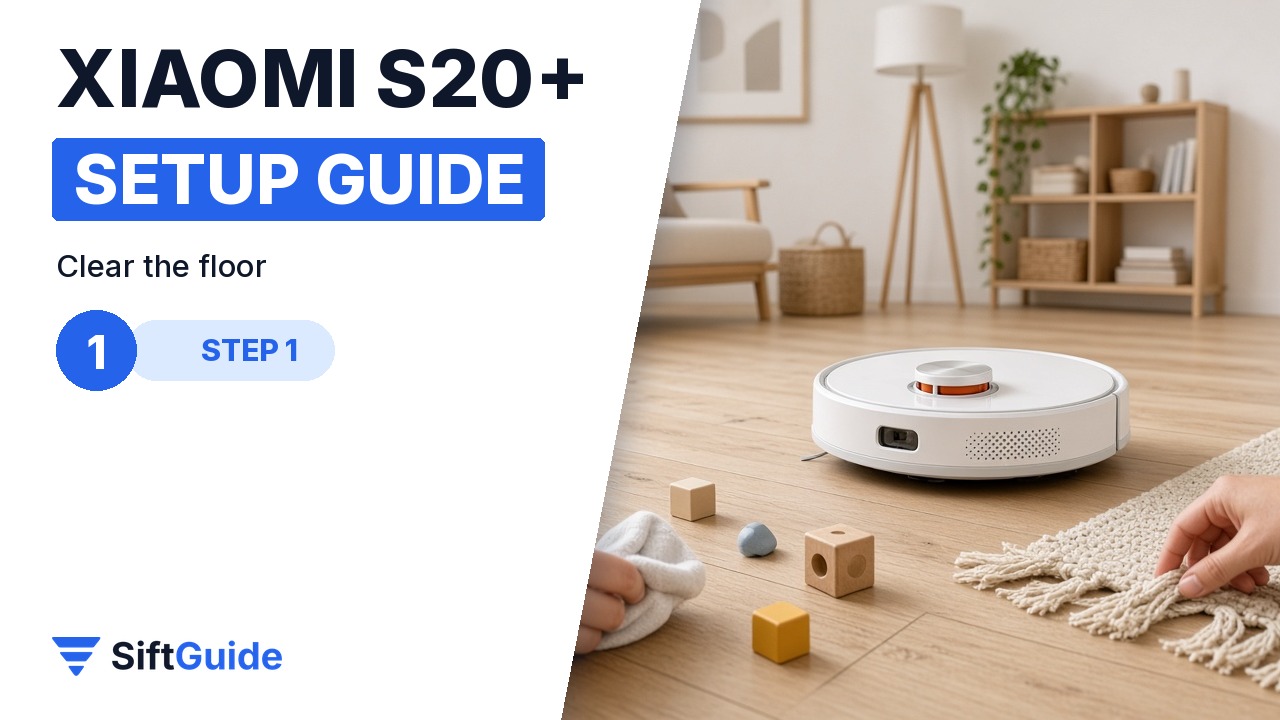
Pick up cables, socks, chargers and small toys before the first run. Tuck curtain edges and rug tassels out of the way, because the brushes can grab them. The first run builds the map, so a tidy floor gives you a cleaner, more accurate map from day one.
Step 2: Place the dock
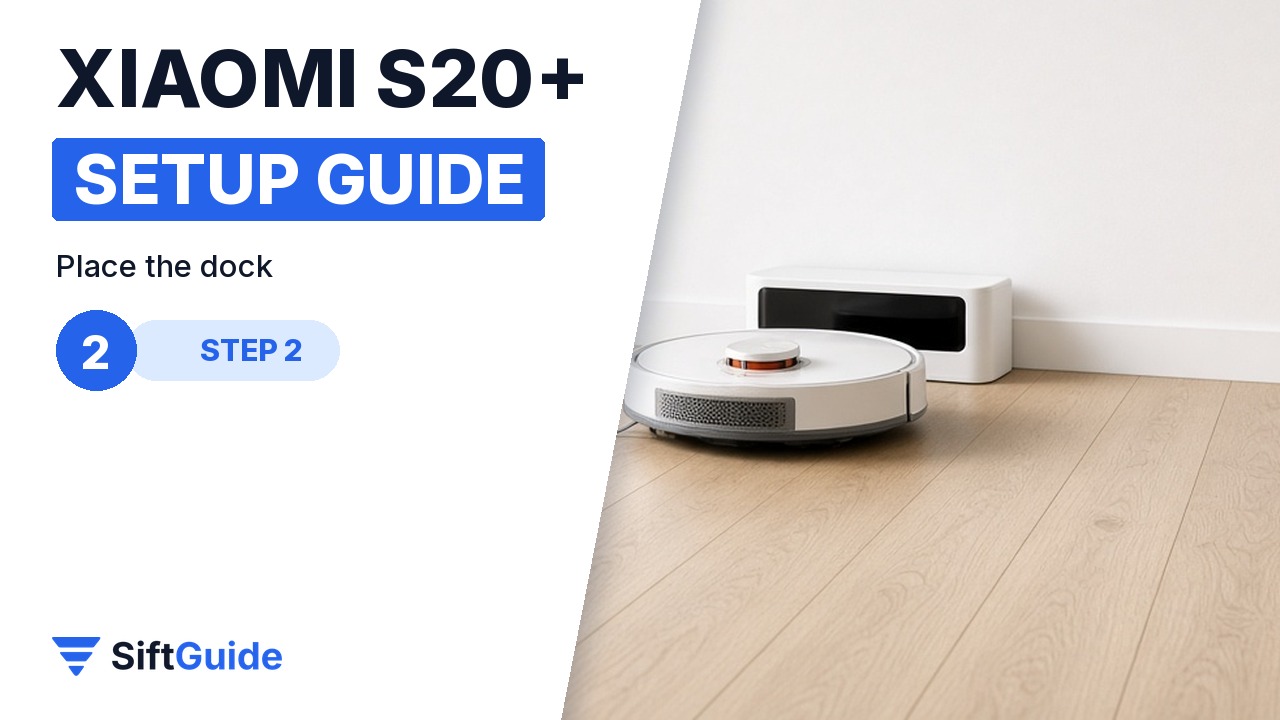
Put the dock flat against a wall on a hard, level floor. Leave roughly half a metre free on each side and about 1.5 metres in front, so the robot can find it and dock straight. Avoid spots next to stairs, in direct sunlight, or behind doors that might close.
Step 3: Charge before the first run
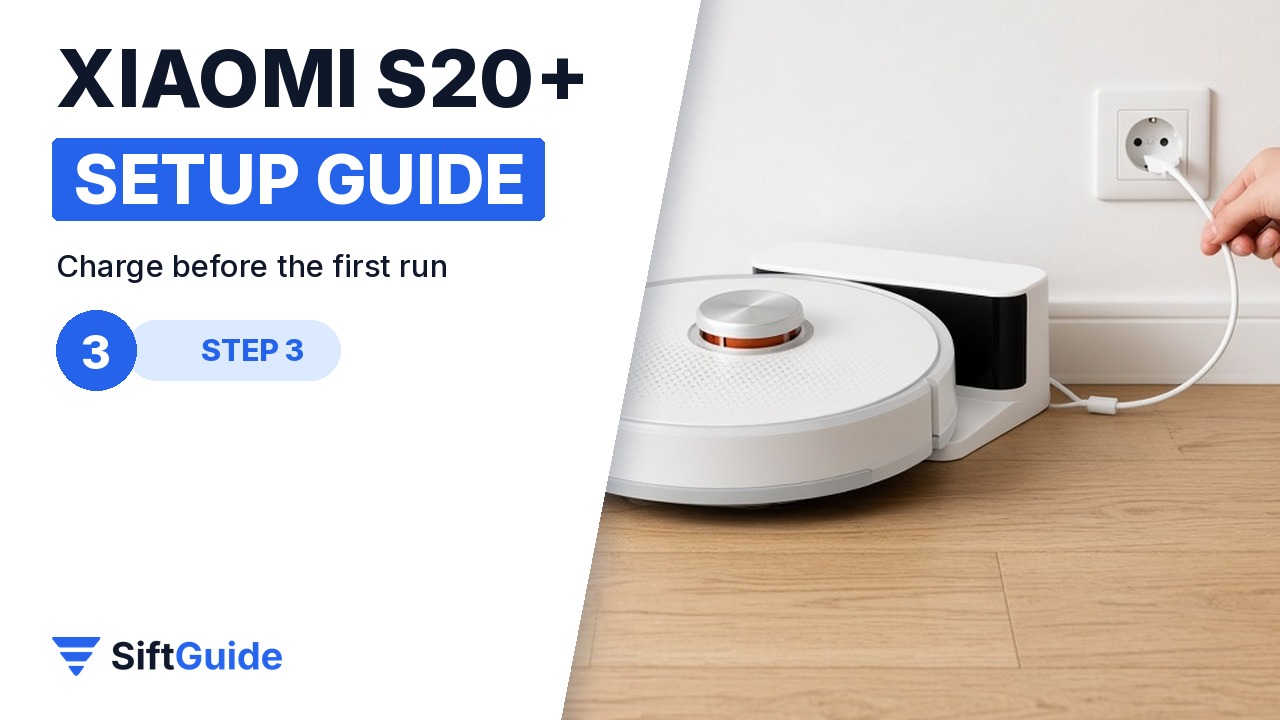
Plug the dock in, set the robot on it so the charging contacts line up, and let it charge fully. Starting with a full battery lets it map the whole home in one go instead of stopping halfway to recharge.
Step 4: Connect to the app and map your home
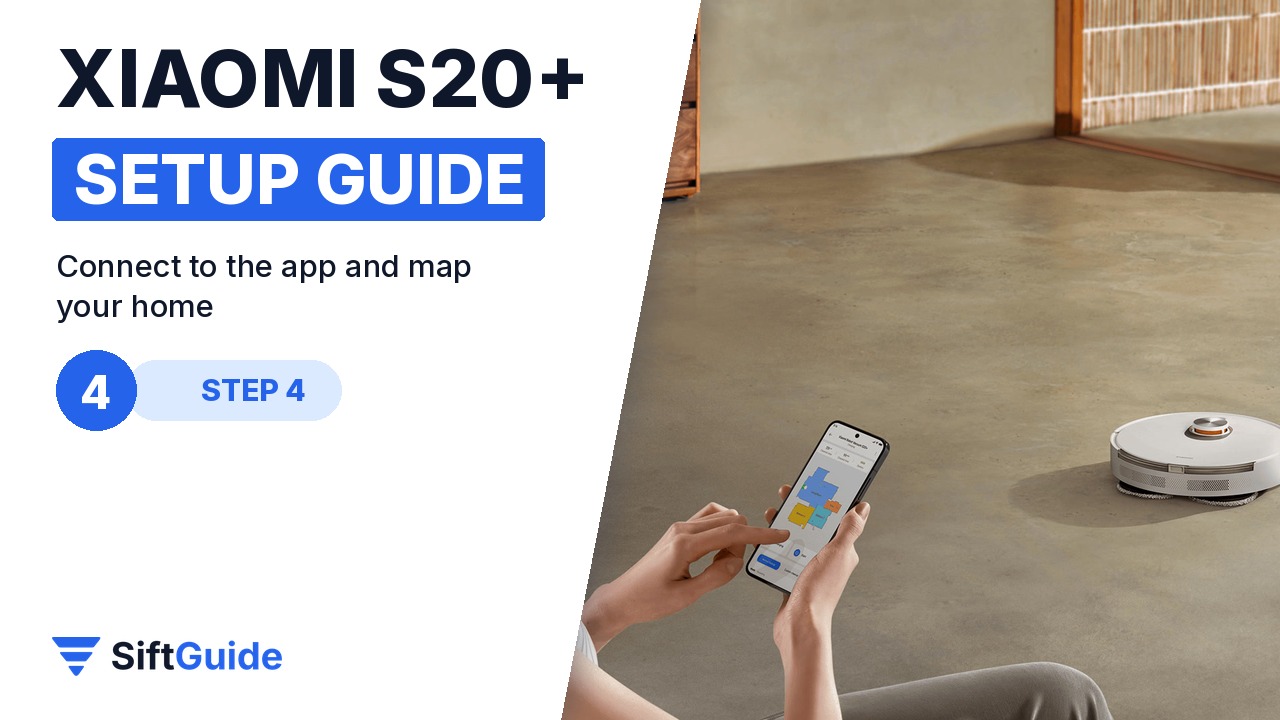
Open the Xiaomi Home app, add the device and follow the pairing prompts on your home Wi-Fi (most models need the 2.4 GHz band). Then start the first cleaning and stay out of its way: open interior doors so it can map every room it should clean.
Step 5: Add no-go zones and a schedule
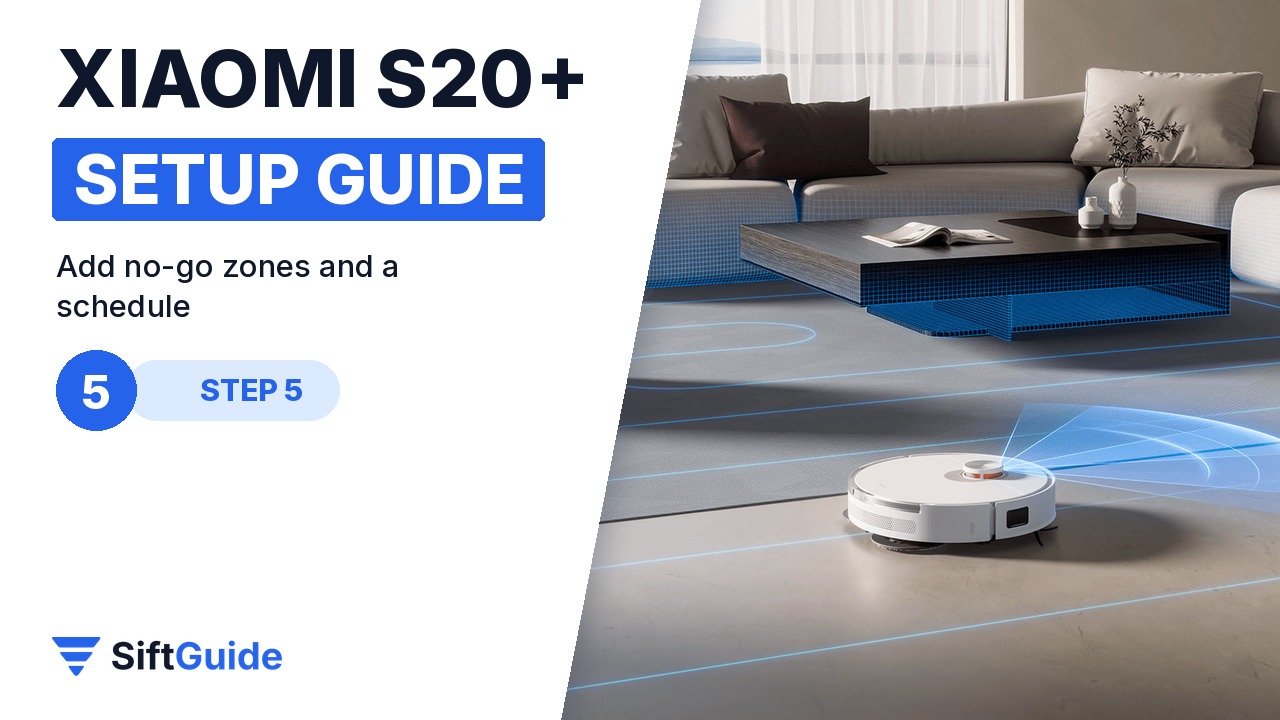
Once the map is saved, split or rename rooms if needed, then draw no-go zones around pet bowls, cable bundles and fragile rugs. Set a schedule for times when nobody is home, so you come back to clean floors without the noise.
Pro tip
Run the first mapping pass during the day with lights on. The S20+ uses its laser sensor to navigate, but a well-lit, tidy home with open doors gives the cleanest, most complete map, which saves you from fixing room borders later.
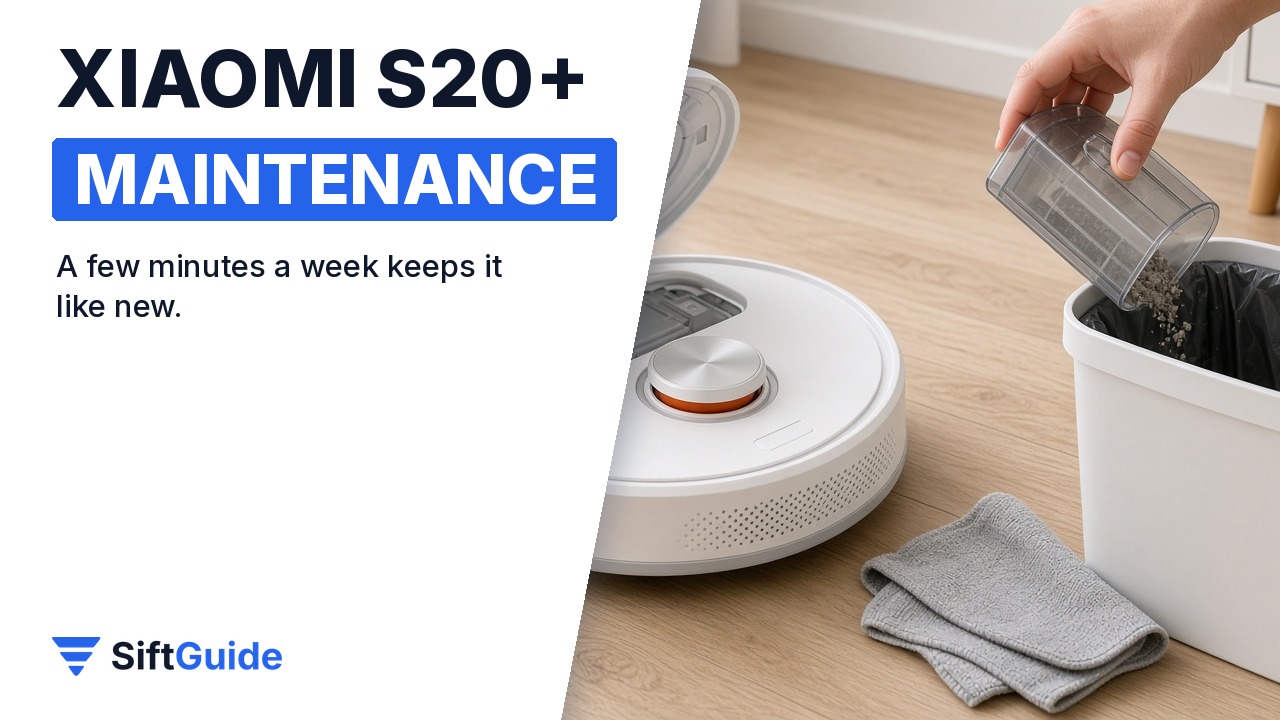
Keep it running well: empty the bin (or check the dock bag) every week, wipe the sensors and charging contacts with a dry cloth, and untangle hair from the main brush. These five minutes keep suction strong and navigation accurate.
Xiaomi Robot Vacuum S20+
A robot vacuum and mop with an auto-empty dock, laser navigation and app control through Xiaomi Home. Check availability and pricing with your local Xiaomi retailer.
Update (October 25, 2026): the robot handles the floors; for small things like rings, glasses and tools, see our VEVOR ultrasonic cleaner buying guide.
FAQ
Does the Xiaomi S20+ work on 5 GHz Wi-Fi?
Most Xiaomi robot vacuums pair on the 2.4 GHz band. If your router merges both bands under one name, temporarily enable a separate 2.4 GHz network for pairing.
How long should the first charge take?
Let it charge until the app shows a full battery, typically a few hours. A full battery lets the first mapping run cover the whole home.
Can I edit the map later?
Yes. In the app you can split, merge and rename rooms, and add or remove no-go zones at any time without re-mapping.
