
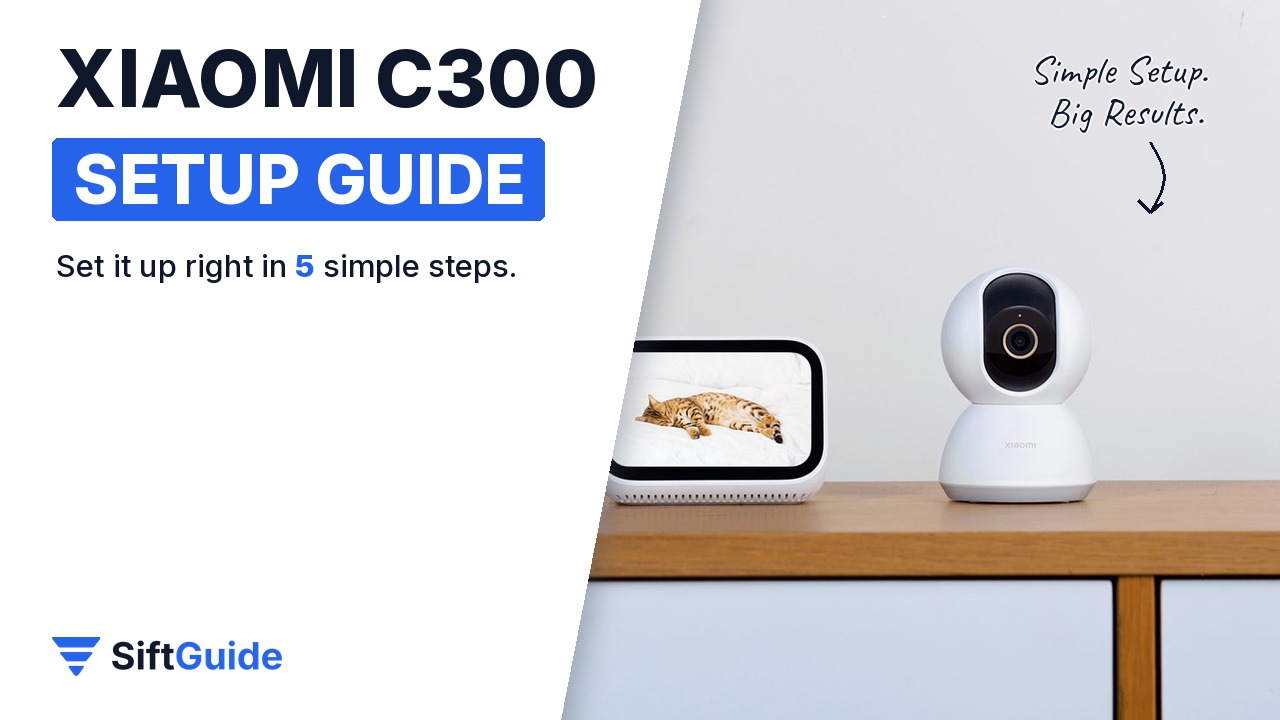
Got a new Xiaomi Smart Camera C300? Mounted in the right spot and set up with smart alerts, it becomes a reliable eye on your front door instead of a stream of useless notifications. Here is how to set it up properly in five steps.
What you need
- Xiaomi Smart Camera C300 with its round mounting base, screws, wall plugs, USB cable and power adapter
- A drill, a pencil and a small spirit level
- A microSD card (optional, for local recording)
- A smartphone with the Xiaomi Home app
- Your 2.4 GHz home Wi-Fi name and password
Step 1: Pick the spot
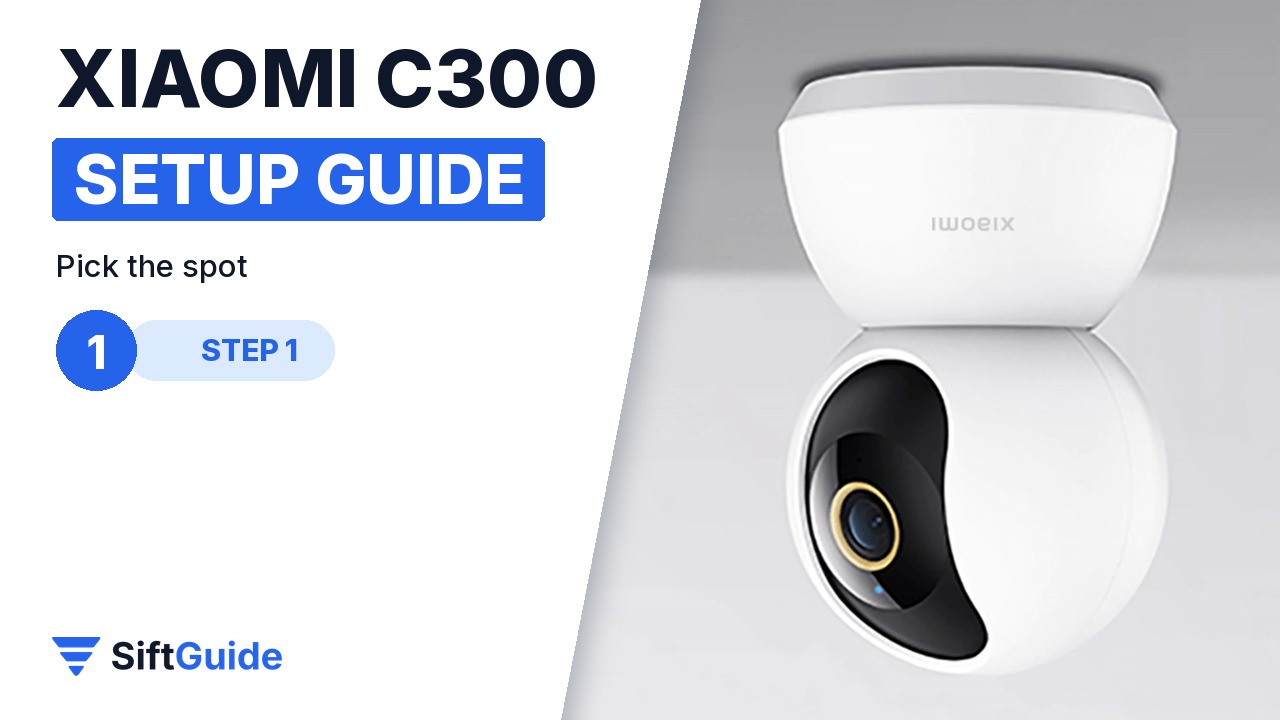
Mount the camera high in a corner, facing the front door or the main entry route, so it covers the room with no blind spots. Make sure a power socket is within reach of the USB cable, and avoid pointing it straight at a window, where backlight washes out the image.
Step 2: Mark and drill the holes
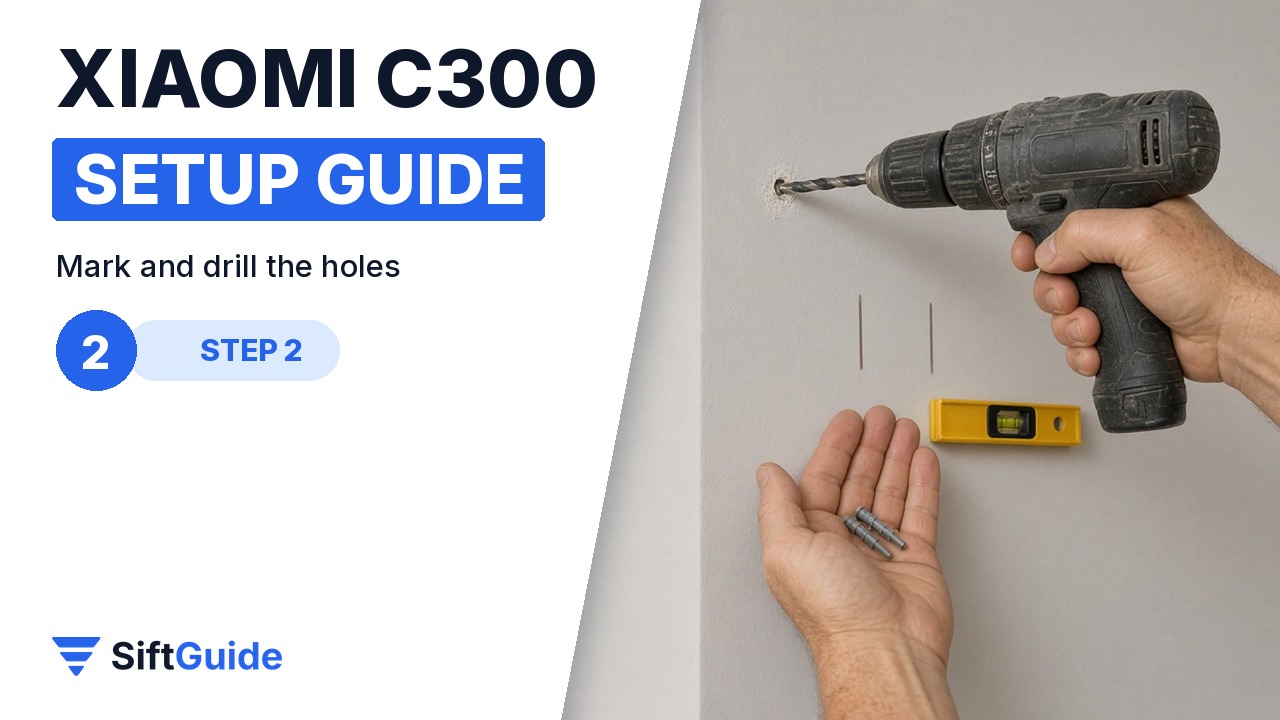
Hold the round mounting base against the wall, mark the two screw holes with a pencil, and check with a level. Drill the holes and tap in the wall plugs. On drywall, use the right anchors so the base holds firmly.
Step 3: Fix the base and twist-lock the camera
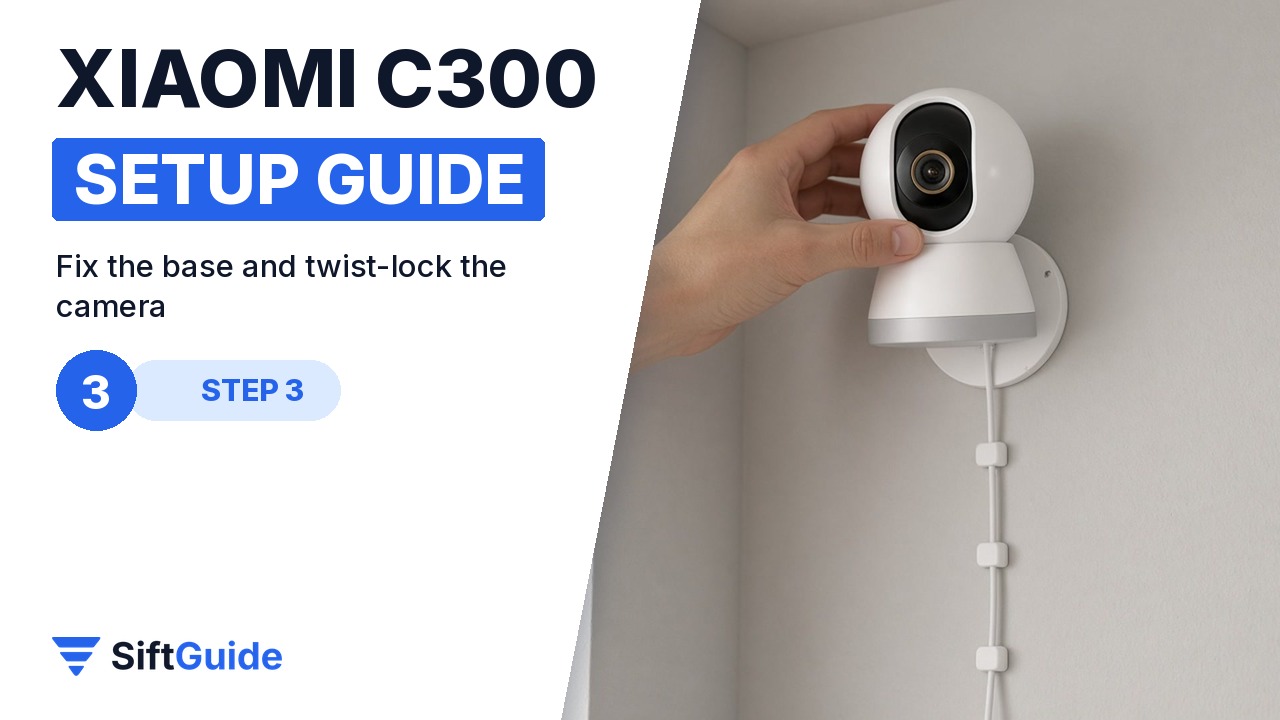
Screw the round base to the wall. Line the camera up with the base, press it on and twist until it locks in place, then adjust the angle. Run the USB cable neatly along the wall to the power adapter; cable clips keep it tidy and out of reach.
Step 4: Connect it in the app
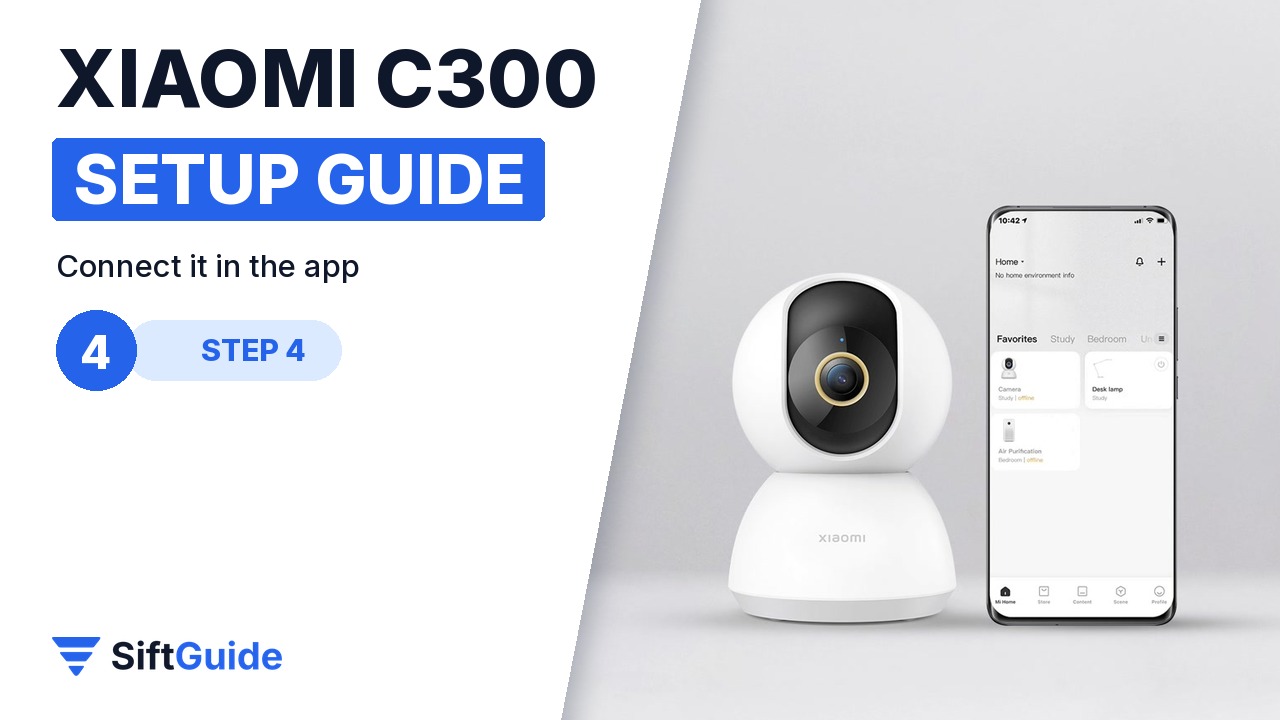
Open the Xiaomi Home app, add the camera and connect it to your home Wi-Fi (2.4 GHz). The app shows a QR code on your phone; hold it in front of the lens about 15–20 cm away until the camera confirms the pairing.
Step 5: Set a motion zone and alerts
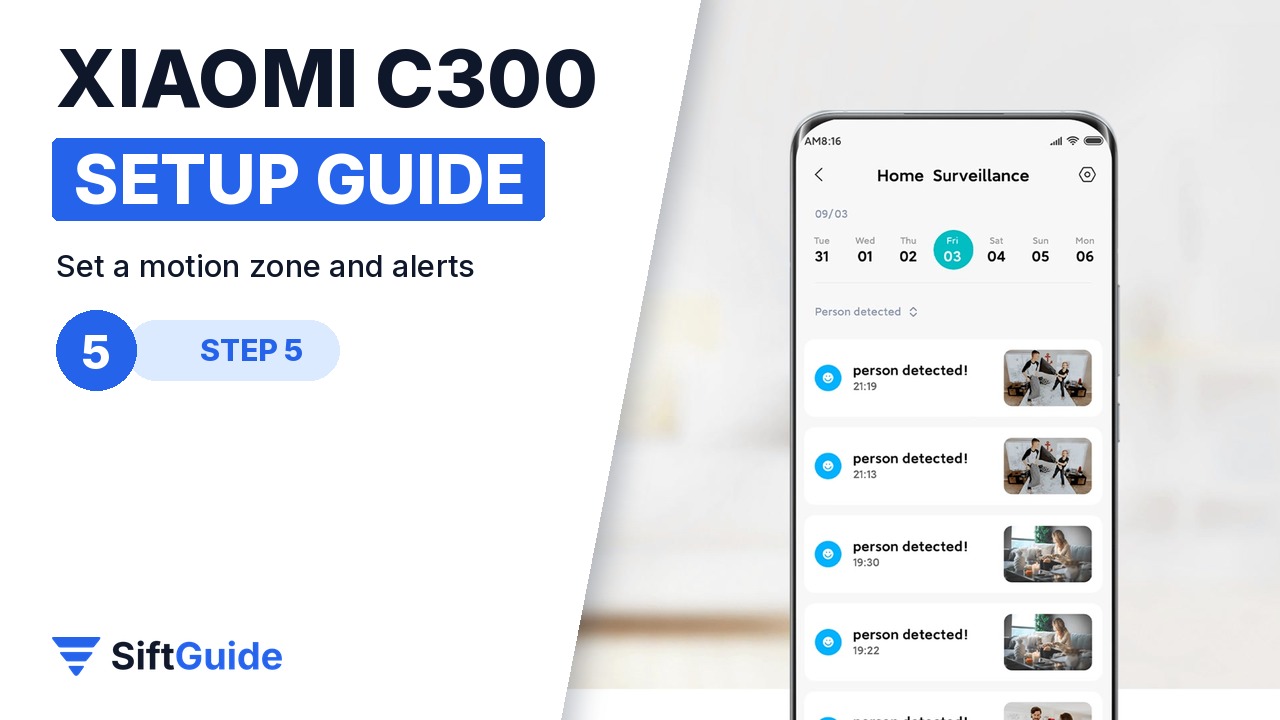
In the camera settings, draw a motion detection zone around the door and switch on alerts. Limit them to motion or people in that zone, so you only get the notifications that matter, not every passing shadow.
Pro tip
Before drilling, power the camera up and pair it with the app while holding it at the planned spot. Check the live view to confirm the angle and Wi-Fi signal, then mark the holes. It saves you from drilling twice.
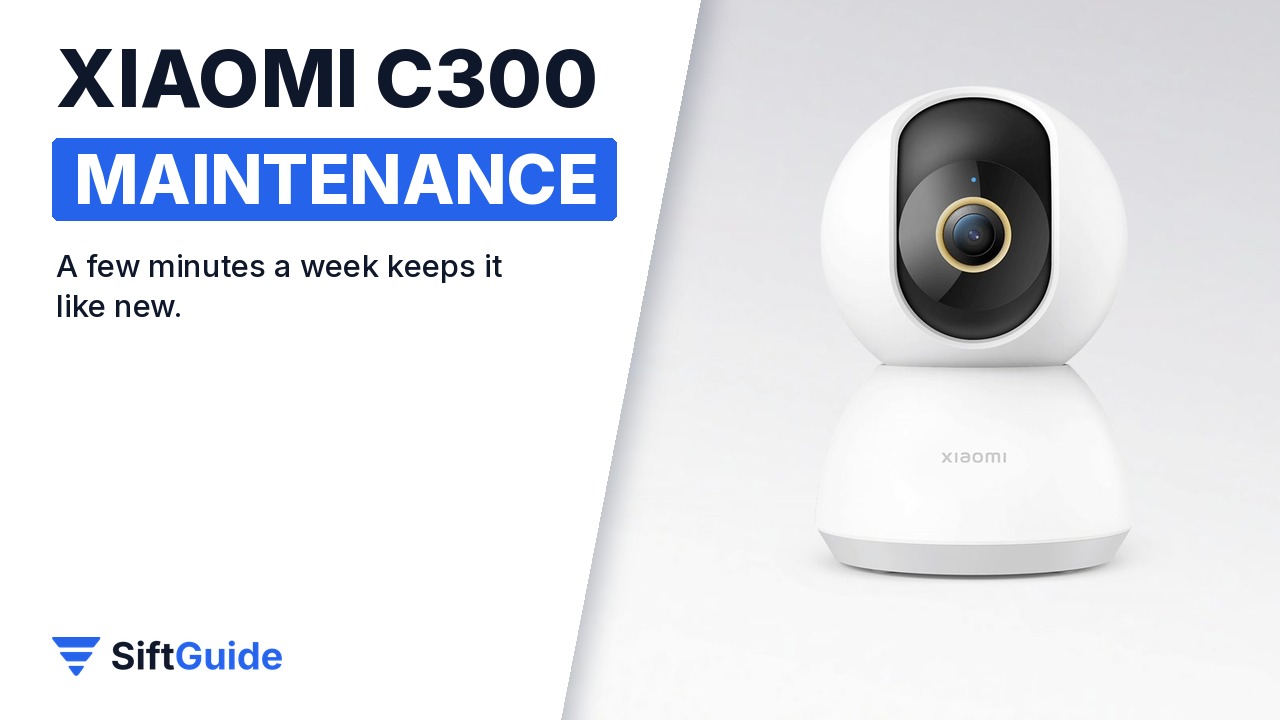
Keep it reliable: wipe the lens with a soft, dry cloth every month, and check in the app that the memory card is still recording. Keep the firmware updated for the latest security fixes.
Xiaomi Smart Camera C300
A 2K indoor security camera with pan and tilt, night vision, two-way audio and microSD or cloud recording, managed in the Xiaomi Home app. Check availability and pricing with your local Xiaomi retailer.
FAQ
Can the Xiaomi C300 be mounted on the ceiling?
Yes. The same round base works on a ceiling; enable image flip in the app so the picture is not upside down.
Does the C300 need a memory card?
No, but a microSD card gives you local recording without a subscription. Cloud storage is an optional alternative.
Why won’t the camera scan the QR code?
Make sure the phone screen is bright, hold it 15–20 cm from the lens, and check that you entered the 2.4 GHz Wi-Fi password correctly.
