
Most people only need a PDF editor for a handful of jobs: fix a typo in a contract, turn a scan into text you can search, send a spreadsheet back as Excel, or shrink a file that bounces off the mail server. Wondershare PDFelement does all of those in one desktop app for Windows and Mac (with mobile apps and an online version too). This guide follows Wondershare’s own user guide for PDFelement on Windows and shows the five moves in the order you will actually use them.
Disclosure: this guide contains affiliate links (Awin). If you buy through them we may earn a commission at no extra cost to you. Specs come from the official product page.
What you need
- A Windows or Mac computer
- PDFelement installed (free download from Wondershare; a paid plan removes the trial limits and watermark)
- The PDF you want to work on, or a Word, Excel or image file to turn into a PDF
- For OCR: a scanned PDF or photo of a document
- Optional: a signature image or a digital ID for signing
Step 1: Open a PDF or create one
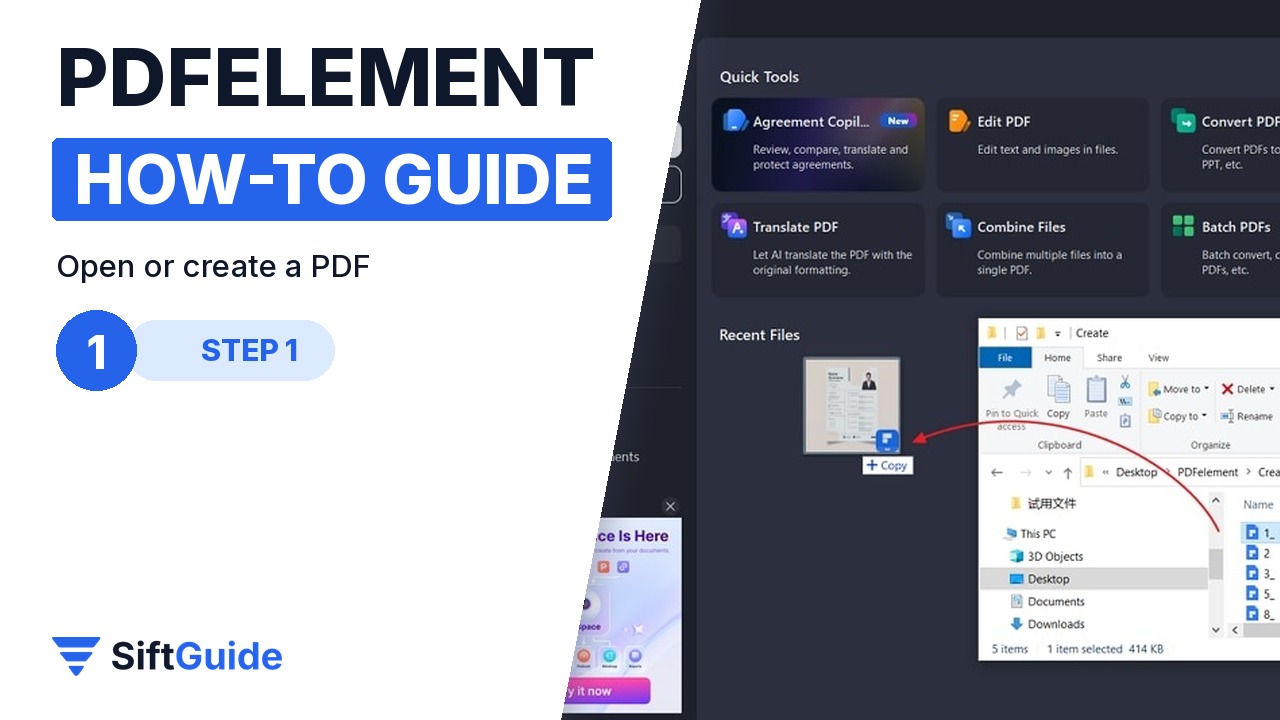
Launch PDFelement and drag a PDF onto the home screen, or use the Open PDF button. To turn another document into a PDF, right-click it in File Explorer and choose the PDFelement option to convert it, or drag a Word, Excel or image file into the app. The file opens in a new tab, so you can keep several documents side by side.
Step 2: Edit text like a Word file
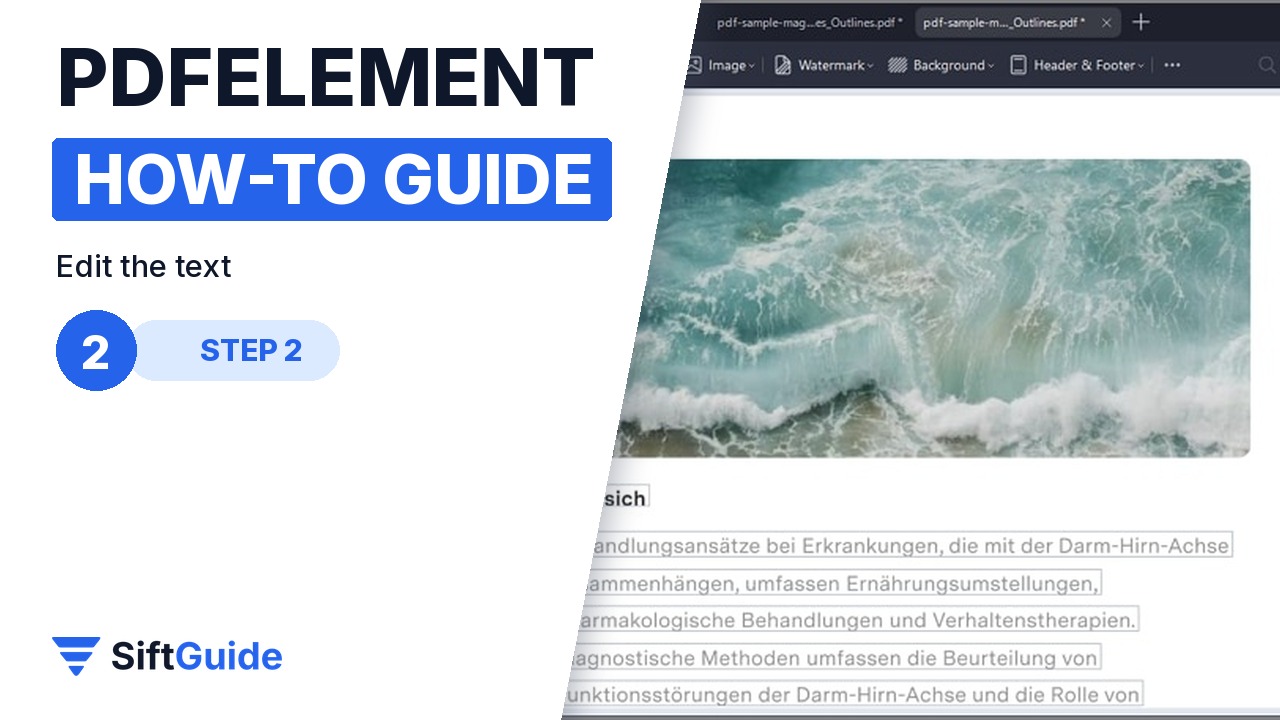
Open the Edit menu at the top and choose Text, then click into any paragraph and type. Formatting lives in the Properties panel on the left: font, size, colour, alignment and spacing. Wondershare also lets you switch to line mode in Preferences if you prefer to edit one line at a time, and Ctrl + F opens search and replace for fixing the same word everywhere at once.
Step 3: Turn scans into searchable text with OCR
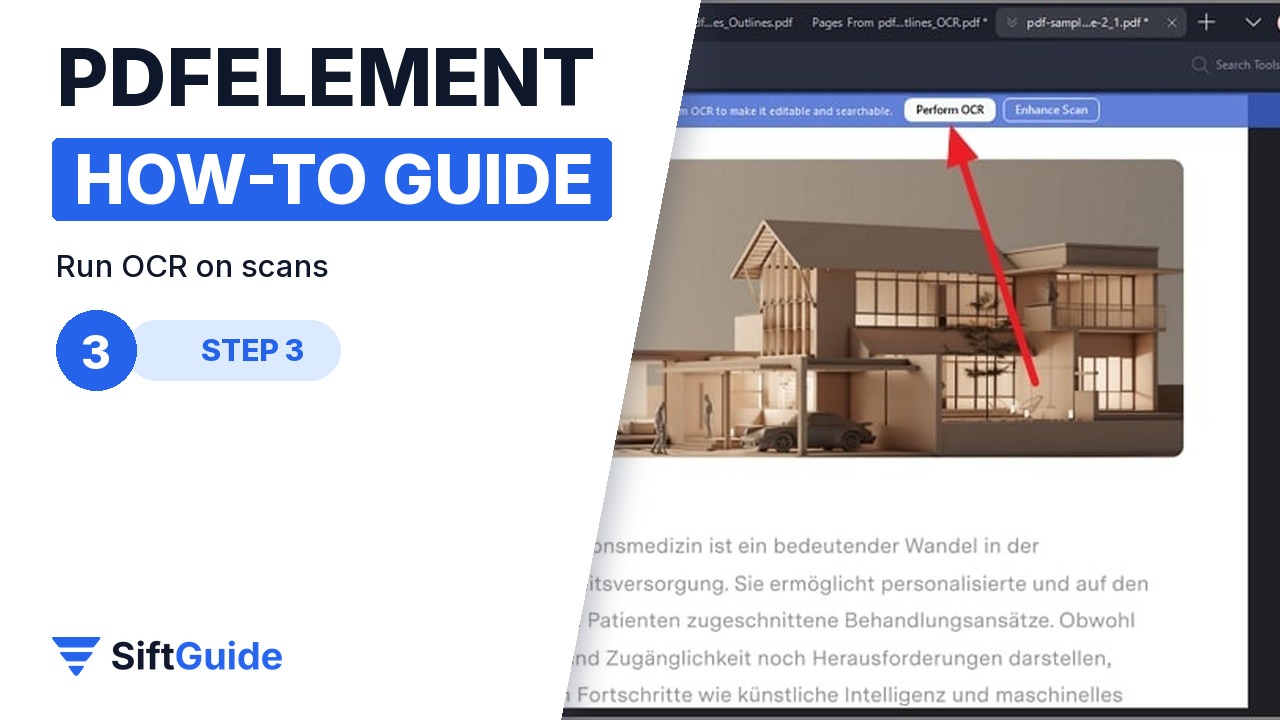
A scanned page is just a picture until you run OCR. Click Perform OCR at the top of the document, choose the document language and confirm with OK. When it finishes, the text can be selected, searched, copied and edited like any other PDF. The first time, PDFelement may ask you to download the OCR component; Wondershare has a separate guide for installing it.
Step 4: Convert to Word, Excel or PowerPoint
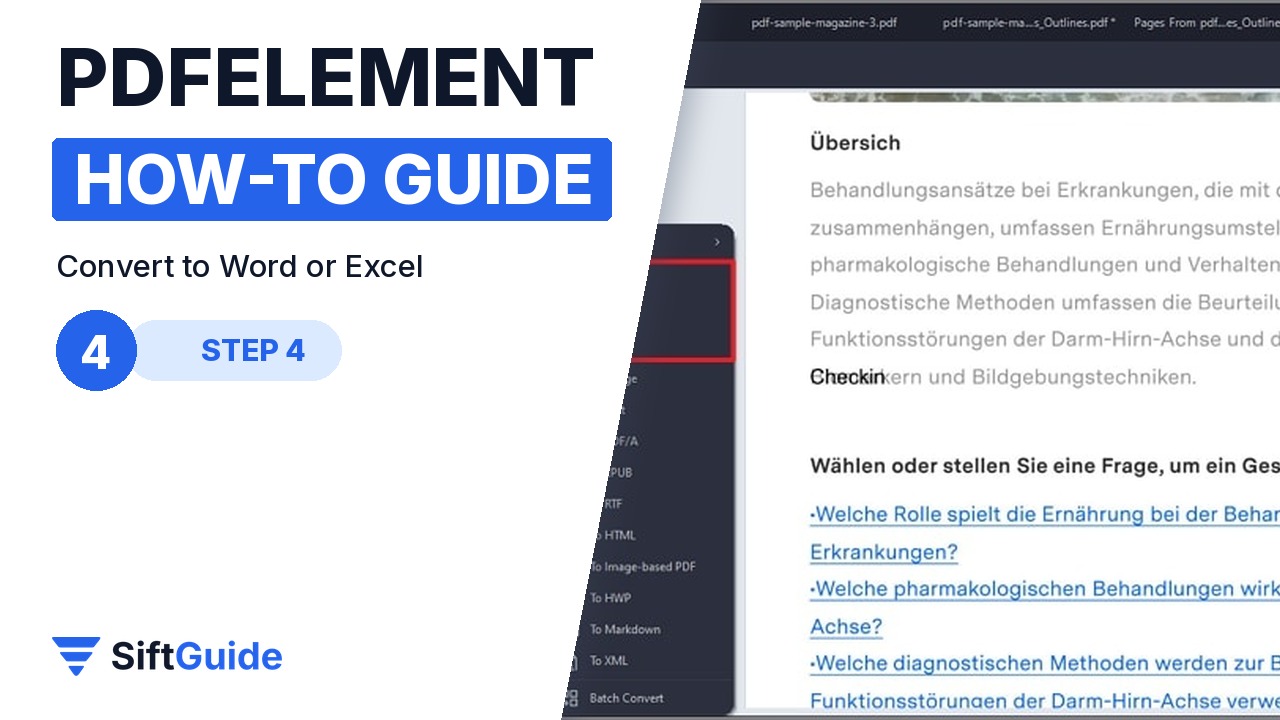
Click Convert in the left sidebar and pick the format you need: Word, Excel, PowerPoint, image, text and more. You can also hover over the top-right corner of a page to show floating conversion icons. Set the output options, press OK, and the converted file is saved to your chosen folder. Wondershare says fonts, layouts, tables and images are preserved.
Step 5: Compress the file before you email it
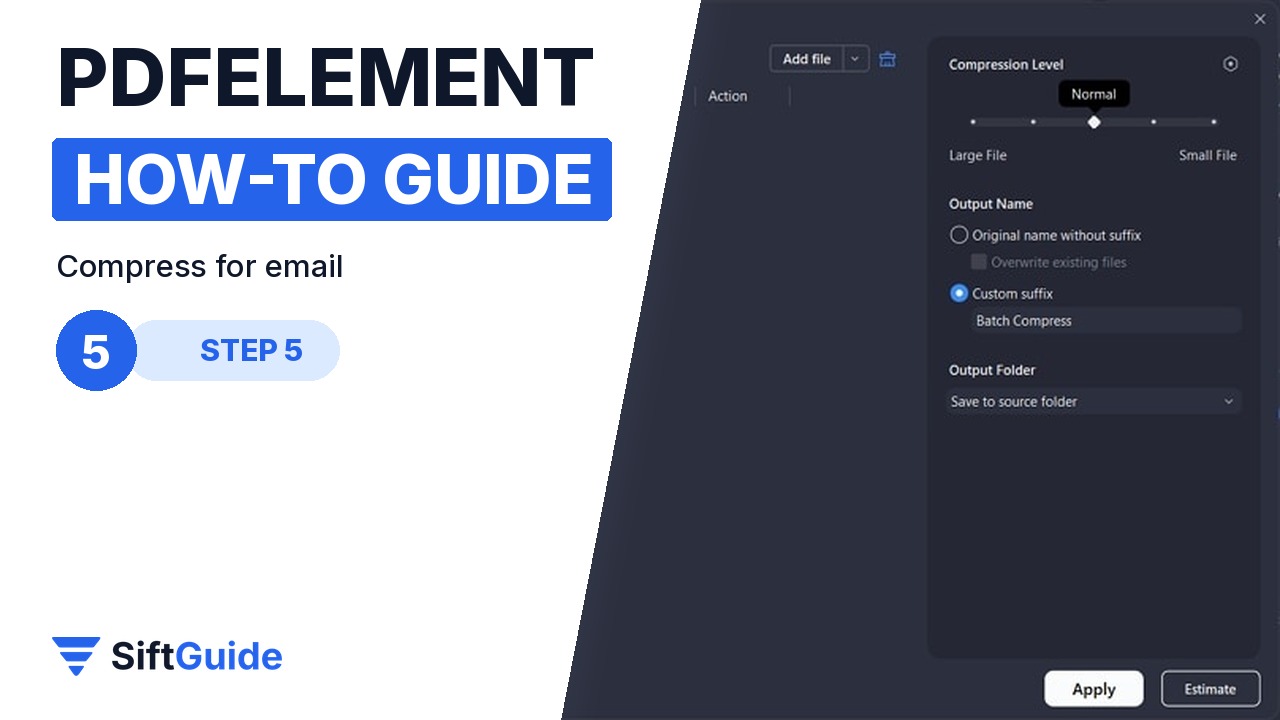
Go to Tools in the left sidebar and choose Compress, or use Compress PDF on the home screen. Pick a level, from Super Fast and Fast through Normal and Maximum to Ultra, check the estimated size and click Apply. Start with a lighter level for documents with photos you want to keep sharp.
Pro tip
Before you send a contract you edited, run search and replace (Ctrl + F) for names, dates and amounts, then save a copy under a new name. Keep the original file untouched: if something goes wrong in an edit you can always go back, and it gives you a clean version to compare against.
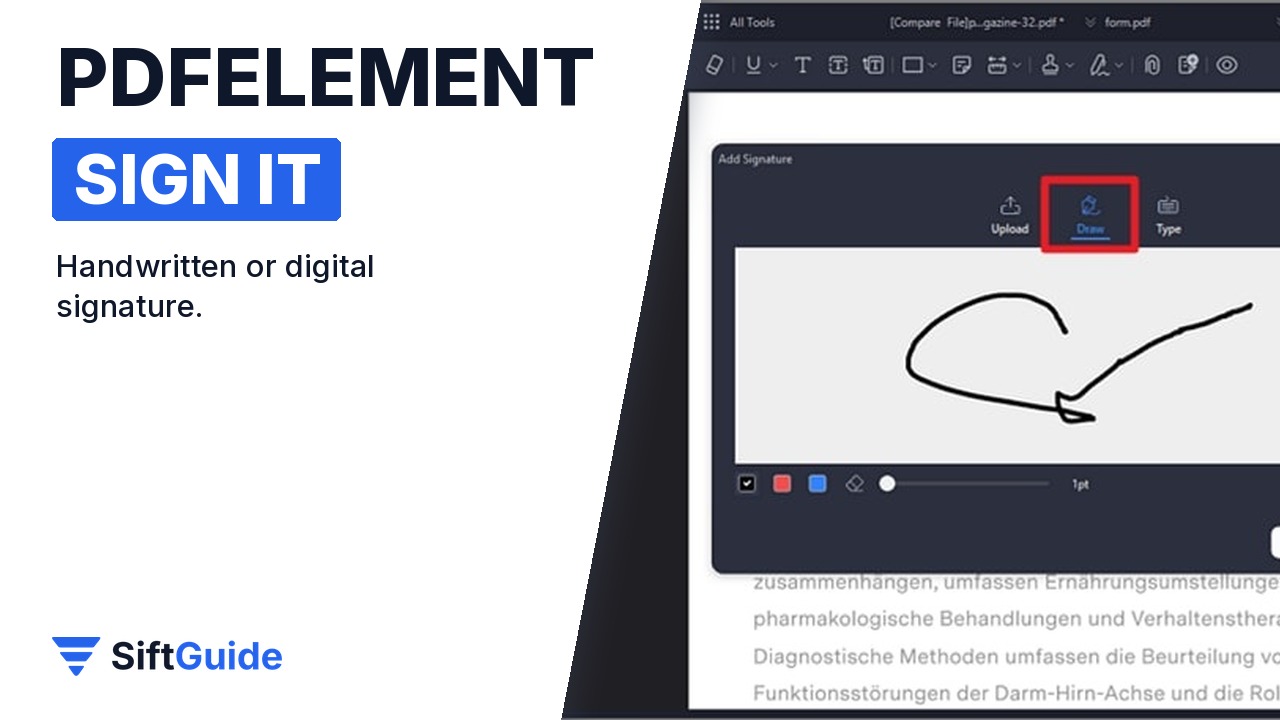
Finish by signing: PDFelement can add a handwritten signature (drawn, typed or from an image) or a digital signature with a digital ID, and it can send documents to other people for e-signature. That closes the loop: open, edit, convert, compress and sign without leaving the app.
Wondershare PDFelement Pro
All-in-one PDF editor for Windows and Mac: create, edit, annotate, OCR, convert to Word/Excel/PowerPoint, compress, organise pages, fill forms, protect and e-sign PDFs, plus AI tools for summarising and translating. Price in the Wondershare affiliate feed for the PDFelement Pro yearly plan in October 2026: $79 per year. Prices and promotions change, so check before you buy.
FAQ
Can I try PDFelement for free?
Yes. You can download PDFelement for free and test the tools. The free version has limits (for example a watermark on saved files); a paid plan removes them.
Does PDFelement have OCR?
Yes. Open a scanned PDF and click Perform OCR, pick the language and confirm. The text becomes searchable and editable.
Can PDFelement convert PDF to Word and Excel?
Yes. Use Convert in the left sidebar and choose Word, Excel, PowerPoint or another format. Fonts, tables and layout are kept as closely as possible.
How do I make a PDF smaller in PDFelement?
Go to Tools, then Compress, choose a level from Super Fast to Ultra and click Apply.
