
Most people open a video converter for the same few reasons: a phone clip will not play on the TV, a screen recording is too big to email, or a long recording needs to be cut into shorter pieces. Wondershare UniConverter (formerly Video Converter Ultimate) handles all three in one desktop app for Windows and Mac. Version 18 lists support for more than 1,000 media formats, batch processing and a new Watch Folder automation. This guide follows Wondershare’s official UniConverter user guide for Windows, in the order you will actually use the tools.
Disclosure: this guide contains affiliate links (Awin). If you buy through them we may earn a commission at no extra cost to you. Specs come from the official product page.
What you need
- A Windows PC (a Mac version is also available)
- UniConverter installed (free trial from Wondershare; a paid plan removes the trial limits)
- The video files or folder you want to convert
- Enough free disk space for the converted copies
- Optional: an NVIDIA graphics card with current drivers for GPU-accelerated conversion
Step 1: Install UniConverter and open Converter
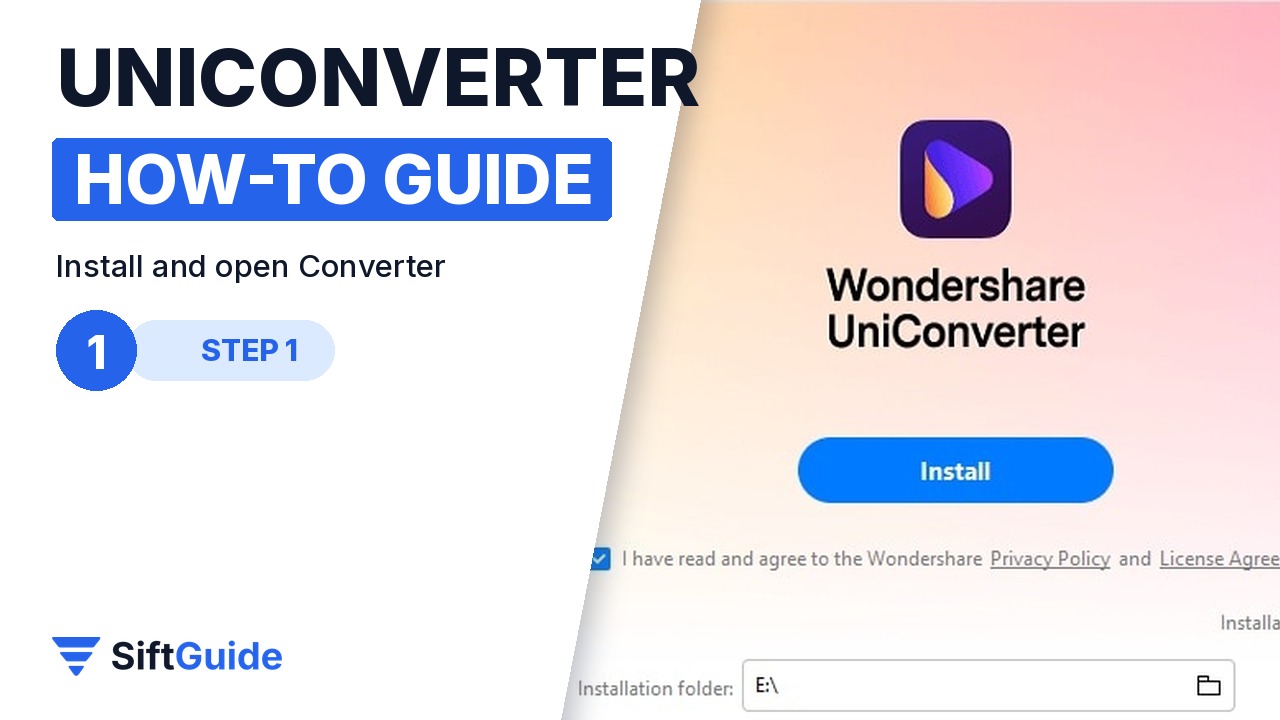
Download the installer from Wondershare and click Install. If you want a different language or folder, open Installation settings first. When the app starts, the Home screen shows the main tools (Converter, Compressor, Editor and more) plus the AI Lab; click Converter to open the conversion workspace.
Step 2: Add files, or a whole folder
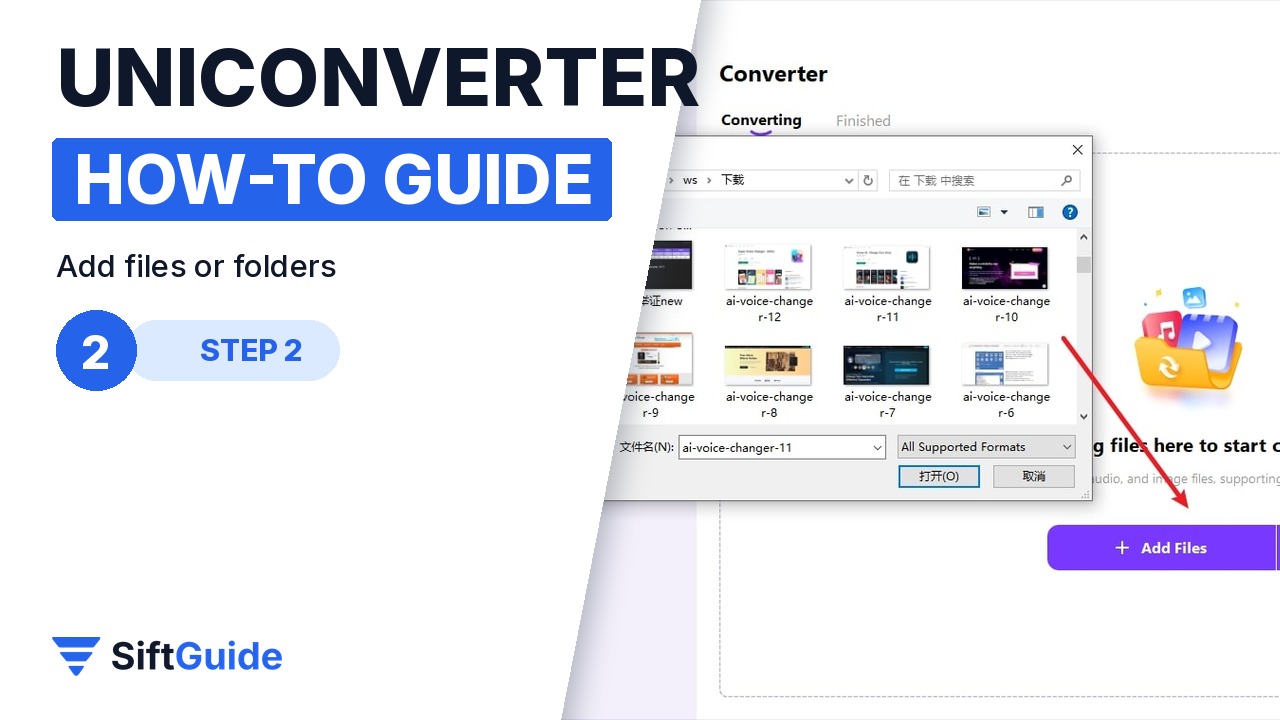
In the Converter, click Add Files, or open the small drop-down arrow next to it to choose Add Folder, Add from Device or Add from Camcorder. The quickest way is drag and drop: pull the videos from File Explorer straight into the window. Each file then appears in the Converting tab with its source details, audio track and subtitle options.
Step 3: Choose the output format
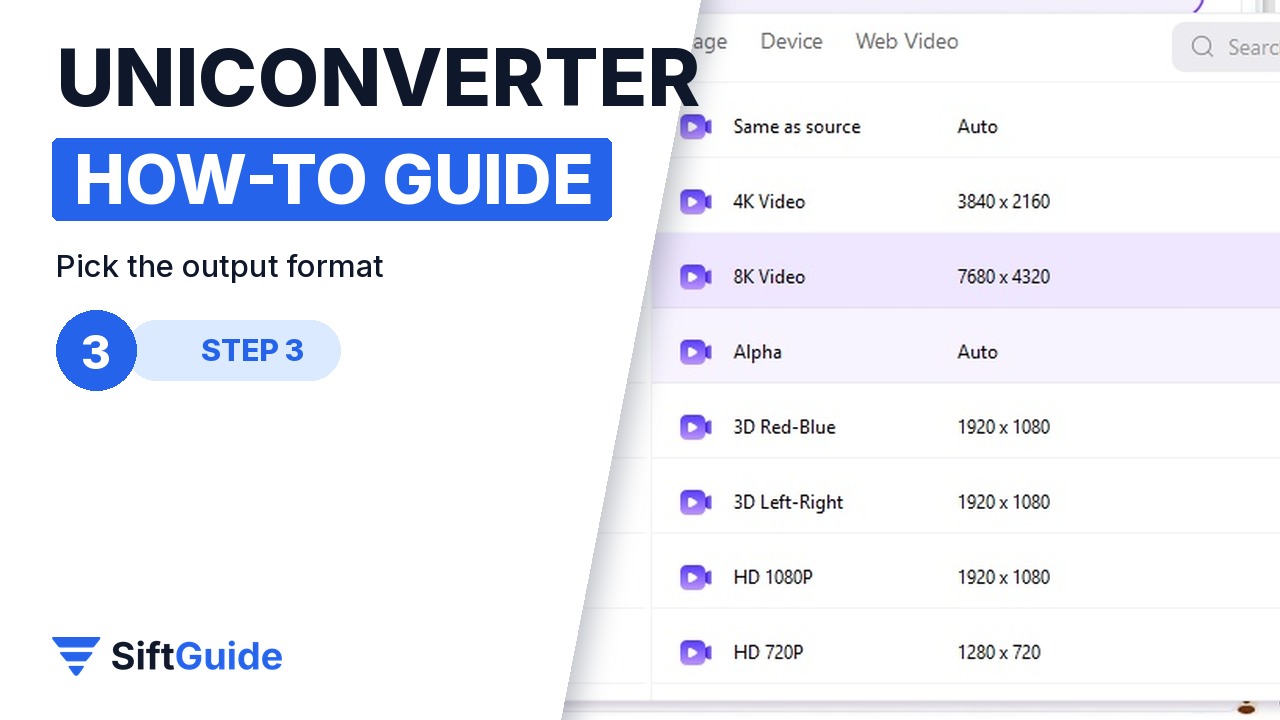
Click the Convert to drop-down at the bottom of the window. In the Video tab you can pick MP4, MOV, MKV, AVI and many more, then a resolution preset such as HD 1080P, 4K Video or 8K Video. There are also Device and Web Video tabs if you just want a file that plays on a specific phone or uploads cleanly. The settings icon next to a preset lets you fine-tune bitrate, frame rate and audio.
Step 4: Turn on High Speed Conversion and convert
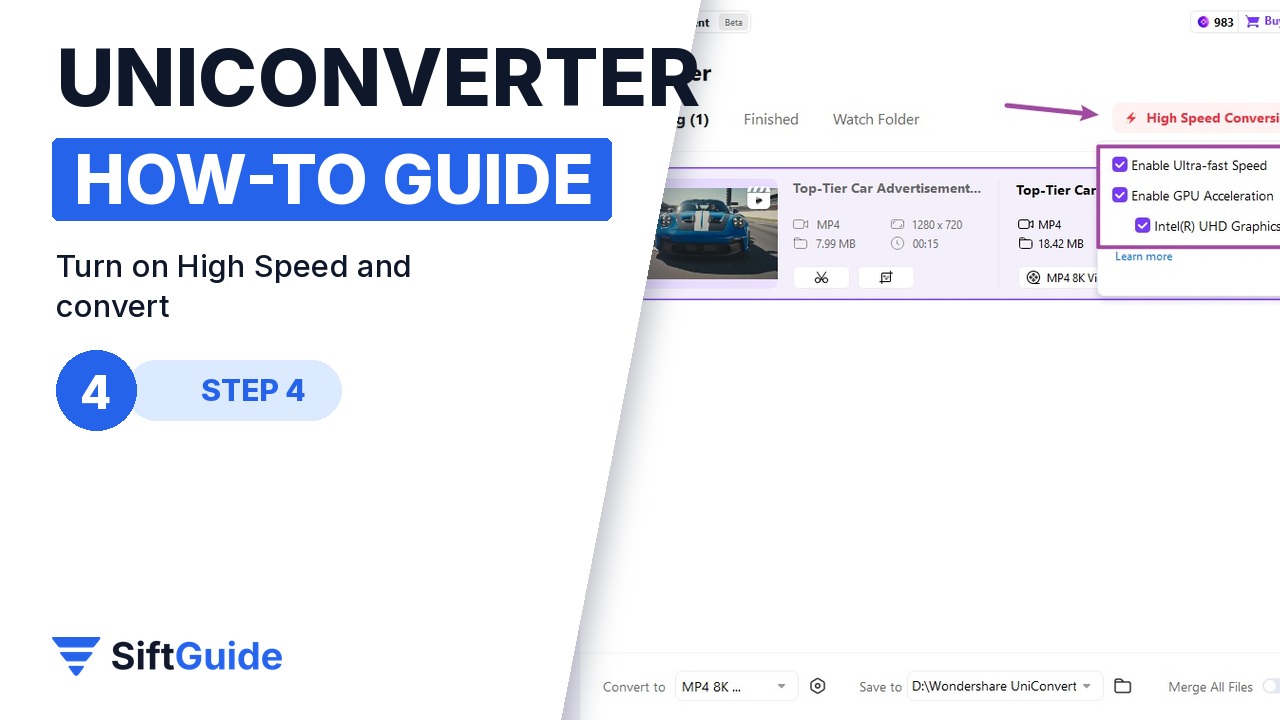
At the top of the Converter, open High Speed Conversion and enable Ultra-fast Speed or GPU Acceleration (what is available depends on your hardware and drivers). Pick a destination in the Save to field at the bottom and click Convert All. Finished files move to the Finished tab, where you can open the folder or play them right away.
Step 5: Compress a video to a target size
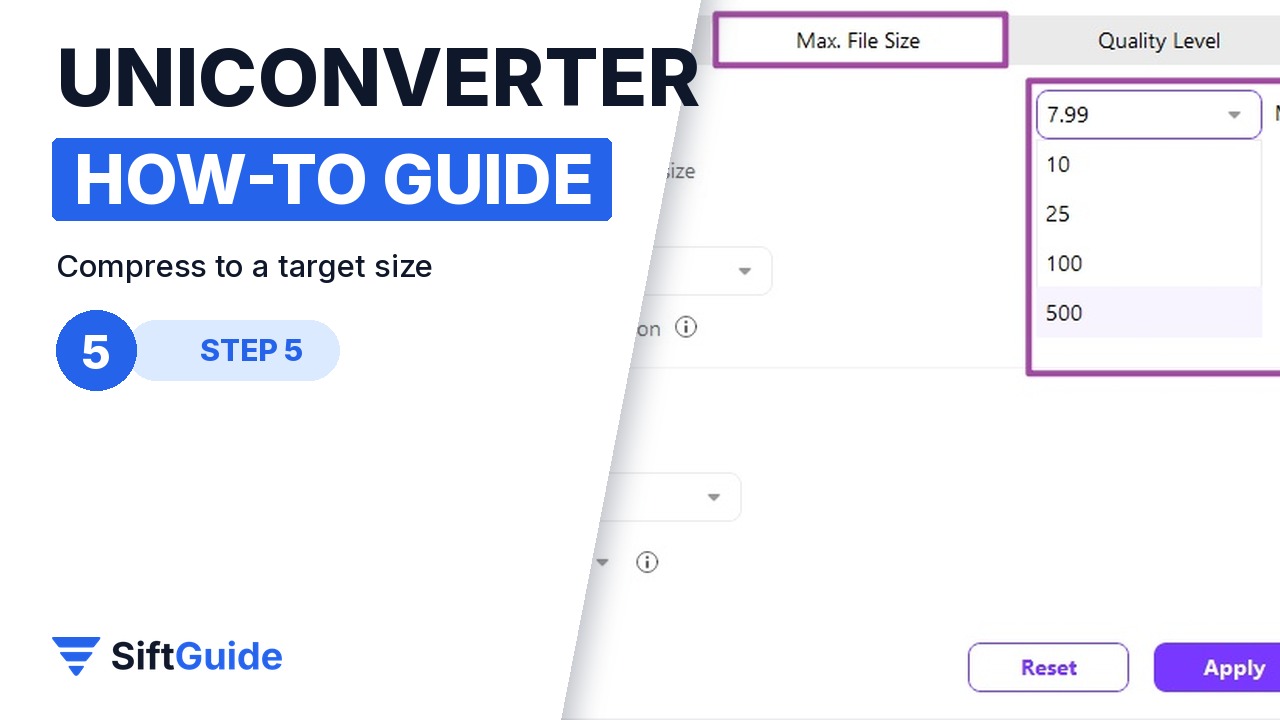
Open Compressor from the Home screen and add your video. In Compression Settings choose Size Ratio, Max. File Size or Quality Level. Max. File Size is the handy one for email and upload limits: type a number in MB and UniConverter aims for it. Fast Mode uses one pass; Precise Mode uses two passes for more accurate sizes. Click Preview to check the result before you apply it.
Pro tip
Convert one short test clip before you queue a whole folder: check the picture, sound and subtitles in the Finished tab, then batch the rest with the same settings. If you get the same kind of files every week, Watch Folder (new in version 18) can apply saved rules automatically as files land in a folder.
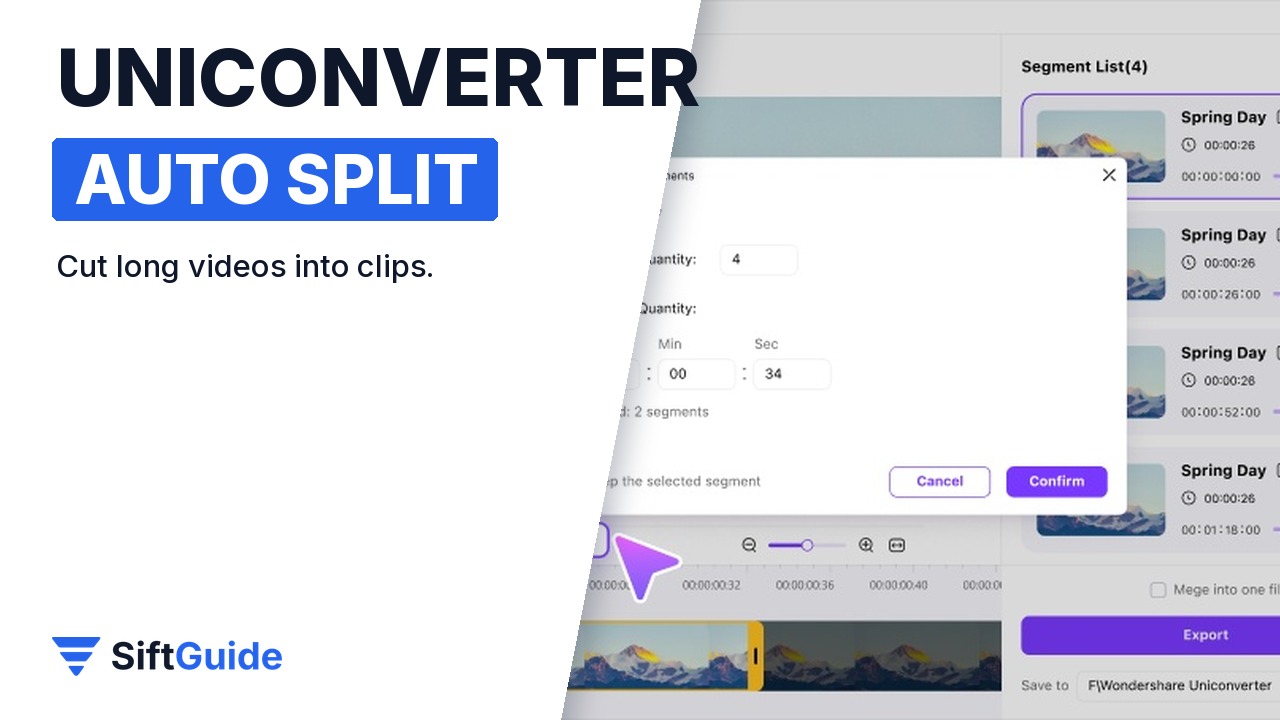
Bonus: auto-split long videos. The Auto Cutter tool splits a long recording into a set number of clips, or into clips of a fixed length, without re-encoding the quality away. Tick Merge if you want to stitch selected parts back together, or Export All to save every clip.
Wondershare UniConverter for Windows
All-in-one video toolbox for Windows and Mac: conversion between 1,000+ formats with 4K/8K presets and GPU acceleration, batch processing and Watch Folder, target-size compression, auto cutter, editor, screen recorder and AI enhancement tools. Price in the Wondershare affiliate feed for the UniConverter Annual Plan for Windows in October 2026: $39.95. Prices and plans change, so check before you buy.
FAQ
Is UniConverter free?
There is a free trial with limits. A paid plan (annual or perpetual) removes them; check Wondershare’s current plans before buying.
Does UniConverter run on Mac?
Yes. Wondershare publishes separate Windows and Mac versions, with a separate user guide for each.
Which format should I pick for a TV or phone?
MP4 with H.264 is the safest general choice. If you are unsure, use the Device tab in the Convert to menu and pick your phone or TV brand and model.
Why is GPU acceleration greyed out?
It depends on your graphics card, drivers and the output settings. Updating your NVIDIA driver usually helps; Wondershare has a separate guide for enabling NVIDIA acceleration.
